Selecting Criteria for a Search
Access the Search Criteria page ().
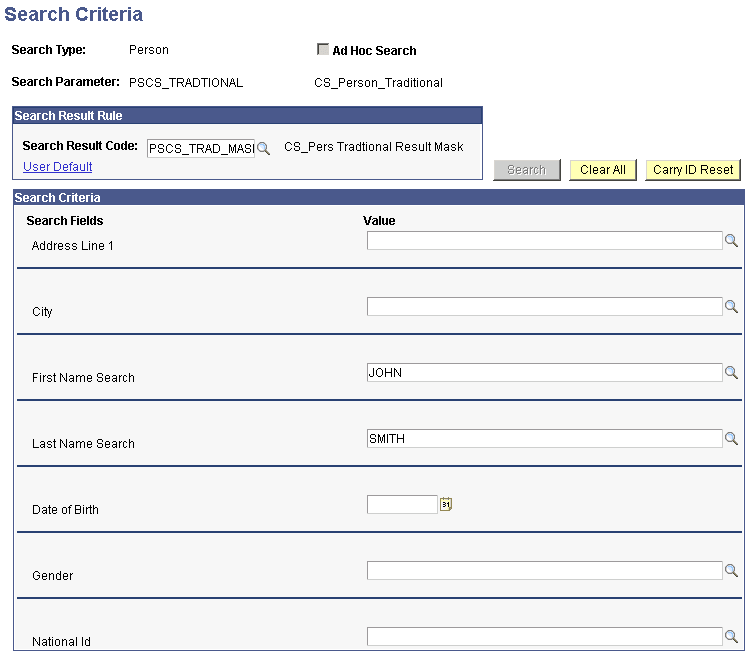
This example illustrates the fields and controls on the Search Criteria page (1 of 2). You can find definitions for the fields and controls later on this page.
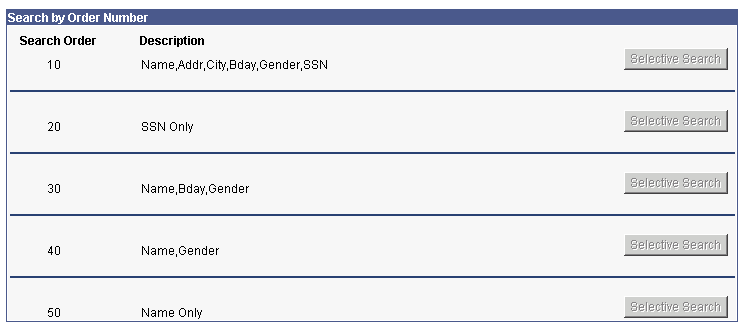
This example illustrates the fields and controls on the Search Criteria page (2 of 2). You can find definitions for the fields and controls later on this page.
| Field or Control | Description |
|---|---|
|
Search Type |
The system displays the search type (Person or Organization) selected to access the page. |
|
Search Parameter |
Displays the parameter code selected to access the page. The search parameter prompt on the search dialog page allows you to select only the search parameters to which your security roles permit you access. Depending on your responsibilities, you might need to access the Search/Match page several times a day. If you use the same search parameter frequently, you can save it prior to accessing the Search/Match page by clicking the Save Search Criteria link on the search dialog page. Then, in the future, you can select it from the Use Saved Search prompt. |
|
Ad Hoc Search |
The system selects this to indicate that the Search Parameter code is set to perform a custom ad hoc search. An ad hoc search enables you to bypass the institution's predefined search standards to perform a custom search without predefined operands and without limiting the characters to evaluate. For example, an ad hoc search might be first name equals John, whereas, a non-ad hoc search might be set to search only on the first three characters of the first name (in this case, Joh). For an ad hoc search, the Search Criteria page displays the Search fields set up inside the search parameter code that you selected; and an Operand field appears for each search field. The Operand field enables you to perform a search that begins with, contains, or equals the search value that you enter. Also, for ad hoc searches, the Search by Order Number area of the page does not apply and therefore does not appear. |
Search Result Rule
| Field or Control | Description |
|---|---|
|
Search Result Code |
Select the search result code to use for displaying the results of this search. The search result code contains all of the information regarding how to display the IDs retrieved by Search/Match and what data to return to help you quickly determine whether an ID already exists for the constituent for which you are looking. |
|
User Default |
Click to access the Default Search Result page where you can select a search result code to use as a default value for this search type. The system permits one default search result code per search type for each user ID. |
|
Carry ID Reset |
Click to reset a carried ID to New. On the Search Results page, you can select to carry an ID as you access pages to further investigate a potential duplicate. When you click Carry ID Reset, the system stops carrying the selected ID and uses an ID of New instead. This is especially useful when you need to access pages that create new IDs. |
Search Criteria
| Field or Control | Description |
|---|---|
|
Search Fields |
The system displays each of the search fields associated with the search parameter that you selected. |
|
Operand |
These fields appear only when the search parameter permits ad hoc searches. When the parameter permits ad hoc searches, the system selects the Ad Hoc Search check box and hides the Search by Order Number area of the page. Select the operand to perform the search. The valid values are Begins With, Contains, and Equals. These values are delivered as translate values and should not be changed. |
|
Value |
For each search field that you specify, enter the value to search for. If predefined values are available (such as for gender), you can select from them from the prompt. If no predefined values exist, you can type the data directly into the value field. |
|
Clear All |
Click this button to clear all entries in the Value fields. |
|
Search |
Click this button to launch a search on all of the values that you entered and to retrieve results for the most restrictive search order number defined in the Search Parameter that you selected. When the search is complete, the system transfers you to the Search/Match Results page. Note: When you click Search, the system searches only for the data specified. It filters the search orders that are defined for the Search Parameter that you selected. For example, if Search/Match finds at least one potential matching ID at search order number 10, it will stop the search and display the results obtained at search order number 10. If no potential matching IDs are found, the search continues to the next search order number, and so on. If you want to search using a specific Search Order number, use the Selective Search button for that order number. |
Search by Order Number
This area of the page appears only if the Ad Hoc Search box is not selected.
When you enter criteria in the Value fields, the Selective Search button for the search order defined with the fields becomes available.
Click the Selective Search button to conduct specific searches.
When the search is complete, the system transfers you to the Search Results page.