Viewing Search Results
Access the Search Results page (enter criteria on the Search Criteria page and click Search or click one of the search by order number Selective Search buttons to launch a manual search).
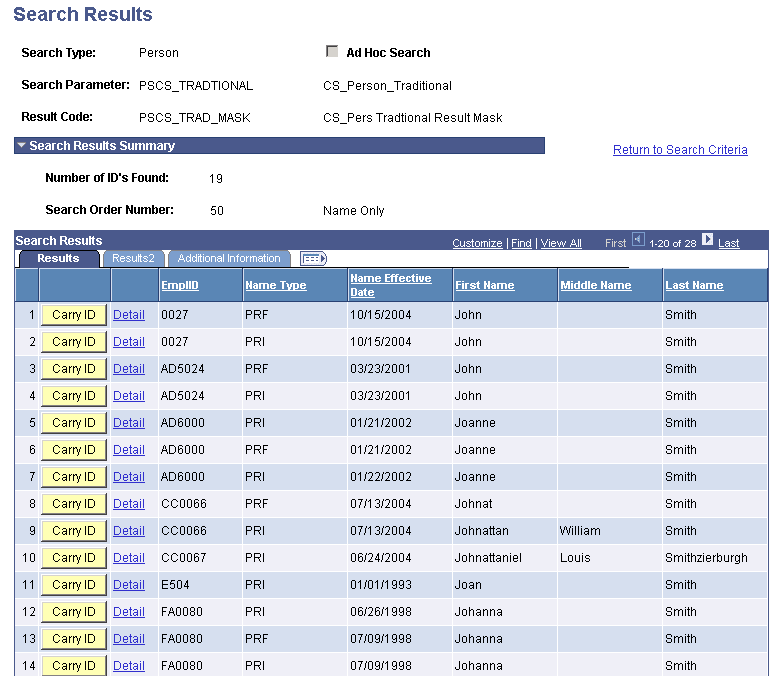
This example illustrates the fields and controls on the Search Results page for a manual search. You can find definitions for the fields and controls later on this page.
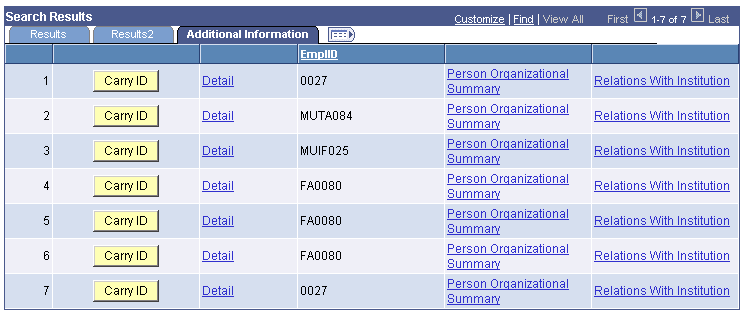
This example illustrates the fields and controls on the Search Results page, Additional Information tab (for an automatic search). You can find definitions for the fields and controls later on this page.
When you enter criteria on the Search Criteria page and click Search or any of the search by order number Selective Search buttons, the system launches the search and transfers you to the Search Results page with the results displayed as shown in the sample page above.
For an automatic search, the Search Results page is displayed as shown in the sample page below. That is, if Search/Match is set to launch automatically with both the search parameter permission and search result permission configured with a component name that allows the creation of IDs. When you try to add an ID on a component that is set up that way and at save time, Search/Match detects potential duplicates, the Search Results page displays a warning message indicating that at least one potential ID in the database matched the data that was entered to create the ID.
This example illustrates the fields and controls on the Search Results page, Results tab (automatic search). You can find definitions for the fields and controls later on this page.
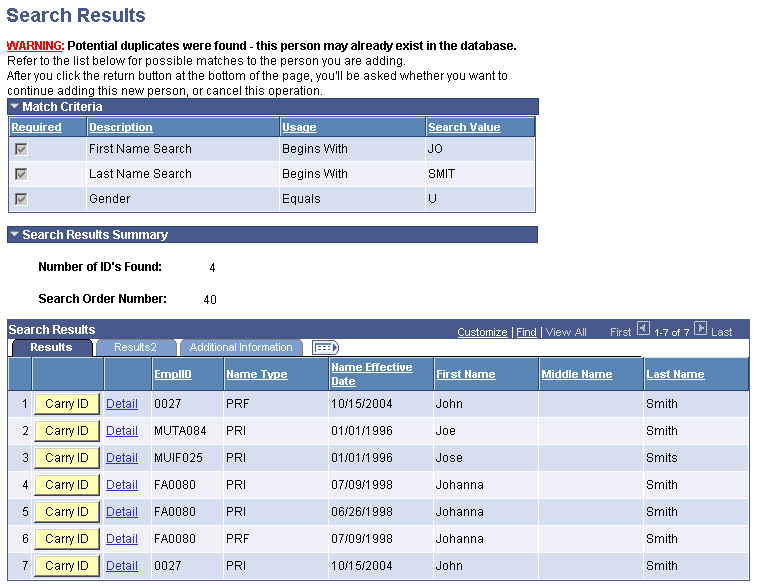
See Understanding Automatic Search.
On either version of the Search Results page, you can view the list of results returned by the search, view the details of any record returned in the search, and click Carry ID to have the system carry the ID forward as you subsequently access pages for further investigation.
Search Results Summary
| Field or Control | Description |
|---|---|
|
Number of ID's Found |
Displays the number of IDs that met the search criteria. This number may be smaller than the number of rows returned in the Search Results grid because the grid might include the same ID multiple times. If the name field is included in the search result code selected, the search returns rows for each name type and effective date that match the search criteria entered. If the national ID field is included in the search result code, the search returns rows for each national ID entered for the record matching the search criteria. |
|
Search Order Number |
Indicates the search order number at which results were found and indicates how precise the search was—the lower the number, the more restrictive the search and the greater the chance of having found duplicate IDs. This number can be used as an indicator of how close the returned IDs match the criteria entered. |
Search Results
Columns appear on the Results and Results 2 tabbed pages based on the search result code selected. Depending on the user's role security, some values in the columns might be masked, partially masked, or fully displayed.
| Field or Control | Description |
|---|---|
|
Carry ID |
Click this button for the system to capture and carry the ID to the ID field of the search box on the pages that you subsequently access so that you do not need to remember the ID. |
|
Detail |
The Detail link appears if the selected search result code was configured to provide the user with a link to a page for more information about an ID. |
Search Results, Additional Information Tab
This tab appears only when the search type is Person.
| Field or Control | Description |
|---|---|
|
Person Organizational Summary |
Click to access the Person Organizational Summary page, on which you can review the status of this person of interest record. |
|
Relations With Institution |
Click to access the Relations with Institution Detail page, on which you can determine the type of relations that the individual has with your institution and further clarify whether this is the individual for whom you are searching. Note: The Relations With Institution link appears only if Student Administration or Contributor Relations is selected on the Installation Table (INSTALLATION_TB1) page. |