Setting Up Entity Registry
Access the Entity Registry page ().
The Shopping Cart framework uses the Entity Registry component for processing shopping cart requests specific to the Campus Solutions application. Use the Entity Registry component to define entity registries for each application-specific cart.
See Setting Up Entity Registry.
In the previous subsection (Creating Application Classes), we created two application classes: CourseShoppingCart and CourseShoppingCartItem. We now attach each of these classes to an entity. Access the Entity Registry component to create a parent and at least one child entity. Any entity structure for an application-specific shopping cart should include a parent class that extends the base ShoppingCart class. This parent class provides implementation for all of the service operations. The child class is needed because it points to the actual application-specific cart item table. If the application-specific feature has multiple child item tables, then you should create entities for all children and also define the parent-child relationship in the Entity Registry component.
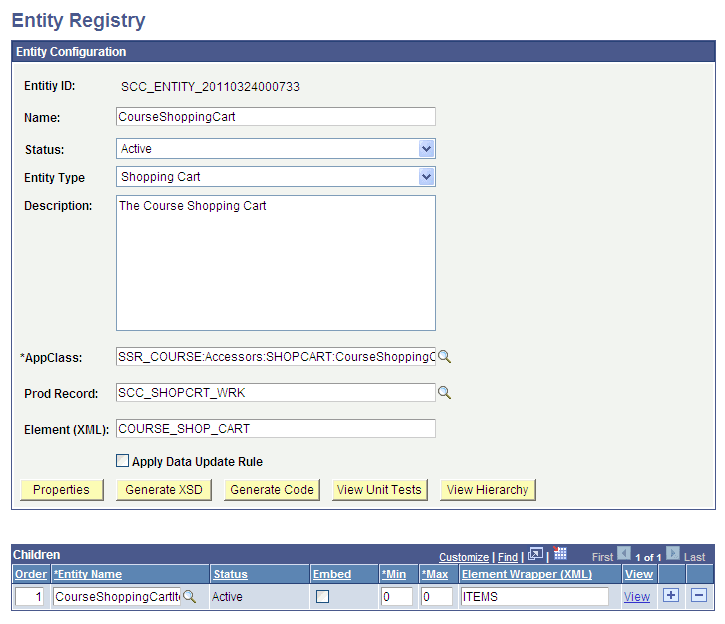
Create the parent entity with the following configuration:
-
Specify the entity name as XXXShoppingCart.
This is similar to how you named the application class in the previous subsection. XXX refers to the feature for which you are creating a shopping cart.
-
Select a value of Shopping Cart in the Entity Type field.
-
For the AppClass field, select the application class you created in the previous subsection for XXXShoppingCart.
-
For the Prod Record field, select the work record SCC_SHOPCRT_WRK because the entity has nothing to save.
This example shows the parent entity, named CourseShoppingCart, which we created for the enrollment shopping cart:
This example illustrates the fields and controls on the Configuration example of a parent entity (CourseShoppingCart). You can find definitions for the fields and controls later on this page.
Create the child entity with the following configuration:
-
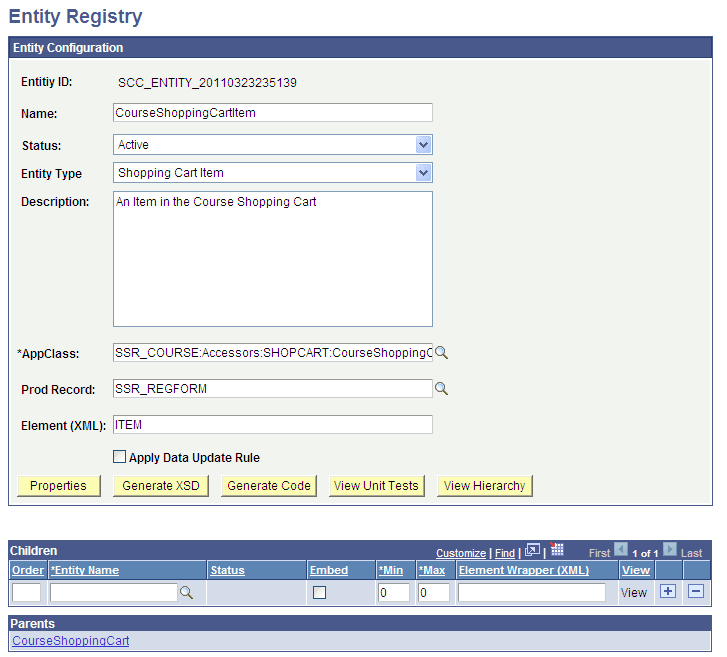
Specify the entity name as XXXShoppingCartItem.
This is similar to how you named the application class in the previous subsection. XXX refers to the feature for which you are creating a shopping cart.
-
Select a value of Shopping Cart Item in the Entity Type field.
-
For the AppClass field, select the application class you created in the previous subsection for XXXShoppingCartItem.
-
For the Prod Record field, select the application-specific item table that holds the cart items.
This example shows the child entity, named CourseShoppingCartItem, which we created for the enrollment shopping cart:
This example illustrates the fields and controls on the Configuration example of a child entity (CourseShoppingCartItem). You can find definitions for the fields and controls later on this page.
Note:
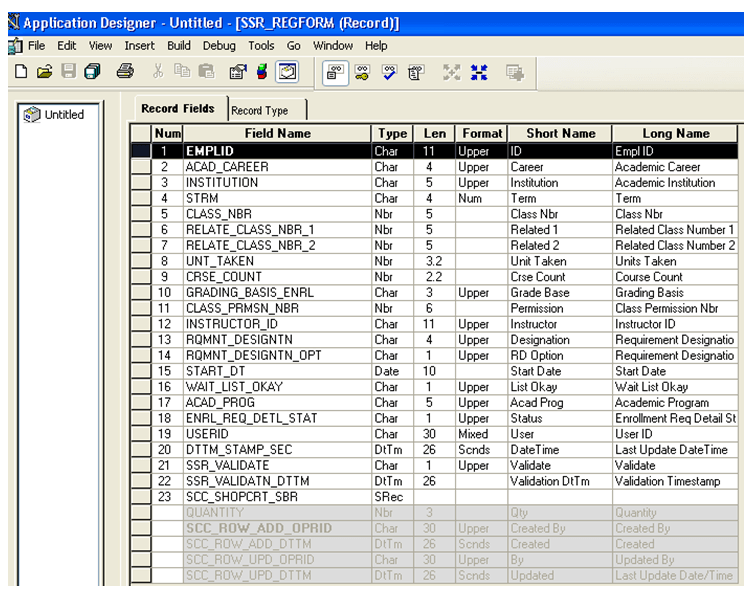
The record you enter in the Prod Record field for the child entity must contain the SCC_SHOPCRT_SBR (CommonSubRecord) sub record. That is, you must include SCC_SHOPCRT_SBR in the application-specific item table. This enables the common system data to be tracked by the Shopping Cart framework without any effort from the adopting feature. The SCC_SHOPCRT_SBR sub record contains the Shopping Cart framework's common fields that an adopting feature should include.
The following example shows how you should create the production record for the child entity:
This example illustrates the fields and controls on the Example of a production record for a child entity. You can find definitions for the fields and controls later on this page.