Specifying General Parameters
Access the General Parameters page ().
This example illustrates the fields and controls on the General Parameters page. You can find definitions for the fields and controls later on this page.
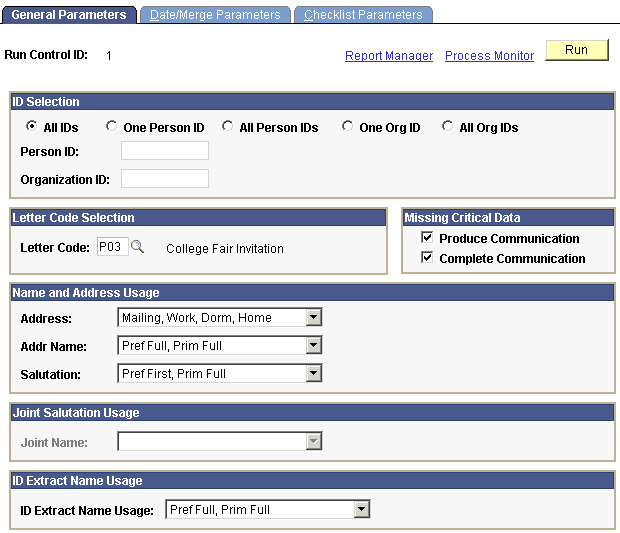
ID Selection
| Field or Control | Description |
|---|---|
|
All IDs |
Select to extract the data from all IDs (person IDs and organization IDs) that are assigned a communication with the letter code indicated and that are not marked complete. |
|
One ID |
Select to extract the data from the one individual ID indicated. The communication with the indicated letter code must be assigned to this individual. If you select the One ID option, specify the individual's ID in the Person ID field. |
|
All Person IDs |
Select to extract the data from all the individuals' IDs that are assigned a communication with the letter code indicated. |
|
One Org ID (one organization ID) |
Select to extract the data from the one organization ID indicated. The communication with the indicated letter code must be assigned to this organization. If you select the One Org ID option, specify the organization's ID in the Organization ID field. |
|
All Org IDs (all organization IDs) |
Select to extract the data from all the organization IDs that are assigned a communication with the letter code indicated and that are not marked complete. |
Letter Code Selection
| Field or Control | Description |
|---|---|
|
Letter Code |
Enter the letter code that identifies the template into which to merge the extracted data. Only those letter codes to which you have 3C group security access are available from the list. |
Missing Critical Data
| Field or Control | Description |
|---|---|
|
Produce Communication |
Select this check box for the process to produce the extract file even if critical data is missing (for example, address information or name of the recipient). |
|
Complete Communication |
Select this check box for the process to set the status to Complete even if critical data is missing. |
Name and Address Usage
Name and address usages apply to letters addressed to individuals. They do not apply to letters for organizations.
| Field or Control | Description |
|---|---|
|
Address |
Enter the type of address, from the Address Usage page, to extract for this letter. You can list address types in a preferred search-and-use order. For example, if you list an address usage that containsMailing, Billing, and Home the system searches for the mailing address first; if none exists, then the billing address; if none exists, the home address last. |
|
Addr Name (address name) |
Enter the type of name, from the Name Usage page, to extract for the address section of this letter. As with addresses, you can list address name types in a preferred search-and-use order. |
|
Salutation |
Enter the type of name, from the Name Usage Table page, that the system should extract for use in the opening or salutation of this letter. For example, you might want to use the individual's primary full name in the address section of the letter, but use his preferred first name in the salutation (Dear Dave). As with addresses, you can list salutation name types in a preferred search-and-use order. |
Joint Salutation Usage
| Field or Control | Description |
|---|---|
|
Joint Name |
The Joint Name field is available when the selected letter code is set on the Standard Letters page to allow joint communications. The joint names available in the list are those with the Joint Usage check box selected on the Name Usage page. The process extracts this salutation name usage for IDs set up for joint communications. |
ID Extract Name Usage
| Field or Control | Description |
|---|---|
|
ID Extract Name Usage |
Enter the ID name usage to use. The ID Extract Name Usage is an additional way to extract name data using the name usage. For example, you might want to use the individual's primary full name in the address section of the letter (Mr. Juan M. Dominguez), his preferred first name in the salutation (Dear Juan), and his last name in the text to say We are sure the Dominguez family will enjoy participating in this event. As with addresses, you can list ID name types in a preferred search-and-use order. |