Step 12: Activating the SCC_DA Web Service
To activate the web service:
-
Go to . The Service Operations - Search page appears.
-
Search for SCC_DA service, then select the SCC_DA_SUBMIT service operation.
-
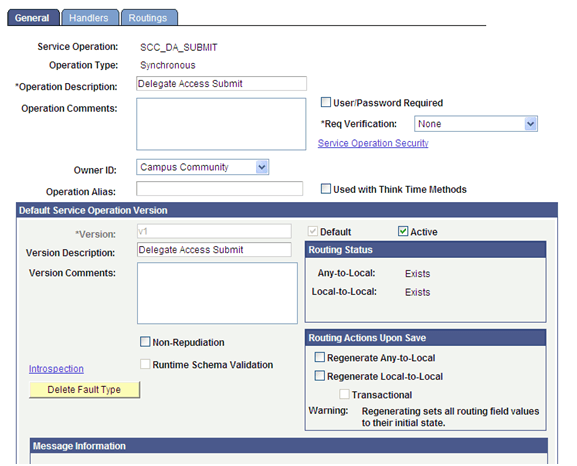
On the General page ensure that the SCC_DA_SUBMIT service operation is active and regenerate both ‘Any-to-Local’ and ‘Local-to-Local’ routing definitions.
This example illustrates the fields and controls on the Service Operations General Page for SCC_DA.
-
To access the Web Service Access page, click Service Operation Security.
-
On the Web Service Access page, make sure you select a permission list for which all users have access. This permission list must be included in a role that is granted to all your users. The proxy can have a newly created user ID or use an existing user ID, but make sure the proxy has access to a role that contains the permission list.
Note:
When you set up New User Registration, you are required to create a user ID called SCC_SS_TEMPLATE. This user ID is cloned when a new User ID is created. The user ID template needs to have access to the basic security role called Standard Non-Page Permissions. This role contains the HCSPSERVICE permission list. Proxies who create a new user ID automatically have access to the SCC_DA_SUBMIT web service operation.
-
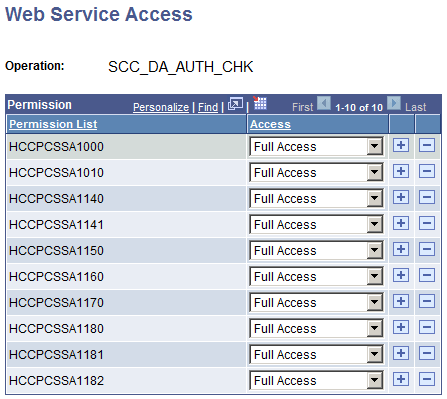
Perform steps 1–5 for the SCC_DA_AUTH_CHK service operation. In step 4, make sure all the permission lists that grant access to a delegated transaction are listed. For example, with the delivered sample delegated transactions, the following permission lists were created and should to be listed in the Service Operation Security:
This shows the Web Service Access Permission List Example.