Step 2: Creating an Entity Application Class
Along with the staging records you created for your CTM transaction (whether they are constituent staging records or transaction-specific staging records), you can create a supporting application class for each combination of staging and matching production records. Generally, this application class provides the properties, and adds any custom validation, pre-save, or setDefault logic. However, because it is an application class, anything can be overridden. To see all the methods refer to the Entity Registry section. The created application class needs to be entered in the Entity Registry component for the corresponding entity name.
Note:
The application class can be created blank. Entity Registry can help generate the needed base code, which can then simply be copied and pasted into application designer.
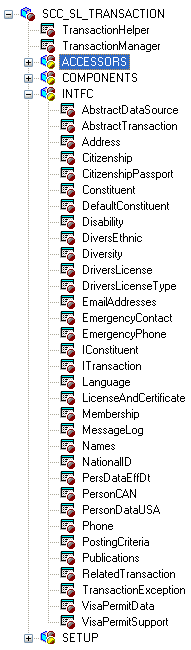
The following is an example of the SCC_SL_TRANSACTION:INTFC application package that comprises the delivered application classes used by CTM:
This example illustrates the fields and controls on the Example of application classes used by CTM. You can find definitions for the fields and controls later on this page.
Note:
If you created a new constituent entity, we recommend to not create the corresponding application class under the SCC_SL_TRANSACTION:INTFC application package. Instead, create a separate application package. This is because any modifications made to the delivered application package is considered a customization and might be overridden when a software update is delivered.
Note that this step is only to create a shell application class. You create a name for it using Application Designer, but the PeopleCode logic is created through Entity Registry.
For information on creating application classes using the Entity Registry component, see Setting Up Entity Registry, “Creating a New Entity.”