Understanding How Students Access Tasks in Classic Self Service
Campus Solutions delivers pagelets to give students access to tasks through a dashboard.
Note:
For the Current Tasks and Completed Tasks pagelets, Activity guides optimized for the Fluid interface are not displayed.
This example illustrates the delivered Current Tasks and Completed Tasks pagelets.
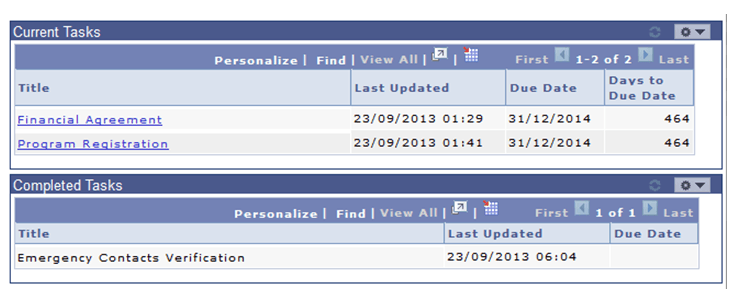
Current Tasks: The student can view and access their open active tasks (based on matching EMPLID in context data) in the Current Tasks pagelet. The pagelet defaults to expanded and displays the following values for each task:
-
Title (displayed as a link to access the task in the Student Task WorkCenter).
-
Last Updated.
-
Due Date (if defined for the final action item).
-
Days to Due Date (only displayed if Due Date is defined).
The student can click the Title link to access the Student Task WorkCenter, where he or she can complete the task.
The pagelet displays only those tasks that satisfy all of the following conditions:
-
Status = In Progress
-
Active = Y
-
The Start Date of the first action item is not after the current date
The pagelet does not display tasks with status of Completed or Cancelled, or with Active = N, or with Start Date in the future.
Tasks are ordered by due date ascending, that is earliest Due Date first, and if due date is same then the ordering is done alphabetically by title. Tasks without a due date are displayed last in alphabetical title order.
If there are no pending tasks, the pagelet displays a message: “No current tasks”. Use the PeopleTools Message Catalog component, if you want to change this message (Message Set = 14175, Nbr = 5).
Completed Tasks: The student can view but cannot access their completed tasks in the Completed Tasks pagelet. The pagelet displays only those tasks that have an instance status = Complete. Tasks with status of In Progress or Cancelled are not displayed.
Note:
This pagelet does not consider the Active flag. Completed tasks are displayed whether or not the Active flag is set.
Accessing Student Task WorkCenter from the Student Center page and the Personal Data Summary page:
Note that students can also access the Student Task WorkCenter from the To Do List section in the Student Center (required setup must be done in the Student Center Options page).
See:
This image illustrates an example of a To Do List in Student Center.
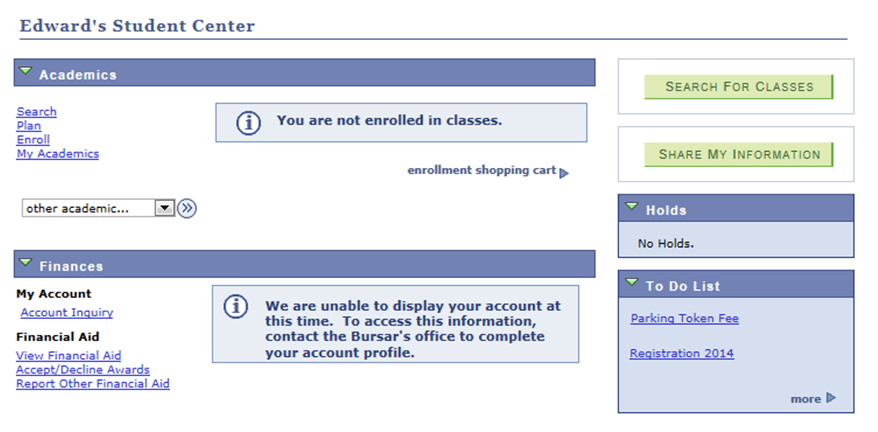
For example, a student can click the Registration 2014 link in the To Do List section of Student Center to access the Student Task WorkCenter. The student can click the More link in the To Do List section to access the To Do List page where the student can view more information about all the pending tasks and access the Student Task WorkCenter for completing a pending task.
This image illustrates an example of a To Do List page.
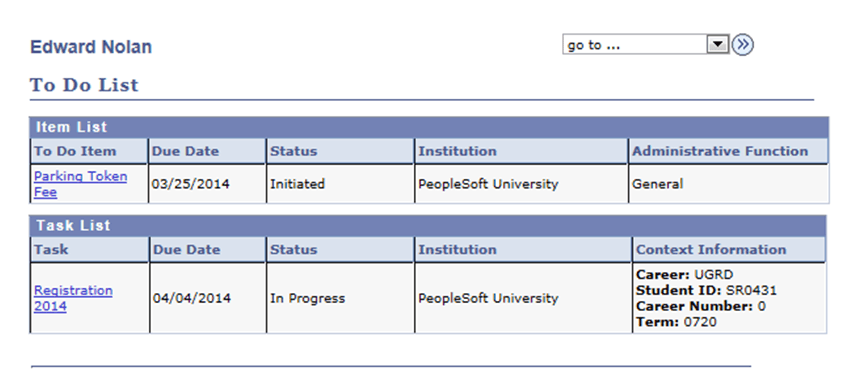
For more information on the To Do List page, see Campus Self Service: Using Self-Service Checklists Data.
The To Do List section is also available on the Personal Data Summary self-service page. For more information, see Campus Self Service: Displaying and Accessing Self-Service Personal Data.
Note that the Campus Community - Student Services Center component provides the ability for an administrator to see what a specific individual, such as a student, sees on Student Center self-service. For more information, see Viewing an Individual's Student Center Information.
In addition to access through the Current Tasks pagelet and through the Student Center and Personal Data Summary page, a link to the Student Task WorkCenter for the task can be embedded in email notifications. The system can send these notifications to the student when the task is assigned.
For more information about notifications, see Configuring Tasks.
For more information about administering dashboard pages, see Enterprise Components: Understanding WorkCenters and Dashboards.