Setting Up Satisfactory Academic Progress Self-Service Options
This section discusses identifying an informational URL for Satisfactory Academic Progress and defining custom text for various Satisfactory Academic Progress statuses in Financial Aid Self-Service.
Note:
These settings are not used to set up fluid functionality.
Page Used to Set Up Satisfactory Academic Progress Options
| Page Name | Definition Name | Navigation | Usage |
|---|---|---|---|
|
SAP |
SS_FA_INSTALL4 |
|
Control the display of the SAP informational link and SAP status text. |
SAP Options for Self-Service
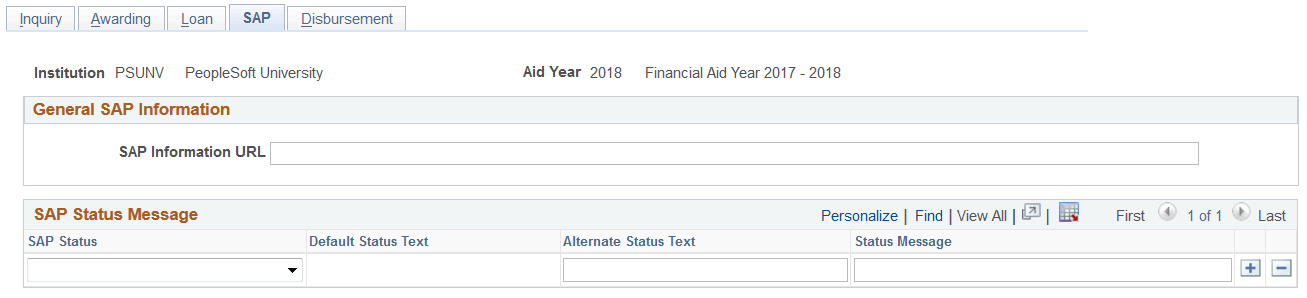
Access the SAP page ().
This example illustrates the fields and controls on the SAP (Satisfactory Academic Progress) page. You can find definitions for the fields and controls later on this page.
| Field or Control | Description |
|---|---|
|
SAP Information URL |
Enter the URL to display on the SAP Detail page. If populated, this URL is accessible to students when selecting the SAP link from the Self-Service Student Awards page. If left blank, a link does not appear. |
Satisfactory Academic Progress Status Messages
In the SAP Status Message group box, set up text to be displayed for each of the system SAP statuses used in the Packaging Status Summary.
| Field or Control | Description |
|---|---|
|
SAP Status |
Select one of the SAP statuses used in the Packaging Status Summary. |
|
Default Status Text |
Displays the SAP Status translate value long name. This displays as the SAP Status on the student's SAP Detail page if there is no Alternate Status Text defined. |
|
Alternate Status Text |
Optionally enter alternate SAP status text to display on the Student SAP Detail page instead of the Default Status Text |
|
Status Message |
Optionally enter additional text explaining the SAP status. |