Configuring Web Services for Setup Data
Oracle delivers several EIPs to automate the process of synchronizing setup data between CS and HCM; this ensures that the setup data underlying the transactional data remains in sync. Other delivered EIPs enable your institution to integrate data in support of External Search/Match and core business processes.
Note that person data EIPs are designated sync or fullsync. Fullsync EIPs republish all the data in their source records at once. Incremental sync EIPs send real-time sync messages; as soon as you make a change in the database of record, the system triggers the sync and sends only the changed information to the other database. This section discusses how to configure FullSync Service Operations.
See Configuring Web Services for Person Data
Configuring Full Sync Service Operations
The following steps for setting up and activating each FullSync service operation in Integration Broker must be performed on the source and target databases.
Source Database Configuration Tasks
Note:
These source database configuration instructions are for an HCM 9.1/9.2 database on PeopleTools 8.54.
-
Update security by adding the Service Operation(s) to your primary permission list:
-
Navigate to
-
Select the relevant permission list from the search dialog box.
-
Select the Web Services tab.
-
Enter the corresponding Service(s) for the Service Operation(s) you wish to use.
-
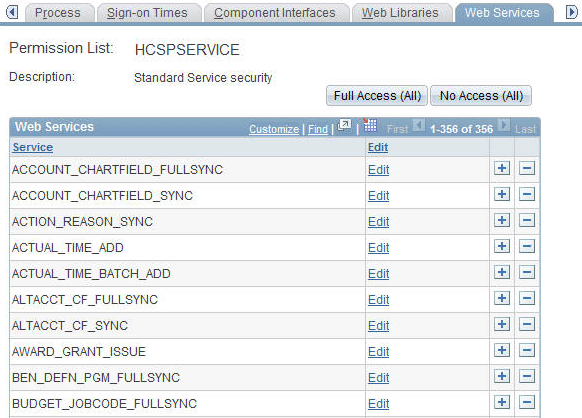
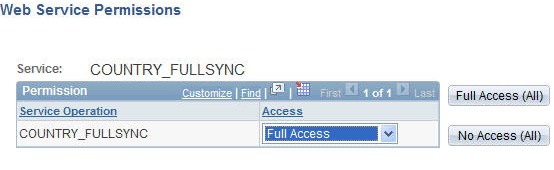
Click the Edit link. On the Web Service Permissions secondary page, add access to the relevant Service Operation(s) listed by selecting the Full Access option for the Access column.
This example illustrates the fields and controls on the Web Services page-Permission List.
This example illustrates the fields and controls on the Web Services Permissions page for HCM.
-
-
Activate Service Operations and create Routings.
-
Navigate to
-
Select the relevant Service Operation(s) from the search dialog box.
-
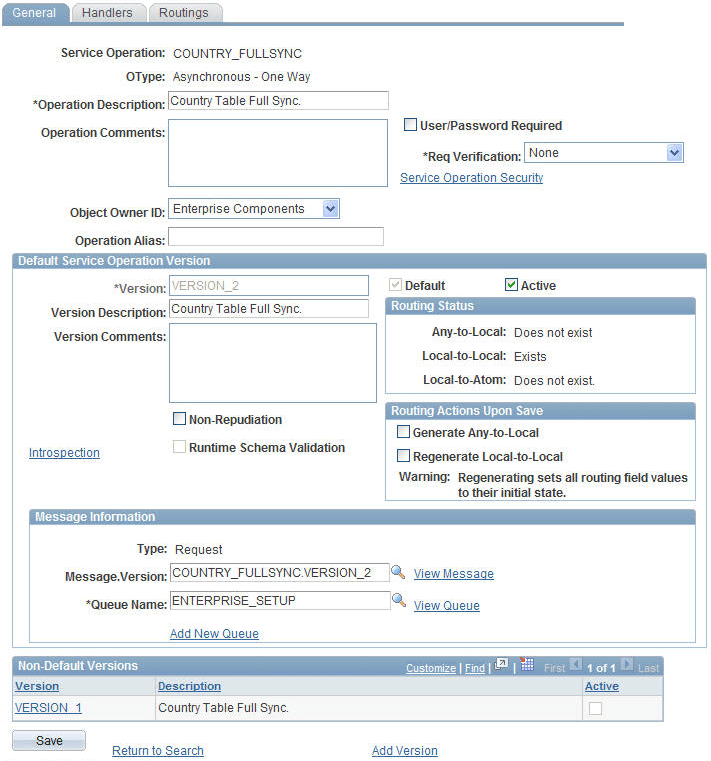
Check the Active check box on the General tab.
-
Make note of the Queue Name field, as you need to verify later that the Queue status is Running.
-
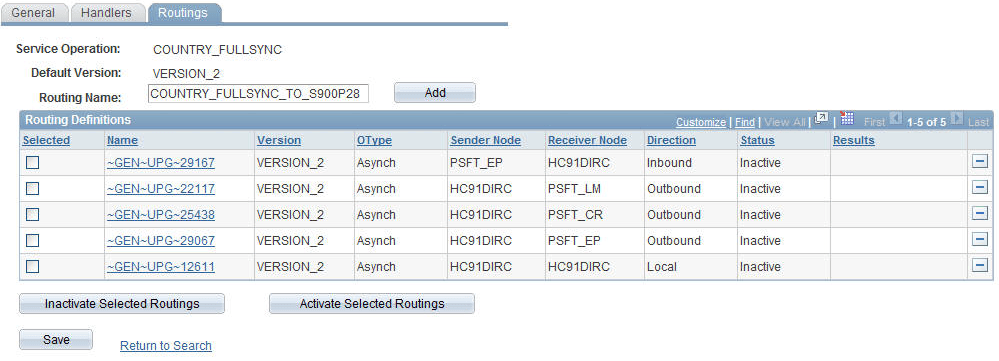
Select the Routings tab and add a new routing for the Service Operation by entering a value in the Routing Name field and clicking the Add button.
This example illustrates the fields and controls on the General page for the COUNTRY_FULLSYNC service operation.
This example illustrates the fields and controls on the Routings page for the COUNTRY_FULLSYNC service operation.
-
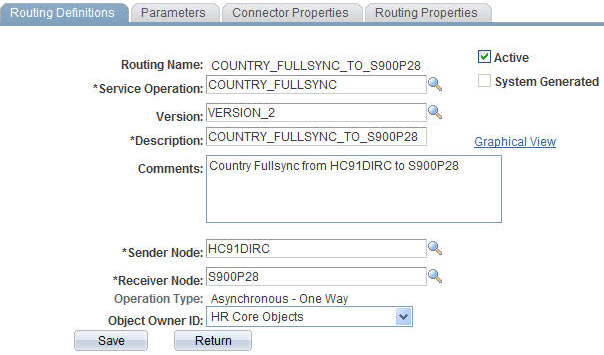
Enter a Sender Node and a Receiver Node on the Routings Definition page of the Routings component.
-
Verify that the Active check box is checked.
-
Save the routing.
-
Click the Return button at the bottom of the Routings Definition page to return to the Service Operation setup component.
-
Click Save at the bottom of any page in the Service Operations component to save the Service Operation.
This example illustrates the fields and controls on the Routing Definitions page for the COUNTRY_FULLSYNC service operation.
-
-
Activate Message Queue.
-
Navigate to
-
Scroll down the page to find the relevant Queue Name (from the Service Operation setup page noted earlier).
-
Review the queue Status and activate the queue by clicking the Run button if needed. Before leaving this page, ensure that queue status is set to Running.
-
Target Database Configuration Tasks
Note:
These target database configuration instructions are for a CS 9.2 database on PeopleTools 8.54.
-
Update security by adding the service operation to the required user’s permission list.
-
Navigate to
-
Select the relevant permission list from the search dialog box (primary permission list for the user).
-
Select the Web Services tab.
-
Enter the corresponding Service(s) for the Service Operation(s) you wish to leverage.
-
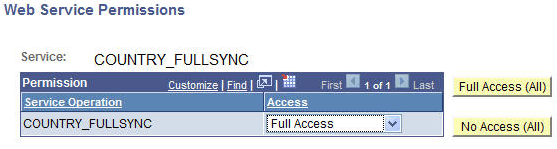
Click the Edit link and add access to the relevant Service Operation(s) listed on the Web Service Permissions secondary page.
-
Click OK to return to the Web Services page.
-
Click Save to save the updated Permission List.
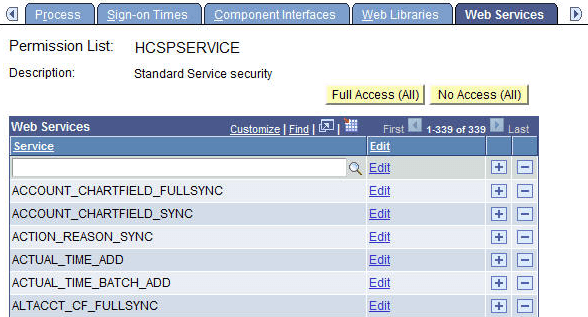
This example illustrates the fields and security controls on the Web Services page.
This example illustrates the fields and security controls on the Web Service Permissions page in Campus Solutions.
-
-
Activate Service Operation and Create Routing.
-
Navigate to .
-
Select the relevant Service Operation(s) from the search dialog box.
-
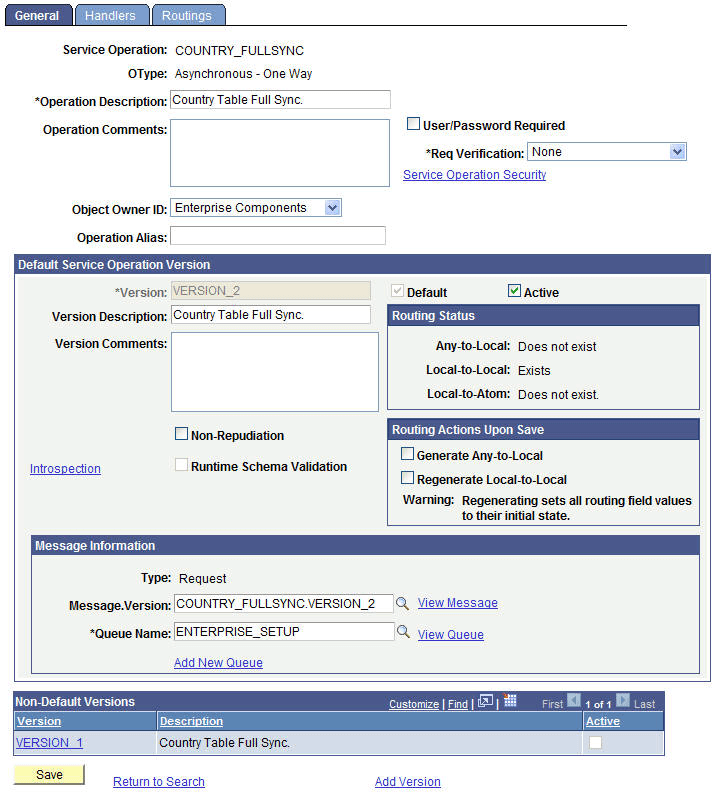
Select the Active check box on the General tab.
-
Make note of the Queue Name field, as you need to verify later that the Queue status is Running.
This example illustrates the fields and controls on the General page for the COUNTRY_FULLSYNC service operation.
-
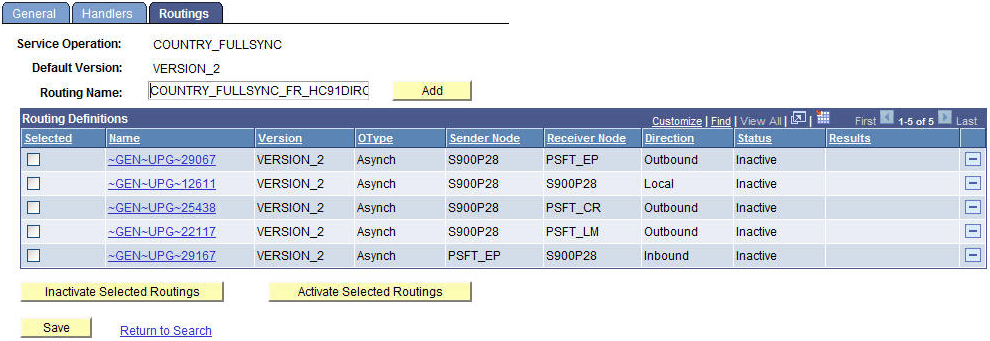
Select the Routings tab and add a new routing for the Service Operation.
-
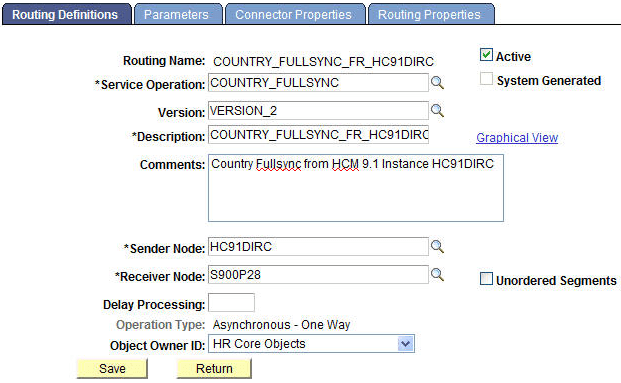
Enter a Sender Node and a Receiver Node on the Routings Definition page of the Routings component.
-
Verify that the Active check box is checked.
-
Click Save at the bottom of the Routings Definition page to save the routing.
-
Click the Return at the bottom of the Routings Definition page to return to the Service Operation setup component.
-
Click Save at the bottom of any page in the Service Operations component to save the Service Operation.
This example illustrates the fields and controls on the Routings page for the COUNTRY_FULLSYNC service operation.
This example illustrates the fields and controls on the Routing Definitions page for the COUNTRY_FULLSYNC service operation.
-
-
Activate or create the required Service Operations OnNotify handler.
-
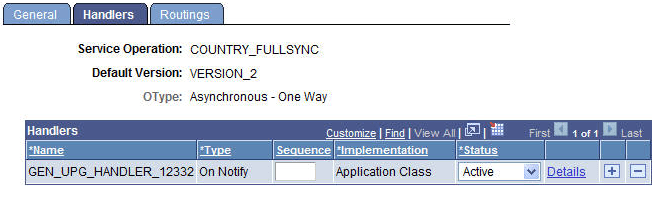
Click the Handlers tab of the Service Operations component and set up the following:
This example illustrates the fields and controls on the Handlers page for the COUNTRY_FULLSYNC service operation.
Field or Control Description Name
Enter a Handler Name if one does not exist. For example, BusUnitHRFullSync.
See the Full Sync Service Operations table (Application Package Name/ Class/ Method column) for the required value for this field.
Type
OnNotify
Implementation
Application Class
Status
Active
-
Click the Details link and set up the following:
This example illustrates the fields and controls on the Handler Details page.
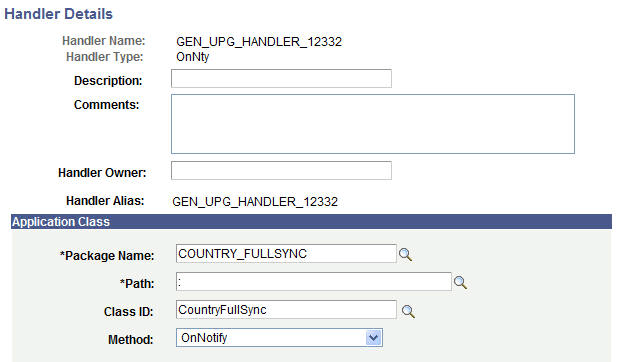
Field or Control Description Package Name
For example, GEN_UPG_HANDLER_12332. See the FullSync Service Operations table (Application Package Name/ Class/ Method column) for the required value for this field.
Path
:
Class ID
For example, CountryFullSync. See the FullSync Service Operations table (Application Package Name/ Class/ Method column) for the required value for this field.
Method
OnNotify
-
Click OK to return to the Handlers setup page.
-
Click Save at the bottom of the Handlers page to save your changes.
-
-
Activate Message Queue.
-
Navigate to
-
Scroll down the page to find the relevant Queue Name (from the Service Operation setup page noted earlier).
-
Review the queue Status and activate the queue by clicking Run if needed.
-
Executing the Full Data Publish Utility
Run the Full Data Publish process to synchronize data between your HCM and CS systems.
-
Define Full Data Publish Rules.
-
Navigate toand set up the following:
This example illustrates the fields and controls on the Full Table Publish Rules page for the COUNTRY_FULLSYNC service operation.
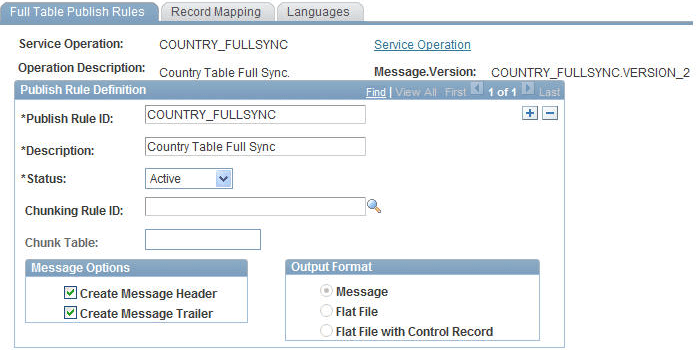
Field or Control Description Message Name
Name of the Service Operation.
Publish Rule ID
Enter a publish rule ID.
Description
Enter a description of the Publish Rule.
Status
Set to Active.
-
Check the Create Message Header and Create Message Trailer check boxes.
-
Save the page.
-
-
Execute the Full Data Publish Process.
-
Navigate to and set up the following:
This example illustrates the fields and controls on the Full Data Publish page.
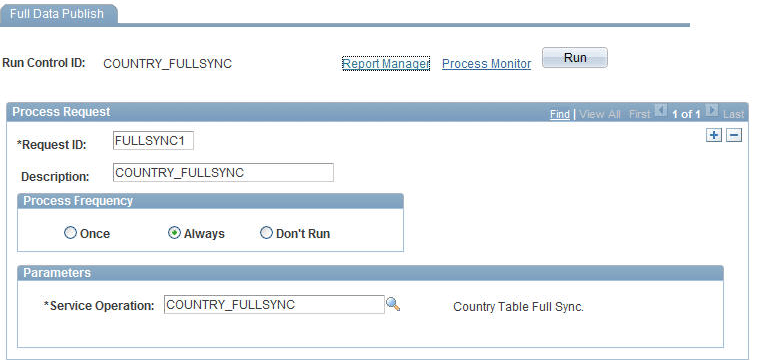
Field or Control Description Run Control ID
Create a new Run Control ID.
Request ID
Enter a Request ID.
Process Frequency
Select Always.
Parameters
Select the existing Service Operation, for example, COUNTRY_FULLSYNC.
-
Save the page and click Run.
-
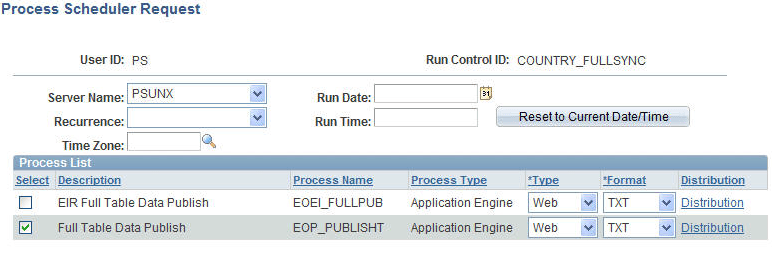
Select the Full Table Data Publish process from the Process Scheduler Request page and verify that the process runs successfully.
This example illustrates the fields and controls on the Process Scheduler Request page where the Full Table Data Publish process is selected.
-
-
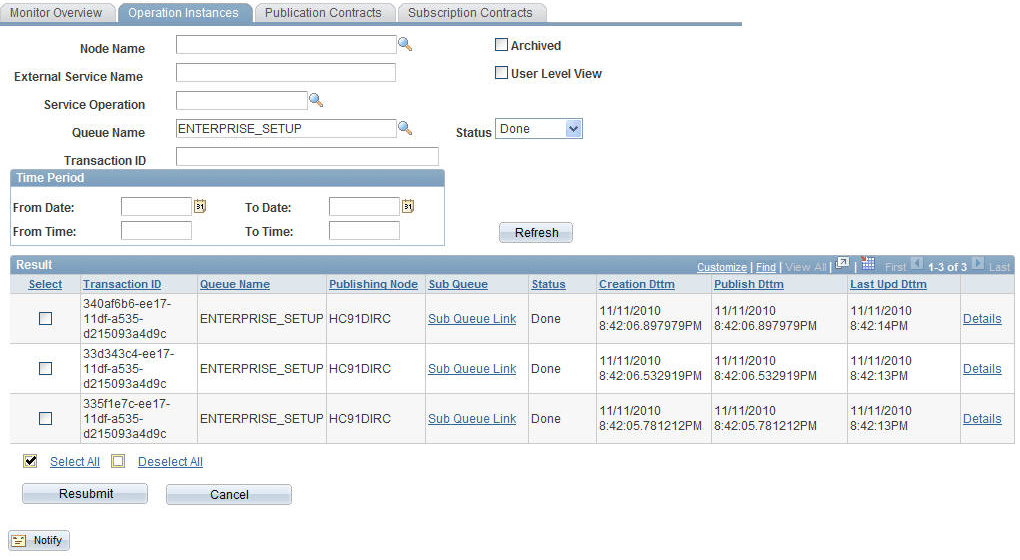
Navigate to to review the status of the Full Sync messages created by the Full Data Publish process.
This example illustrates the fields and controls on the Operation Instances page to monitor asynchronous service operations.