Creating Resource Assignments
You can assign prospects to resources in two ways:
-
Create mass assignments, whereby you assign a group of prospects to a particular resource and role.
-
Create individual assignments, whereby you assign a single prospect to a resource.
This section lists common elements and discusses how to:
-
Create mass assignments.
-
Create individual staff assignments.
-
Create individual volunteer assignments.
-
Create individual unit assignments.
-
View the prospects assigned to a resource.
-
View resource assignments.
-
Generate the Role Assignments report.
Common Elements Used in This Section
| Field or Control | Description |
|---|---|
|
Campaign |
Select an organized institutional effort (targeted to a specific constituency) that occurs over a specified period with specific purposes and goals. When you select a campaign, its description appears to the right of this field. |
|
Role |
Select the role that the resource plays in the cultivation process. Roles are determined by your institution. Values include PM (Prospect Manager), SOL (Solicitor), and CM (Campaign Manager). The list of available role values for each assignment is affected by the selections you made in the Assignment Role Option group box on the CR Installation page. Note: Each prospect can have only one resource at a time assigned to the PM role. |
Pages Used to Create Resource Assignments
| Page Name | Definition Name | Navigation | Usage |
|---|---|---|---|
|
Mass Assign Staff |
AV_MASS_PRSN AV_MASS_PRSN_WS |
|
Assign groups of prospects to a staff member. |
|
Mass Assign Units |
AV_MASS_UNIT AV_MASS_UNIT_WS |
|
Assign groups of prospects to a unit. |
|
Mass Assign Volunteers |
AV_MASS_VOL AV_MASS_VOL_WS |
|
Assign groups of prospects to a volunteer. |
|
Staff Assignment |
AV_STAFF_ASGN AV_STAFF_ASGN_E AV_STAFF_ASGN_W |
|
Assign individual prospects to a staff member. |
|
Volunteer Assignment |
AV_VOL_ASGN AV_VOL_ASGN_E AV_VOL_ASGN_W |
|
Assign individual prospects to a volunteer. |
|
Unit Assignment |
AV_UNIT_ASGN AV_UNIT_ASGN_E AV_UNIT_ASGN_W |
|
Assign individual prospects to a unit. |
|
Resource Filter |
AV_RSRC_ASGN_INQ |
|
Select the individual resource, or type of resource, for which to view a list of assigned prospects. |
|
Resource Assignments |
AV_RSRC_ASGN_INQ2 |
|
View a list of the prospects who are assigned to the resource. Prospect assignments that meet the criteria that you selected on the Resource Filter page appear on this page. |
|
Assignment Detail |
AV_ASGN_INQ_DTL_SP |
|
View additional information about an assignment. |
|
Prospect Assignments |
AV_PRSP_ASGN_INQ AV_PRSP_ASGN_INQ_E AV_PRSP_ASGN_INQ_W |
|
View a list of the resources that are assigned to a prospect for cultivation purposes at your institution. Assigned resources can include staff members, volunteers, and units. |
|
Role Assignments |
AV_RUNCTL_ROLE |
|
Set parameters for the assignments to view on the Role Assignments report. |
Creating Mass Assignments
Access the Mass Assign Staff, Mass Assign Units, or Mass Assign Volunteers page (). The Mass Assign Staff page is shown; the appearance of the other pages will differ somewhat.
This example illustrates the fields and controls on the Mass Assign Staff page. You can find definitions for the fields and controls later on this page.
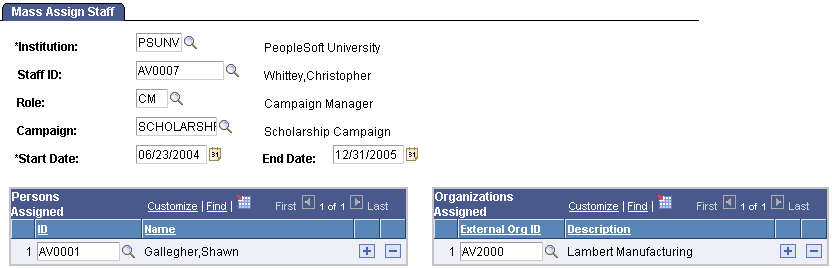
This page enables you to assign a group of prospects to a resource for the same reason. When you create mass assignments, the system:
-
Generates an assignment record for each prospect in the group.
-
Adds each prospect into the resource's MYPROS workset.
See Campus Self Service: Creating and Maintaining the My Prospects Workset.
| Field or Control | Description |
|---|---|
|
Institution |
Select the institution associated with the resource that you are assigning. Note: If your security access limits you to one academic institution, this field does not appear. |
|
Staff ID, Volunteer ID, or Unit ID |
Enter the ID of the resource for which you are creating mass assignments. Select a staff ID, a volunteer ID, or a unit ID, depending on the resource type for which you are creating assignments. |
|
Role |
The values that you selected in the Assignment Role Option group box of the CR Installation page affect the IDs that are available for this field. If Defined was selected on the CR Installation page, only roles assigned to the selected ID appear here. If Class was selected, only roles for the ID type selected (staff, volunteer, or unit) appear here. If All was selected, all roles defined in the system appear, regardless of their ID or type. |
|
Workset Code |
If you are entering mass assignments for a workset, enter the workset code for the workset to which to apply the assignment. The IDs and names of each constituent in the workset appear in the lower portion of this page. |
Persons Assigned
| Field or Control | Description |
|---|---|
|
ID and Name |
Identify each prospect to be assigned to the resource and role that you selected. When you enter an ID, the person's name appears. |
Organizations Assigned
| Field or Control | Description |
|---|---|
|
External Org ID (external organization ID) and Description |
Identify each external organization to be assigned to the resource and role that you selected. When you enter an ID, its description appears. |
Workset Members
| Field or Control | Description |
|---|---|
|
ID and Name |
When you select a workset code, the ID or name of each constituent in the workset appears. |
Creating Individual Staff Assignments
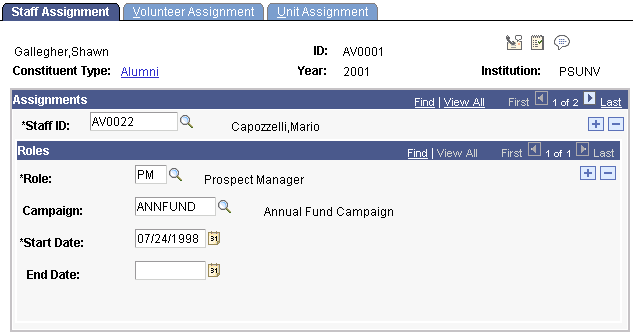
Access the Staff Assignment page ().
This example illustrates the fields and controls on the Staff Assignment page. You can find definitions for the fields and controls later on this page.
| Field or Control | Description |
|---|---|
|
Staff ID, Volunteer ID, or Unit |
Depending on which page you access, enter the staff ID, the volunteer ID, or the unit ID for the resource that you are assigning to a prospect. |
|
Spouse Link |
Select to indicate that the prospect's spouse is to receive the same resource assignment. The assignment is made on the corresponding report and display pages, but it is not included in the assignment totals for those pages. Note: If this check box is unavailable for entry, one of the following is true:
|
Creating Individual Volunteer Assignments
Access the Volunteer Assignment page ().
This example illustrates the fields and controls on the Volunteer Assignment page. You can find definitions for the fields and controls later on this page.
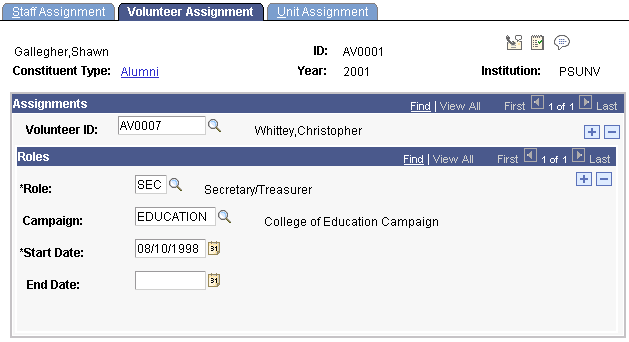
Although this page contains the same fields as the Staff Assignment page, volunteer assignment differs slightly. Volunteer IDs are not necessarily staff members; they are the IDs of people being assigned to a prospect or action in a role for a specified period of time.
Note:
You must set up an ID on the Volunteers page in order for it to appear as a valid Volunteer ID on this page.
Related Topics
Creating Individual Unit Assignments
Access the Unit Assignment page ().
This example illustrates the fields and controls on the Unit Assignment page. You can find definitions for the fields and controls later on this page.
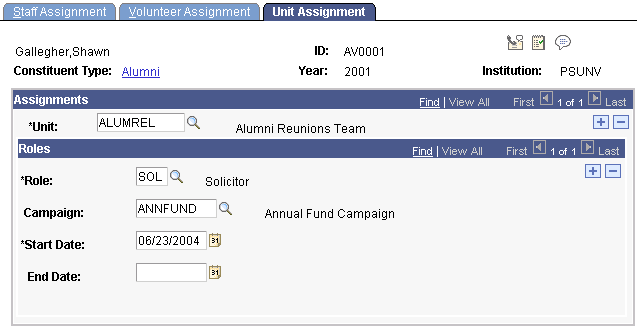
Although this page contains the same fields as the Staff Assignment page, unit assignment differs slightly. Unit IDs are groups, not individuals, assigned to a prospect or action in a role for a specified period of time.
Note:
You must set up a unit on the Units page in order for it to appear as a valid unit on this page.
Related Topics
Viewing the Prospects Assigned to a Resource
Access the Resource Filter page ().
After you have selected criteria on this page, you can view the list of prospects who are assigned to the resource that you selected on the Resource Assignments page.
| Field or Control | Description |
|---|---|
|
Assigned Resource |
Select the type of resource to view assignments for. Values are Staff, Volunteer, and Unit. These values are delivered with the system as translate values. Do not modify these values in any way. Any modifications to these values will require a substantial programming effort. |
|
Staff ID, Volunteer ID, or Unit ID |
Select the ID for the resource whose prospect assignments you want to view. The label for this field depends on your selection in the Assigned Resource field. Click the prompt to access the Lookup Staff ID search page, where you can search for resources of the selected type that have prospect assignments. Use the search keys and wildcards to narrow the list of returned staff members on the Resource Assignments page. |
|
Search |
Click to retrieve a list of the prospects that match the criteria that you selected. The list of prospects matching your criteria appears on the Resource Assignments page. Note: The Maximum Retrieval value set on the Institution Installation page determines the maximum number of results returned per search. |
Viewing Resource Assignments
Access the Resource Assignments page ().
| Field or Control | Description |
|---|---|
|
Assigned Prospect |
Displays the name of the donor prospect for which a resource assignment exists. |
|
Assigned Resource |
Displays the name of the staff member, volunteer, or unit assigned to the prospect. |
|
Role |
Displays the function of the resource assigned, such as Prospect Manager or Solicitor. |
|
Active |
Indicates that the resource assignment is currently active. |
|
Details |
Click this link in any row to view detailed information about the prospect's assignment on the Assignment Detail page. |
You can build a workset from this page.
Related Topics
Generating the Role Assignments Report
Access the Role Assignments page ().
| Field or Control | Description |
|---|---|
|
Institution |
Select the institution for which to generate a report. The report contains information about assignments only for the institution that you select. |
|
Assigned Resource |
Select the resource type for which to generate a list of assignments. You can select Staff, Volunteer, or Unit. The values in this field are delivered with the system as translate values. Do not modify these values in any way. Any modifications to these values will require a substantial programming effort. |
|
Sort By |
Select the sort order for the list of resources that appears on the report. You can sort by Count, ID, or Name. If you select Count, the Role Assignments report orders the staff IDs by the highest number of assignments. If you select ID, the report lists the staff by their ID numbers. If you select Name, the report lists the staff in alphabetical order. Note: The values in the Sort By and Sort Order fields appear on the report, so you'll know how you chose to sort this information. The sort by values are delivered with the system as translate values. Do not modify these values in any way. Any modifications to these values will require a substantial programming effort. |
|
Sort Order |
Specify whether to view the information on the report in Ascending or Descending order. Descending order means that the values in the Sort By field are sorted from highest value to lowest value. Ascending order means that the values are sorted from lowest value to highest value. |
|
Report Type |
Select the type of report to generate. Select Summary to produce a one-page report that includes the ID and name of the assigned resource, and the number of assignments he or she has that meet the parameters that you set for the report. Select Detail to produce a one-page summary and a separate page for each resource. The separate page includes the ID and name of each prospect assigned, the associated campaign, start date, end date, and whether the spouse's record is linked. |
Related Topics