Setting Up Award Mapping
Access the Award Mapping page ().
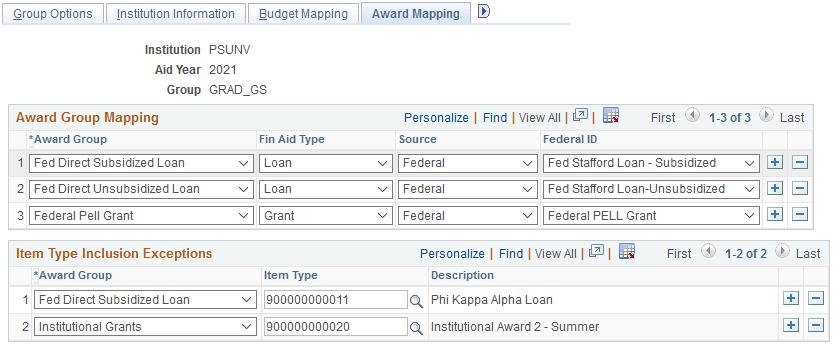
This example illustrates the fields and controls on the Award Mapping page. You can find definitions for the fields and controls later on this page.
Note:
To match the existing self service functionality, only those Financial Aid item types that have a Print Option of “P” (Print) are used to calculate the award group totals. Although the setup page allows you to map individual item types that have a Print Option not equal to “P”, these item types are ignored when calculating the award totals.
Award Group Mapping
Map your Fin Aid Type, Source, and Federal ID (when applicable) to the appropriate Award Group. You can map multiple Fin Aid Type, Source, and Federal ID combinations to a single Award Group.
When a College Financing Plan is generated for a student, the system reviews the student's current award data for the given Institution, Aid Year, Academic Career, Award Period, Fin Aid Type, Source, and Federal ID. Any matching values are used to calculate totals displayed in each award group.
For AY 2021 and later, award groups have been expanded.
When students view their College Financing Plan, grants and scholarships are displayed separately.
Note:
If your students have access to Award information in Financial Aid Self Service, you should attempt to map the Award Groups so they match the Award Self Service information.
Item Type Inclusion Exceptions
Use this setup to include additional item types in award groups that are not included in Award Group Mapping.
Select an Award Group in which you want to include a specific Item Type, and then choose the Item Type you want to include. You can include multiple item types in the same award group, but you can only include an item type once across all award groups.