Paying Application Fees or Requesting Fee Waiver After Submitting Application
Steps:
-
Once the applicant completes the application and is ready to submit the application, the applicant clicks the Submit button.
-
If a fee is required with the option to pay later as defined on the Application Center Table setup page, the applicant is presented with a message to pay the fee/request a waiver now or defer payment until later. If the student selects the Yes button, they are taken to the Fee/Waiver Page. If they select the No button, they are taken to the Submit Page.
This is an example of the message for payment options.

-
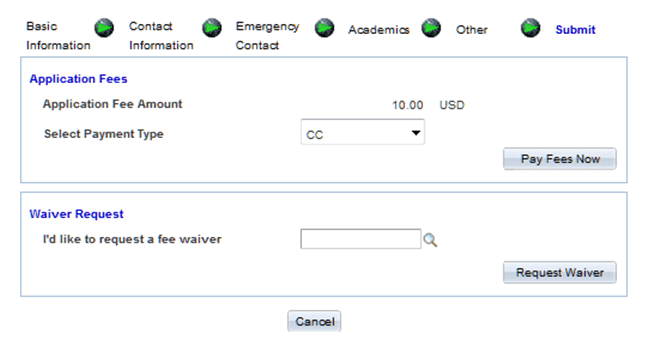
If a fee is required as defined on the Application Center Table setup page, the applicant is presented with the Fee/Waiver page (SAD_OLA_FEECALC), where he or she may request a waiver or pay the fee. Actions allowed on this page are governed by the options defined on the Application Center Table setup page.
This example illustrates the fields and controls on the Fee/Waiver page (Paying Application Fees).
-
When the applicant clicks the Pay Fees Now button, the system invokes the SSF_INITIATE_EPAYMENT service operation. The system uses the information from the response of this service operation to redirect the applicant to the third party payment provider, where additional payment information is collected to pay the fees. This is accomplished by setting the value of the HTML_AREA on page SAD_OLA_3RDPARTY to the value of the element SCC_HTML_STRING from the SSF_INITIATE_EPAYMENT response. A transfer to page SAD_OLA_3RDPARTY will launch the applicant to the third party payment provider.
For an example of the SCC_HTML_STRING, see Payment Integration Web Service Operations
Note:
The third party payment provider will require return URLs in order to navigate the applicant back to Campus Solutions after processing the transaction. These return URLs should correspond to the Weblib functions defined in the Hosted Payment Adapter Settings. The system delivers iScripts for SOLA to handle the post back from the third party payment provider.
This example illustrates the fields and controls on the Hosted Payment Adapter page.
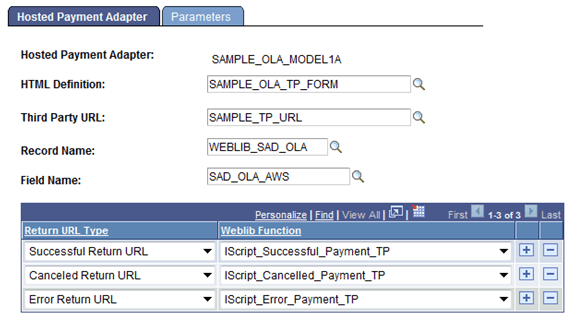
In the above example graphic, the success URL can be defined in the third party payment provider site as https://schoolserver/psc/ps/EMPLOYEE/HRMS/s/WEBLIB_SAD_OLA.SAD_OLA_AWS.FieldFormula.IScript_Successful_Payment_TP.
Important:
If the school is already using the Hosted Payment feature in Self Service Make a Payment or Cashiering, a new Hosted Payment Adapter needs to be created in order to use the delivered iScripts for SOLA. The new Hosted Payment Adapter may point to the same Application Class ID the school is already using.
This example illustrates the fields and controls on the Adapter Table page.
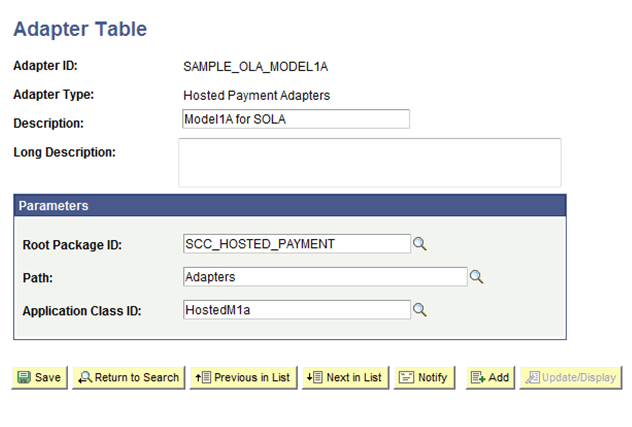
For more details, refer to the Campus Solutions 9.0 Electronic Payment Integration Developer’s Reference Guide in My Oracle Support (ID 1982664.1) on how to set up the Hosted Payment Adapter Setting. In addition to creating a new adapter, the new iScripts will need to be defined in the permission list security for the applicant.
The new SOLA iScripts will invoke the SSF_COMPLETE_EPAYMENT service operation. This service operation will authorize the payment and complete the application.
-
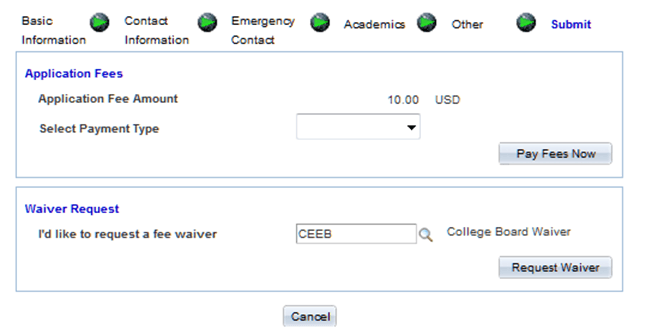
If a fee waiver option has been selected within the Application Center Table component, then the applicant can request a waiver and click the Request Waiver button.
This example illustrates the fields and controls on the Fee/Waiver page (Requesting Waiver).
Note:
The display of captured data and the use of application fee payment illustrated by SOLA represent design examples of how delivered web services can support a user interface.