SOLA Pages for Entering Application Data
This subsection discusses the six SOLA pages that the applicant can use to enter application data.
Basic Information page (SAD_OLA_BASIC)
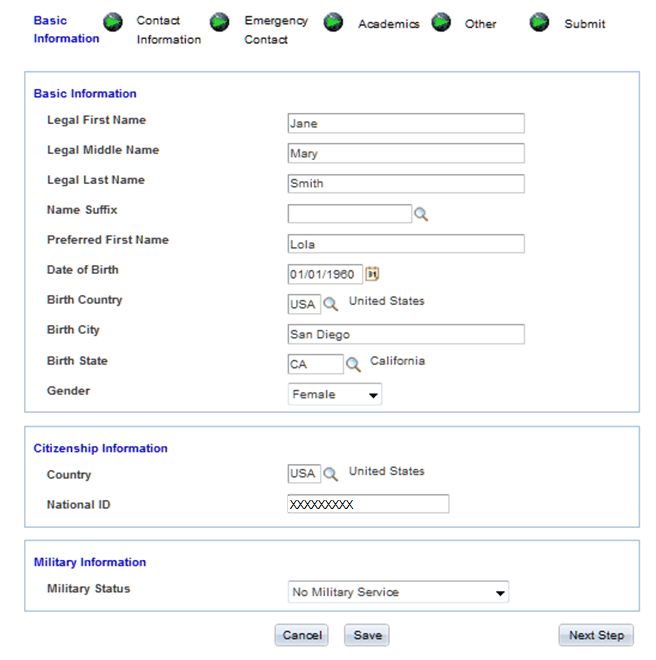
This example illustrates the fields and controls on the Basic Information page.
-
This SOLA page captures basic biographical data (that is, name, gender, and birth information). The system saves the legal name entered here with the name type of Primary. If the applicant enters a name in the Preferred First Name field, an additional row is written to the SCC_STG_NAMES with a name type of Preferred.
-
When the applicant accesses this page for the first time, the page hides the National ID field. When the applicant enters a value for Country, the system executes the determineNIDType method. This method determines whether to display the National ID field based on the setup within NID_TYPE_TBL.
Note:
If the National ID field appears, then the page applies the validation associated with that country's national ID number during the save process.
Contact Information page (SAD_OLA_CONTACT)
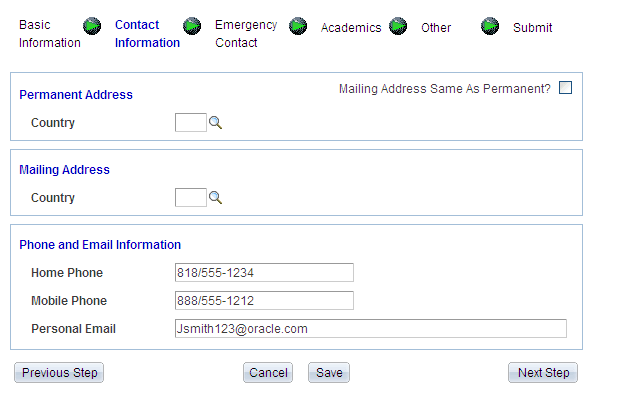
This is how the system presents the Contact Information page when the applicant accesses it for the first time. Note that the page hides the permanent and mailing address fields:
This example illustrates the fields and controls on the Contact Information page.
-
The page hides the address fields to support address formats based on a specific country. SOLA supports address formats for the following countries:
-
(ARG) Argentina
-
(AUS) Australia
-
(BRA) Brazil
-
(CAN) Canada
-
(CHN) China
-
(FRA) France
-
(IND) India
-
(SNG) Singapore
-
(USA) United States
-
-
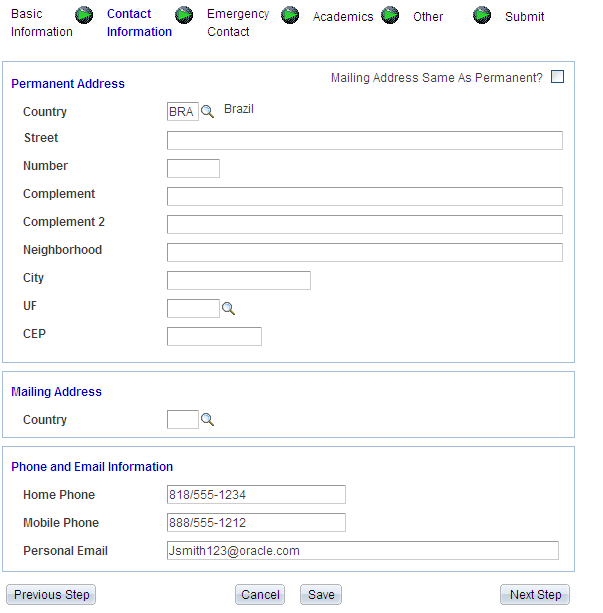
When the applicant selects anyone of these countries, SOLA will display the address format specific to that country:
This example illustrates the fields and controls on the Contact Information page for a particular country.
-
If the applicant selects a country other than those mentioned previously, the page renders a default address format.
-
To copy the permanent address values to the mailing address fields, the applicant can select the Mailing Address Same as Permanent check box. When the applicant selects this check box, the system executes the copyPermAddressToMailAddress method to copy the values supplied in the Permanent Address fields to the Mailing Address fields. After copying, the page hides this check box. However, on any subsequent return to this page, the check box will again appear.
Note:
If the applicant changes the country value for any of the address types, this SOLA page will blank out any previously saved address information for that address type. The handling of name, address and other personal information in SOLA represents design examples of how delivered web services can support a user interface.
Emergency Contact page (SAD_OLA_CONTACT)
This example illustrates the fields and controls on the Emergency Contact page.
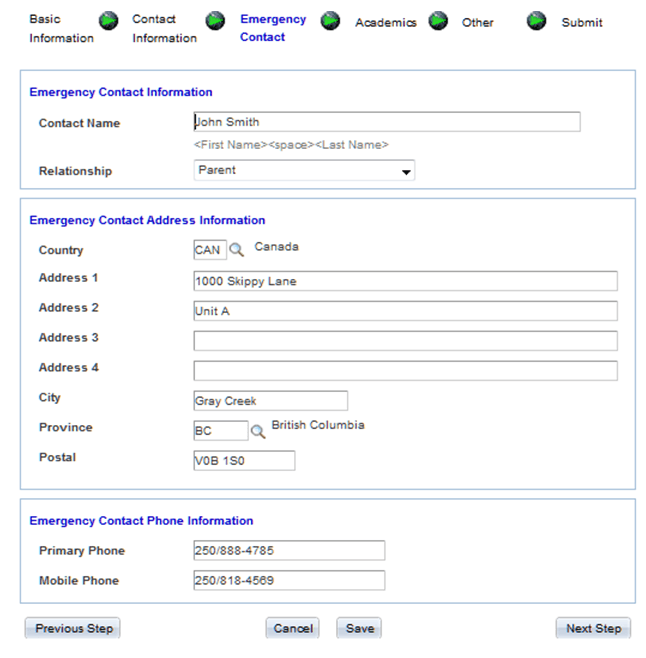
The address functionality on this page is similar to the Contact Information page.
Academics page (SAD_OLA_ACAD)
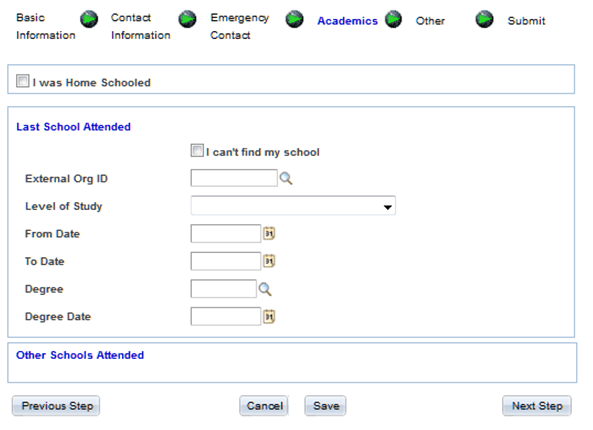
This example illustrates the fields and controls on the Academics page.
-
This is an example of how the Academics page is displayed when an applicant accesses it for the first time. This is done to preserve a predefined sequence numbering schema associated with the admissions application history.
-
If the applicant indicates that he or she was home schooled, the system writes a row to SCC_STG_ACADHST with a sequence number of one. Information pertaining to the Last School Attended will be assigned a sequence number of 2. The system will increment the sequence number for each Other Schools Attended record that the applicant adds.
-
If the applicant does not indicate that he or she was home schooled, then the information pertaining to the Last School Attended will get a sequence number of one.
-
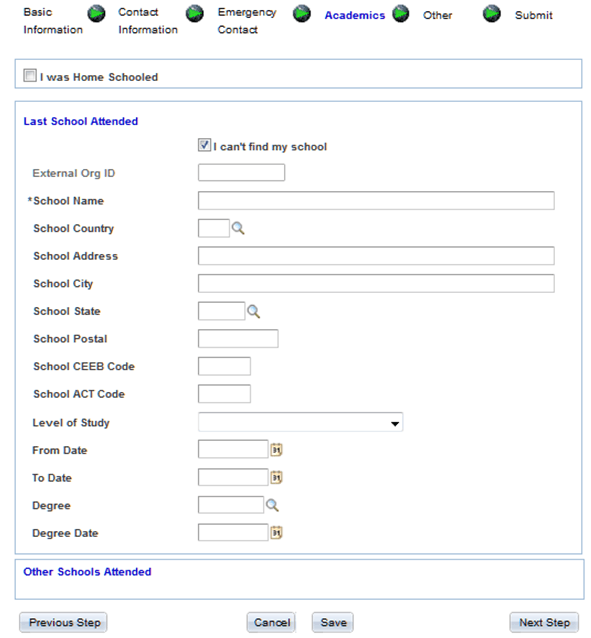
If the applicant is unable to find his or her institution in the External Org ID drop down list, then they have the option of indicating such by selecting the I can't find my school check box. When the applicant selects this check box, the page displays additional fields that the applicant can use to specify the school details.
This is an example of the Academics page with the I cannot find my school check box selected.
-
When the applicant selects the check box, the system disables the External Org ID field and marks the School Name field as a required field. All other fields are optional.
Note:
Suppose you have indicated that the application requires manual reconciliation for both home school and unlisted school on the School Setup page of the Application Configuration component. In such a case, if the applicant indicates that he or she was either home schooled or is unable to locate his or her institution or indicates both, then the application will get a status of Error when submitted.
Suppose you have specified a default External Org ID for both home school and unlisted school on the School Setup. In such a case, if the applicant indicates that he or she was either home schooled or is unable to locate his or her institution or indicates both, then the system automatically populates the default External Org ID when application is submitted.
Note:
If the applicant provides more than one school identified as I can’t find my school, only the first will receive the default Org ID and the subsequent schools Org IDs will be set to blank and a reconciliation error will be generated.
-
If the applicant has entered the level of study and the dates attended, the system writes a row to SCC_STG_EXACDDT.
Note:
The applicant must supply all three values: level of study (external career), and both to and from dates in order to write to SCC_STG_EXACDDT.
-
If the applicant has entered a degree and the date in which the degree was obtained, the system writes a row to SCC_STG_EXTDEGR.
Note:
The applicant must supply both the degree and degree date values to write to SCC_STG_EXTDEGR.
-
When the applicant enters an External Org ID or a school name, then the fields in the Other Schools Attended group box become available. Same rules mentioned previously apply to the fields in the Other Schools Attended group box
-
The applicant can enter as many additional Other Schools Attended records by clicking the plus sign button. Conversely, clicking the minus sign button will delete an Other Schools Attended record.
Note:
The system performs duplicate checking on Org IDs when the applicant supplies both a Last School Attended and at least one Other Schools Attended. In addition, SOLA checks for duplicate Org IDs in the Other Schools Attended when more than one is supplied by the applicant.
Other page (SAD_OLA_OTHER)
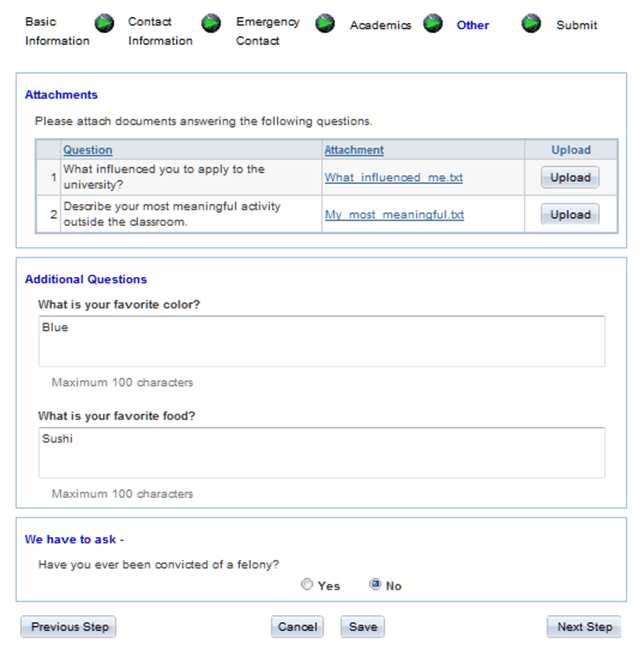
This example illustrates the fields and controls on the Other page.
-
The questions that appear in the Attachments and Additional Questions group boxes are derived from the PeopleTools message catalog.
-
The Additional Questions group box uses the sample Q&A Application Extension entity.
Submit page (SAD_OLA_SUBMIT)
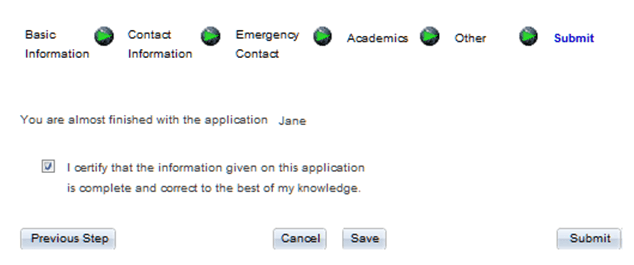
This example illustrates the fields and controls on the Submit page.
-
When the applicant electronically signs the application (that is, selects the I certify check box on the Submit page), the Submit button becomes available.
-
Clicking the Submit button submits that application. Depending on how you have defined the application to be processed during submission, the application can take many routes. Refer to the discussion on “Setting Up Application Processing Centers” in the “Setting Up Your Recruiting Structure” section to fully understand the submit process.
To understand application fee processing on submission, see Setting Up Application Processing Centers
Note:
The handling of attachments, additional questions, and messaging regarding the completion of an application illustrated by SOLA represents design examples of how delivered web services can support a user interface and these design examples are not intended to be deployed for your applicants.