Editing Existing Multiple Applications and Reviewing Multiple Application Statuses
Steps:
-
The applicant signs into the institution's Admissions Application home page. The system invokes the SAD_GETAPPLS service operation. This service operation returns all the applications that pertain to the applicant. This time, let us assume that there are several applications in various states and statuses.
-
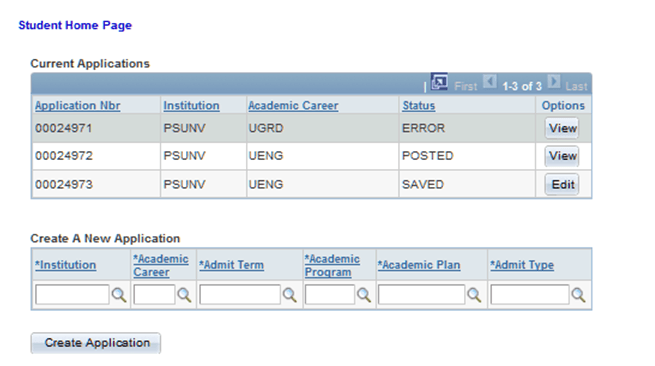
The Current Applications grid displays all the applications of the applicant. Let us assume that from this list of applications, one application has been Submitted. Depending on how you have defined how the application is to be treated upon submission, the application can either be in Submitted or Posted status. If the application is in Submitted or Posted status, the only action available to the applicant is to view that specific application (the applicant cannot edit the application).
This is an example of the Application Home page with multiple applications.
-
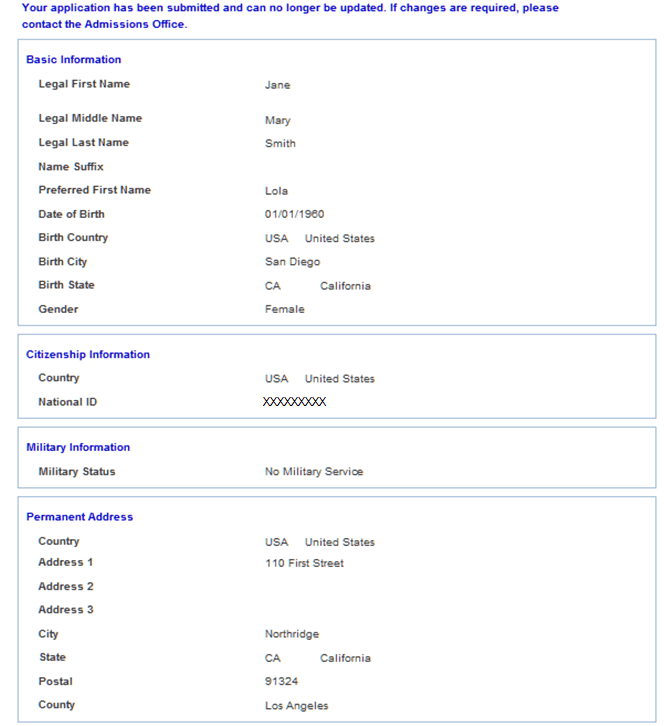
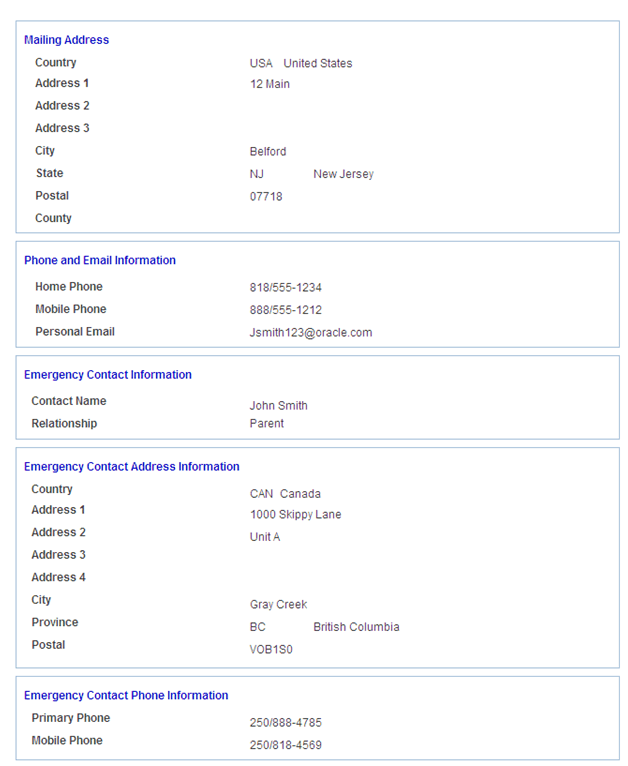
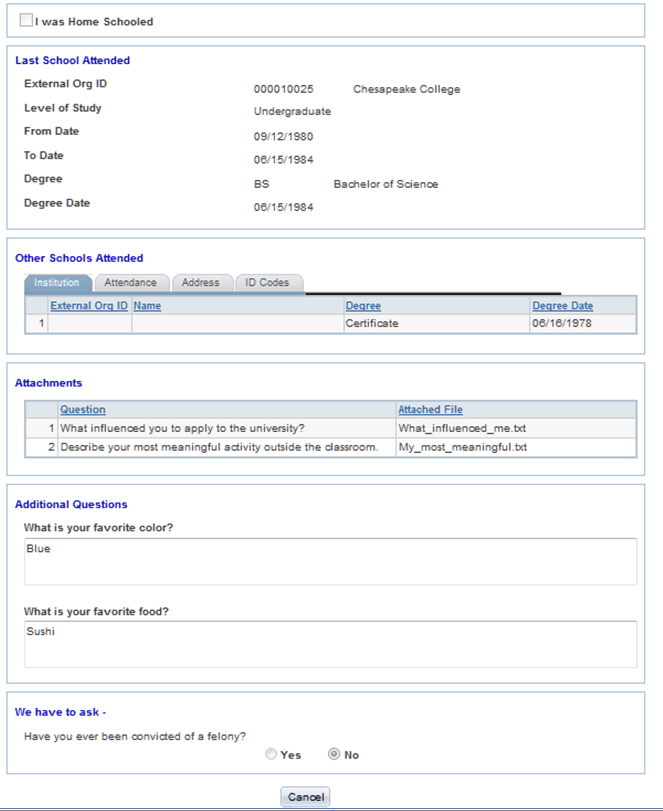
If the applicant clicks the View button for the submitted or posted application, the Application View page (SAD_OLA_VIEW) appears. This page presents in a display-only, linear format, all of the information the applicant submitted. If the applicant wants to update this application, the Application View page requests the applicant to contact the Admissions office to initiate any updates. When the applicant clicks the View button, the system invokes the SAD_GETAPPL service operation.
This example illustrates the fields and controls on the Application View page (1 of 3).
This example illustrates the fields and controls on the Application View page (2 of 3).
This example illustrates the fields and controls on the Application View page (3 of 3).
Note:
Notice that External Org ID and Name are blank in the Other Schools Attended section. This is because the applicant indicated that he or she was unable to locate the school from the External Org ID list and the School Setup page does not have a default External Org ID.
-
For the remaining application(s) that have yet to be submitted, the applicant can update them as outlined in the previous Editing Existing Application subsection.