Processing Steps for Posting All Test Scores But Create Prospects for Only a Subset of the Test Takers for a Specific Transaction
Let’s say you want to post test scores for all test takers who sent you scores but you only want to create prospects for a subset of those test takers.
-
Run the File Parser process to populate staging records based on incoming data file.
Set the SAD_PDL_HDR_STG.SCC_TRANS_STS = SV (Saved). Set up your File Parser mapping definition to populate the appropriate prospect staging records as well as the test results staging records.
-
Build a query in Query Manager to select your prospect population based on your criteria defined.
The Pop Select Bind Record of SCC_SL_SMP_RQ must be the first record in your query and SCC_TEMP_ID must be the first field returned in the query results. Add other staging records as needed to select your population. Test your query to make sure the correct population is returned.
-
Run the Transaction Management process to perform search/match and post staging data for the transaction loaded.
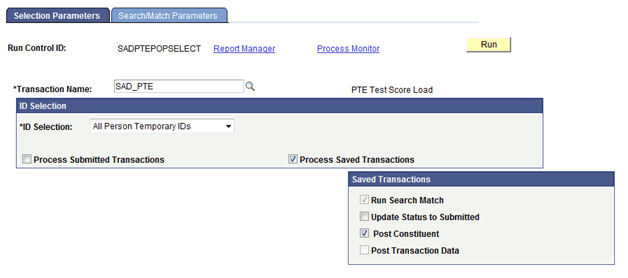
Set the ID Selection field to All Person Temporary IDs. Select the Process Saved Transactions, Run Search Match, and Post Constituent check boxes. On clicking the Run button, the Process Scheduler Request page appears. Select the Prospect Data Load – SMP process on this page. Running this process with these settings will run search/match and post the constituent data ONLY for these saved records. Test results are considered part of constituent data therefore test scores will be posted for everyone. The status of the transaction will remain at Saved. Staged prospect data will not post at this point.
This example illustrates the fields and controls on the Selection Parameters page when posting all test data for a transaction.
-
Review staging records not posted based on search/match rules or validation errors.
Determine if new record should be created or existing record updated. Correct errors and save.
-
Manually post individual records or run the Transaction Management process again to post remaining records that were reviewed using the same criteria as above.
-
Once you have posted all test data, run the Transaction Management process again to post the prospect data for your selected population.
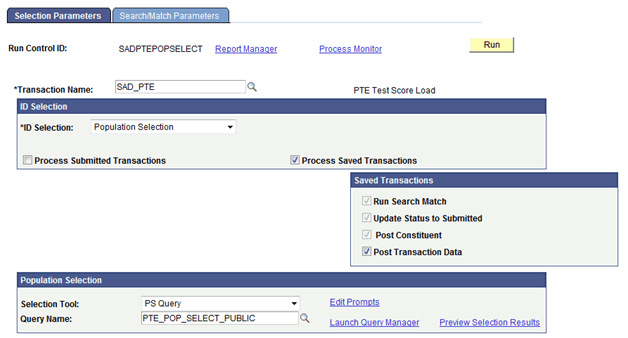
Set the ID Selection field to Population Selection. Select the Process Saved Transaction, Run Search Match, Update Status to Submitted, Post Constituent, and Post Transaction Data check boxes. On clicking the Run button, the Process Scheduler Request page appears. Select the Prospect Data Load – SMP process on this page. Running this process with these settings will post the prospect data for only those records selected in the query. The status of the transaction for those selected will be set to Posted.
This example illustrates the fields and controls on the Selection Parameters page when creating prospects for a subset of test takers for a transaction.
Note:
If the prospect record already exists for the institution and career of the transaction, the system updates the prospect record to insert program and plan data that does not exist, and also inserts values for the Admit Term, Admit Type, Campus, Academic Load, Academic Level, Referral Source, Source Date, Region, Region From, Housing Interest, Financial Aid Interest, Last School Attended and Graduation Date fields if not previously populated.