Setting Up Common Attribute Framework
PDL is leveraging the Common Attribute Framework to enable you to store additional data loaded from external data sources for test scores and prospects. Examples have been delivered but you may choose to add additional attributes for the data you are loading.
For extending prospect career data, a record context has been delivered for ADM_PRSPCT_CAR and its corresponding staging record SAD_PRS_CAR_STG.
This example illustrates the record context for prospect career.
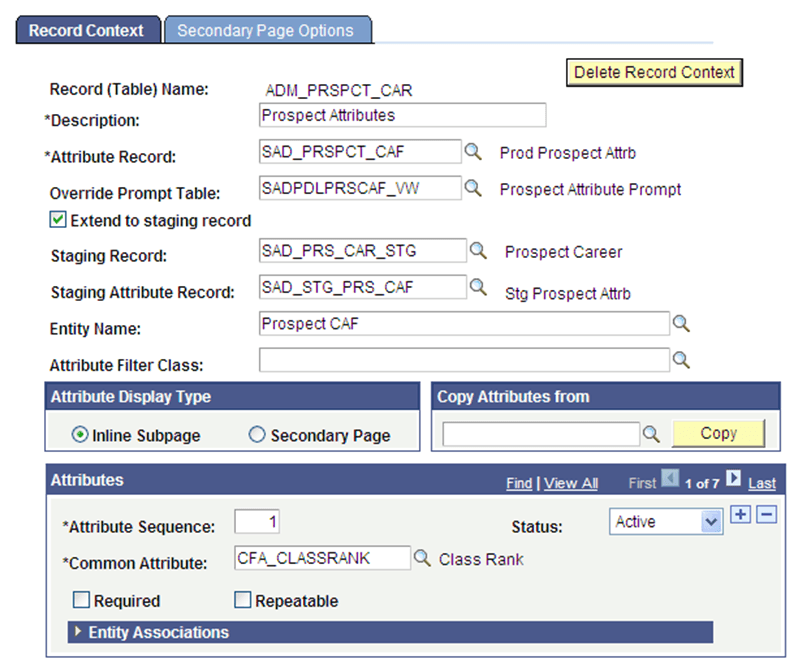
For additional data you want to store for your prospect, define a common attribute and add it to the ADM_PRSPCT_CAR record context.
To add common attributes to the ADM_PRSPCT_CAR record context:
-
Access the Record Context search page ().
-
Enter Record (Table) Name = ADM_PRSPCT_CAR.
-
Click Search.
-
In the Attributes section, add a row and populate the Common Attribute field for each common attribute. Add a new row for each common attribute.
-
Click Save.
Note:
The “Delivered PDL Templates” section lists the common attributes delivered for each template. The CFA attributes have already been added to ADM_PRSPCT_CAR. Add the remaining attributes to ADM_PRSPCT_CAR for the templates you are planning to use.
To allow you to store additional test score data by test date, a record context has been delivered for SAD_TESTDT and its corresponding staging record SCC_STG_TESTDT.
This example illustrates the record context for test date.
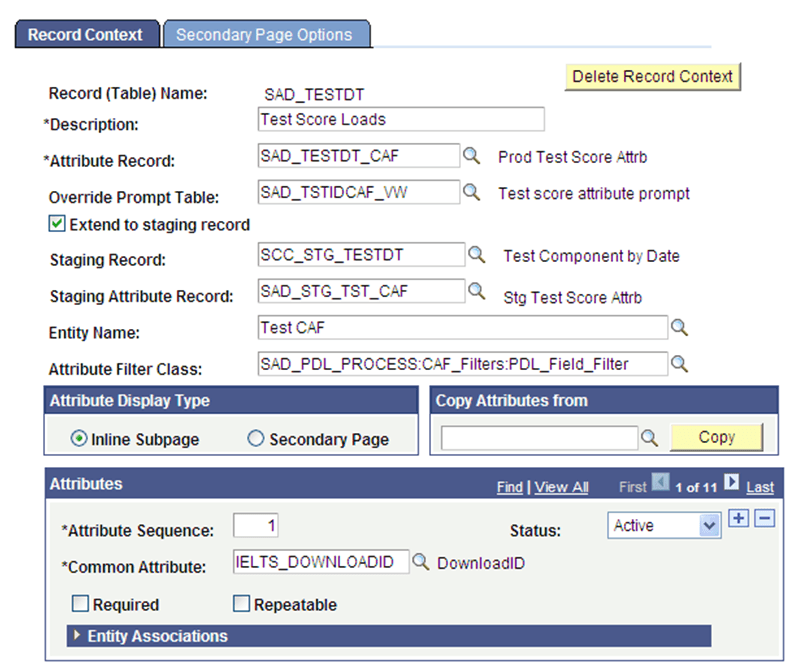
For additional data you want to store for your specific test, define a common attribute and add it to the SAD_TESTDT record context. To add common attributes to the SAD_TESTDT record context:
1. Access the Record Context search page ().
2. Enter Record (Table) Name = SAD_TESTDT.
3. Click Search.
4. In the Attributes section, add a row and populate the Common Attribute field for each common attribute. Add a new row for each common attribute.
5. Click Save.
Note:
The “Delivered PDL Templates” section lists the common attributes delivered for each template. The IELTS and PTE attributes have already been added to SAD_TESTDT. Add the remaining attributes to SAD_TESTDT for the templates you are planning to use.