Setting Up Filtering for Common Attributes
For each of the attributes you have added to the record context for SAD_TESTDT, you need to add the Test ID that corresponds to the attribute. Doing so will then filter those attributes in the field search results for that Test ID in the:
-
Test Results group box of the Prospect/Admissions Staging - Academic Information page.
-
Test Results pages.
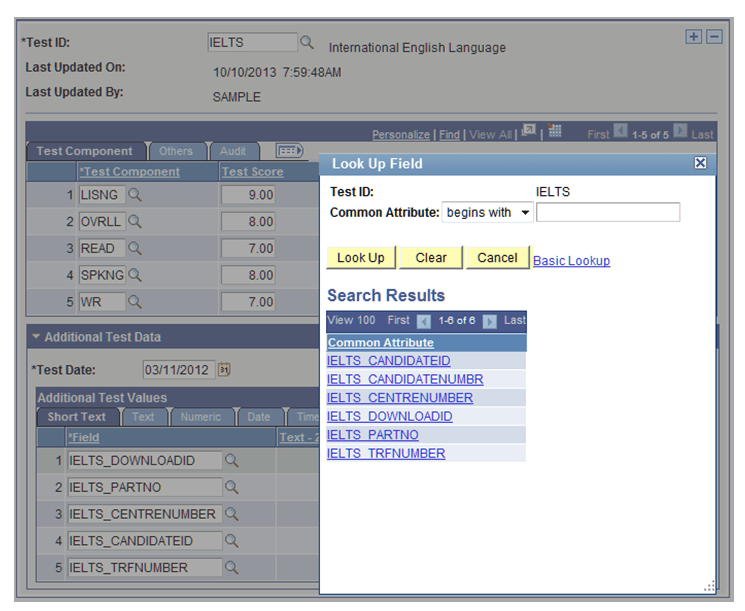
This is an example of the Test Results group box when the user clicks the lookup button for Field in Additional Test Values:
This image illustrates an example of filtering based on Test ID in the Academic Information page.
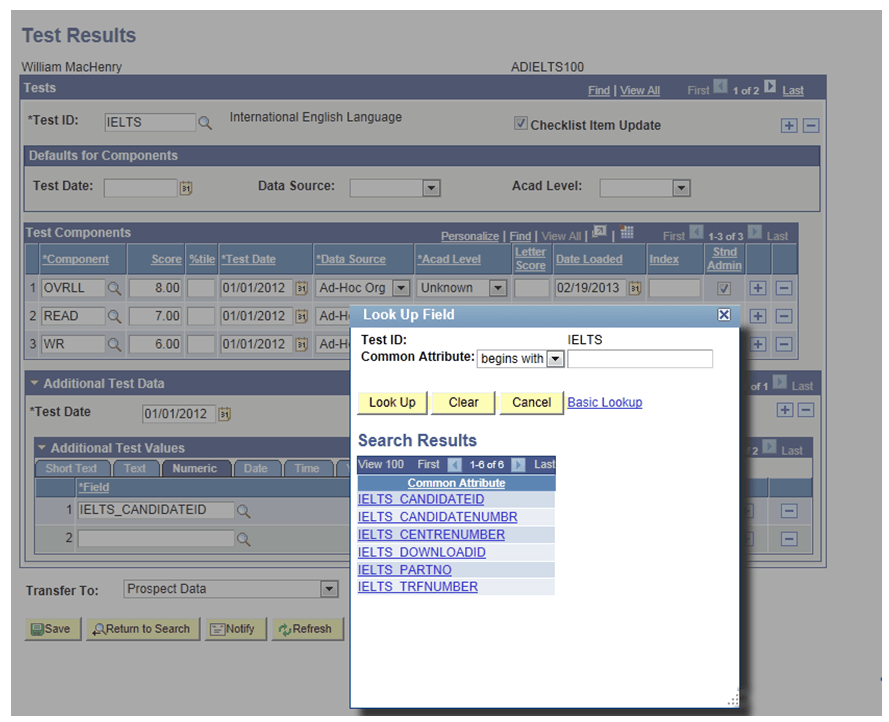
This is an example of the Test Results page when the user clicks the lookup button for Field in Additional Test Values:
This image illustrates an example of filtering based on Test ID in the Test Results page.
For more information on Academic Information page:
See Reviewing and Editing Staged PDL Transactions
For more information on Test Results page:
See Tracking Supporting Information for Prospects and Applicants
You must perform the following steps in order to achieve this behavior of filtering based on Test ID:
-
Navigate to the Record Context search page ().
-
Enter SAD_TESTDT in the Record (Table) Name search field.
-
Click Search.
-
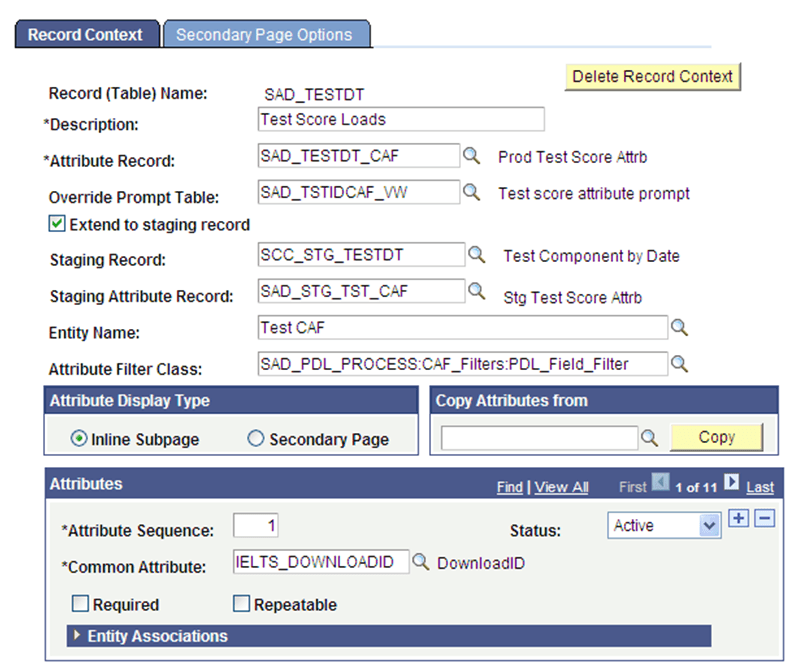
The Record Context page should look like this:
This example illustrates the record context for SAD_TESTDT.
-
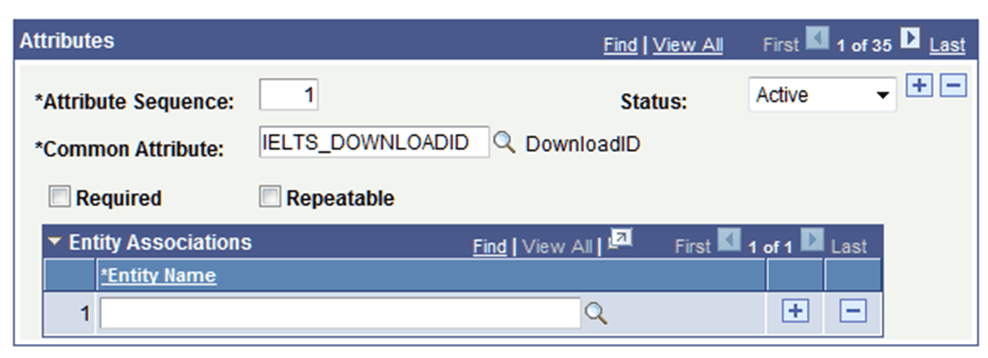
Expand the Entity Associations group box. The group box should look like this:
This example illustrates the Entity Associations group box.
-
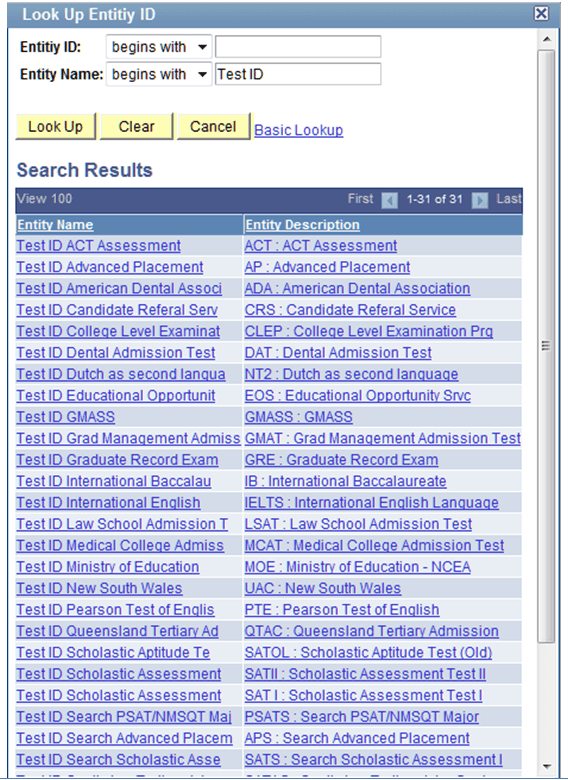
For each of the Attributes defined to the record SAD_TESTDT, add the Entity Name that corresponds to the value in the Common Attribute field. Entering Test ID in the Entity Name field and clicking the lookup icon displays the results as shown in the following graphic:
This example illustrates the Lookup results for the Entity Name field.
-
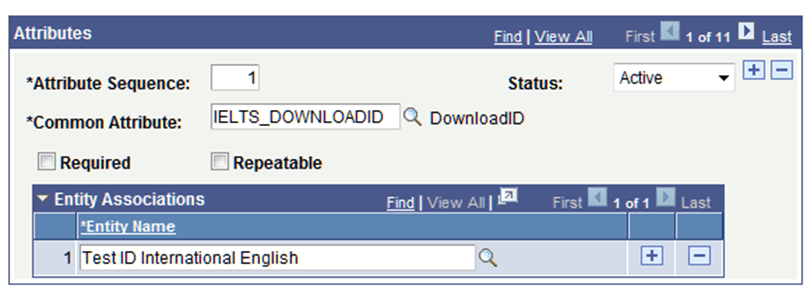
For all those attributes prefaced with IELTS, add the Entity Name Test ID International English:
This example illustrates the Entity Name for IELTS.
-
Repeat the above step for the remaining attributes.
Note:
Remember to use the correct Entity Name that corresponds to those common attributes.
-
Save your changes. When you save the changes, the system displays this message:
Please run Entity Property Sync process to update corresponding Entity Registry definitions. (14097, 56)
The record context data has changed. To keep corresponding Entity Registry definitions in sync please run the Entity Property Sync process (Home > Setup SACR > System Administration > Entity > Entity Property Sync)
-
In order for these changes to take full effect, you must complete the next steps and run both the Entity Registry Sync and Cache Wipe processes.
-
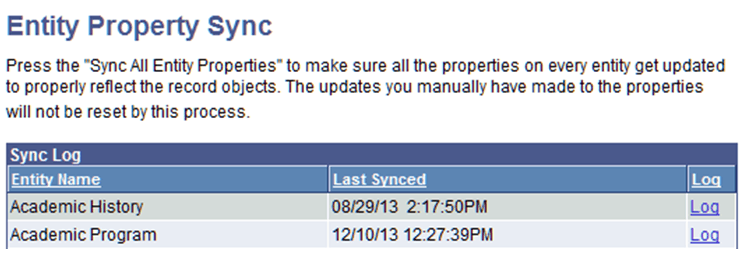
Navigate to the Entity Property Sync component ().
This example illustrates the Entity Property Sync component (1 of 2).
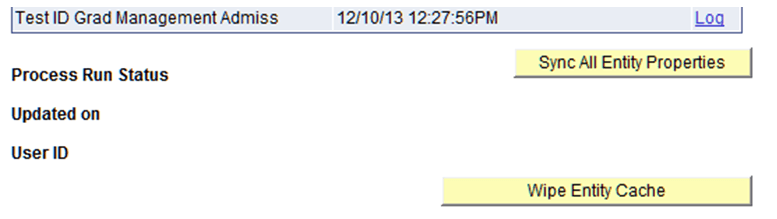
This example illustrates the Entity Property Sync component (2 of 2).
-
Click the Sync All Entity Properties button.
-
Clicking this button will initiate an Application Engine process that should take 5 - 10 minutes to complete. Clicking the Refresh button will update the status of the Application Engine process (that is, Queued, Processing, Success).
-
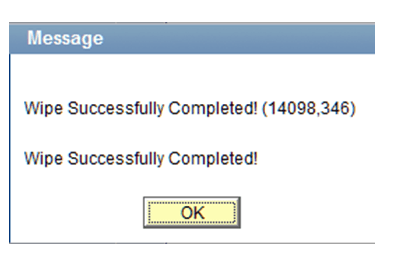
Once the process has completed successfully, click the Wipe Entity Cache button. This should take between 3 - 5 minutes to complete. Upon completion, you should see the following message:
This example illustrates the confirmation message for Wipe Entity Cache process.
-
When the Wipe Entity Cache process has completed, you have successfully completed updating the common attributes for test scores.
Note:
If common attributes are changed, added or deleted, run the Entity Property Sync process () to keep the corresponding Entity Registry definitions in sync.