Step 10: Verifying Your SOLA Setup
Procedure:
-
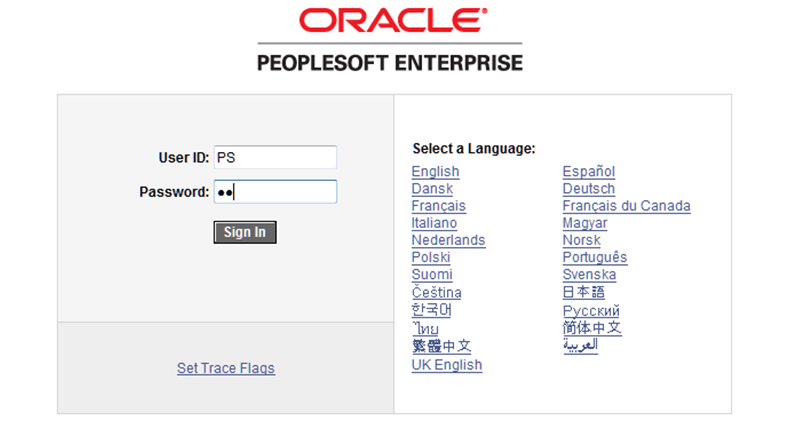
Sign into Campus Solutions using your institution's master user ID and password.
This is an example of signing into CS.
-
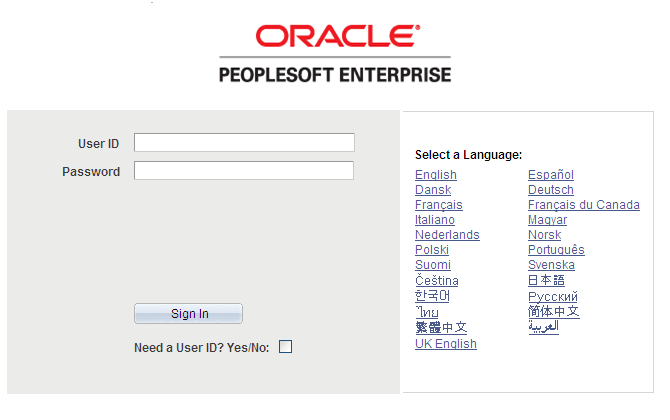
Access the New User Registration Tester page ().
This is an example of the New User Registration Tester page with sign-in fields.
-
Select the Need a User ID? Yes/No check box.
-
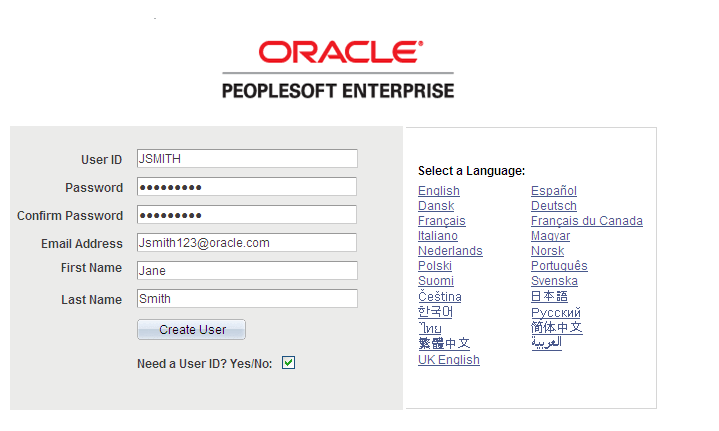
Fill out the New User Registration Tester page as shown in this figure:
This is an example of the New User Registration Tester page with the filled out user registration fields.
Note:
For the password field, choose a password of our own.
-
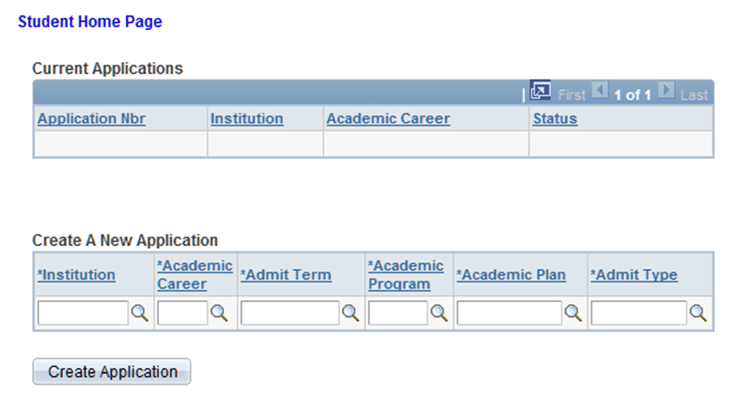
Click the Create User button. On clicking this button, the system transfers you to Sample Online Application home page:
This example illustrates the fields and controls on the blank Application Home page.
-
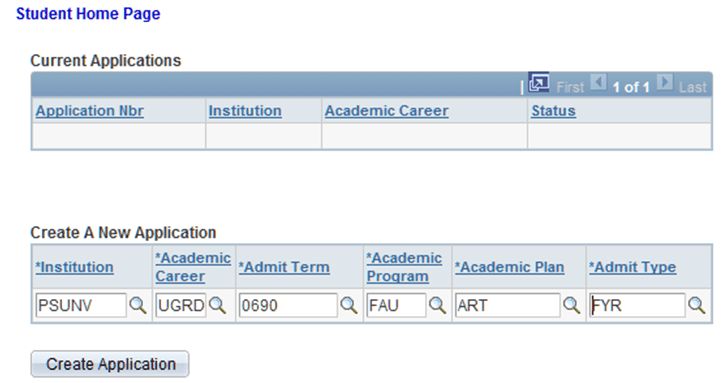
Fill out the Create A New Application section. Select values for:
-
Institution.
-
Academic Career.
-
Admit Term.
-
Academic Program.
-
Academic Plan.
-
Admit Type.
This is an example of the Home page with the values for creating a new application.
-
-
Click the Create Application button.
-
Change the value for the Gender field to Female.
-
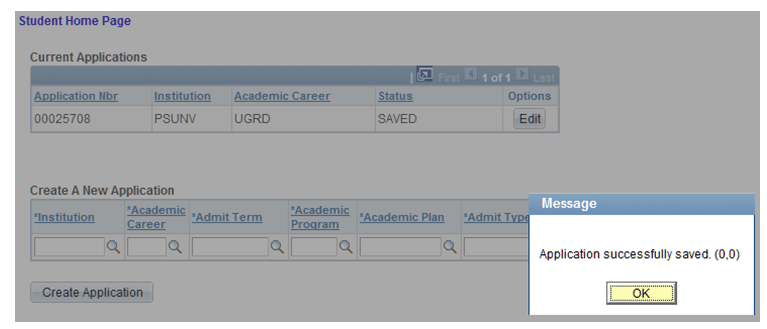
Save your changes. When you save, a message should be displayed indicating that the application was successfully saved:
This is an example of the message indicating that application has been saved.
-
Click OK and sign out.
-
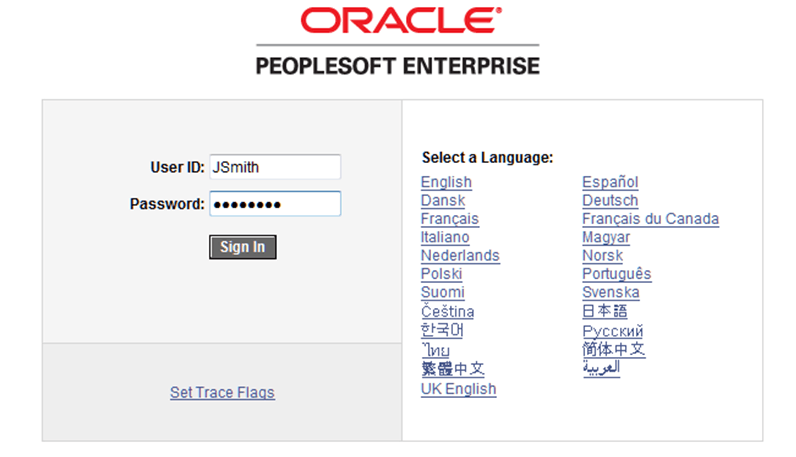
Sign back in using the newly created ID (that is, JSmith):
This is an example of signing into CS using the ID created through New User Registration tester page.
-
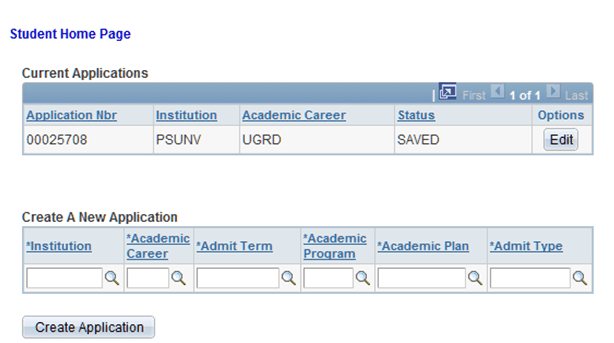
Access the Sample Online Application component ().
This is an example of the Home page with the saved application.
-
Click the Edit button.
-
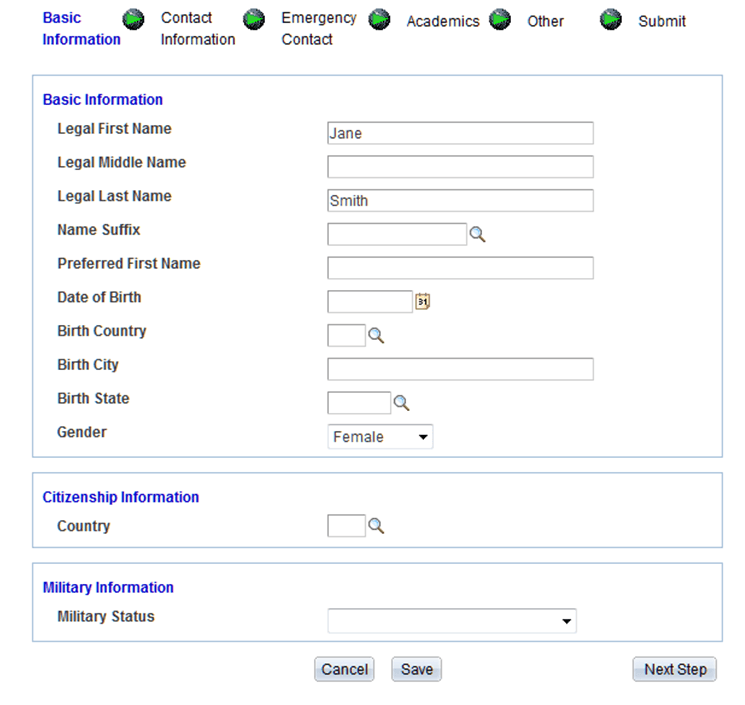
You should be able to see the application you started and the previously saved Gender change.
This is an example of the Basic Information page with the saved value.
-
If you have made it this far, then the database is configured correctly for AAWS, SOLA, and New User Registration. If not, then verify that the preceding setup steps have been performed correctly.