Setting Up Billing Messages
To set up billing messages, use the Message Categories component (BI_MSG_CAT_TBL), the Item Type Message component (BI_BILL_MSG_ITM), the Customer Message component (BI_BILL_MSG_CUS), the Business Unit Message component (BI_BILL_MSG_ALL), the Aging Set Messages component (BI_BILL_MSG_AGE), the Corporation Messages component (BI_BILL_MSG_ORG), and the Billing Messages component (BI_BILL_MSG_TBL).
This section provides an overview of billing messages and discusses:
Understanding Billing Messages
You can create and organize the messages that appear on your bills by defining message categories and billing messages.
Message categories enable you to track and organize billing messages that relate to one type of action or account. You must link all your billing messages to a message category.
After you have defined message categories, you create the messages that appear on your bills. Your messages can alert students of past due payments, warn them of potential fines or penalties, or inform them how their bills are calculated.
You link each message to an item type, an aging set, a business unit, a student, or a corporation. When you link the messages to these elements, the system determines which messages appear on each bill depending on to whom the bill is issued and to what the bill pertains.
Pages Used to Set Up Billing Messages
| Page Name | Definition Name | Navigation | Usage |
|---|---|---|---|
|
Message Categories |
BI_MSG_CAT_TBL |
|
Define message categories. |
|
Item Type Messages |
BI_BILL_MSG_ITM |
|
Link billing messages to item types. |
|
Customer Messages |
BI_BILL_MSG_CUS |
|
Link billing messages to students. |
|
Business Unit Messages |
BI_BILL_MSG_ALL |
|
Link billing messages to business units. |
|
Aging Set Messages |
BI_BILL_MSG_AGE |
|
Link billing messages to aging sets. |
|
Corporation Messages |
BI_BILL_MSG_ORG |
|
Link billing messages to organizations. |
|
Billing Messages |
BI_BILL_MSG_TBL |
|
Define billing messages. |
Defining Billing Messages
Access the Billing Messages page ().
This example illustrates the fields and controls on the Billing Messages page. You can find definitions for the fields and controls later on this page.
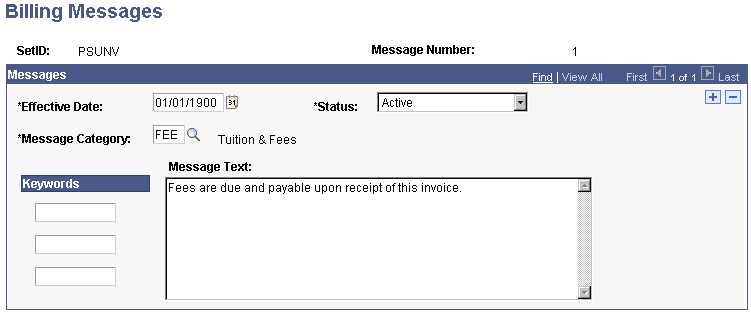
| Field or Control | Description |
|---|---|
|
Message Category |
Select a category with which to associate this message. |
|
Keywords |
Enter keywords to use when searching for this message. |
|
Message Text |
Enter the message to print on the bill. Remember that you link billing messages to item types, aging sets, business units, students, and corporations. Make the text of the message specific to whichever one that you plan to link it to. |
Linking Billing Messages to Item Types
Access the Item Type Messages page ().
| Field or Control | Description |
|---|---|
|
Message Number |
Select the number of the billing message to link to the item type range. When you generate a bill with charges or payments associated with the specified item type, the message linked to that item type appears on the bill. For example, if you create a billing message explaining how you calculate tuition, you can attach this message to all the tuition item types. When the system generates a bill with a charge against a tuition item type, the message explaining how you calculate tuition appears on the bill. |
Linking Billing Messages to Aging Sets
Access the Aging Set Messages page ().
| Field or Control | Description |
|---|---|
|
Message Number |
Select the number of the billing message to link to the aging set and aging category. When you generate a bill for a customer whose payment is late, the system selects the message to appear on the bill based on the number of days the payment is past due. |
Note:
You can attach only one message per aging category. The message associated with the oldest charge on a customer's account is the one that appears on the customer's bill.
Linking Billing Messages to Business Units
Access the Business Unit Messages page ().
| Field or Control | Description |
|---|---|
|
Message Number |
Select the number of the billing message to link to the business unit. Messages linked to a business unit appear on all bills generated by that business unit. |