Setting Up External File Layouts
To set up external file layouts, use the External File Layouts component (BANK_INPUT_FILE).
This section provides an overview of external file layouts and discusses:
Understanding External File Layouts
Student Financials enables you to import charge and payment information from outside sources. For example, many institutions have housing and parking management applications from third-party vendors. Or you may use a lock box service to receive and record payments. This information is imported into the Student Financials application using a file transfer process.
Field Positions and Lengths
Each piece of information in an external file is defined by a starting character position and a field length. Certain types of data (for example date fields) do not require a length definition because they have a fixed length. Consult the data provider to determine the correct definition.
Control Data
You must also set the location and length of the control data. This information is loaded into the Group Control Information. It is used to compare what the data source indicates they have sent to what was actually received, loaded, and posted. Control data also includes the origin code and the currency code. Control data may be located in the file header or trailer.
Pages Used to Set Up External File Layouts
| Page Name | Definition Name | Navigation | Usage |
|---|---|---|---|
|
Record Types |
BNK_RCN_INP_LAY1 |
|
Define basic file layout parameters. |
|
Field Details 1 |
BNK_RCN_INP_LAY4 |
|
Define the first set of field positions and lengths. |
|
Field Details 2 |
BNK_RCN_INP_LAY5 |
|
Define the second set of field positions and lengths. |
|
Field Details 3 |
BNK_RCN_INP_LAY6 |
|
Define the third set of field positions and lengths. |
|
Control Totals |
BNK_RCN_INP_LAY2 |
|
Defining locations and lengths of control data. |
Defining Basic File Layout Parameters
Access the Record Types page ().
This example illustrates the fields and controls on the Record Types page. You can find definitions for the fields and controls later on this page.

| Field or Control | Description |
|---|---|
|
Use Header Flag and Use Trailer Flag |
Select to indicate to the system to look for information in the header position, trailer position, or both. |
|
Trailer |
Enter any specific information that you want included in the file trailer. |
Defining Field Positions and Lengths
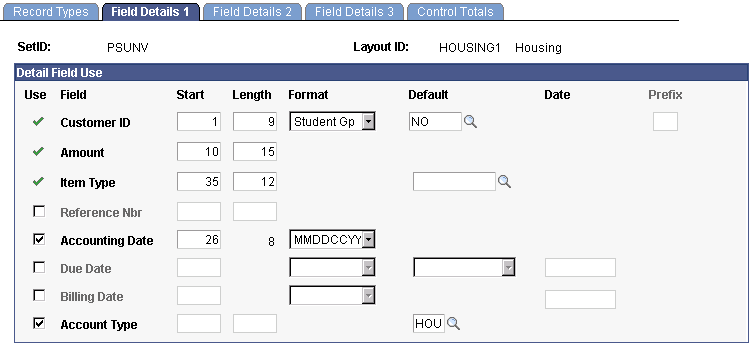
Access the Field Details 1 page ().
This example illustrates the fields and controls on the Field Details 1 page. You can find definitions for the fields and controls later on this page.
Note:
Use the Field Details 2 page and the Field Details 3 page to define positions and lengths for additional fields.
| Field or Control | Description |
|---|---|
|
Use |
To activate a field, select the Use check box next to it. The Customer ID, Amount, and Item Type fields are required. |
|
Start and Length |
Enter the start position and length for any applicable fields. |
|
Format |
Enter the format for any applicable fields. |
|
Default |
Enter the default for any applicable fields. |
|
Prefix |
Enter a prefix value if one is required. |
Defining Locations and Lengths of Control Data
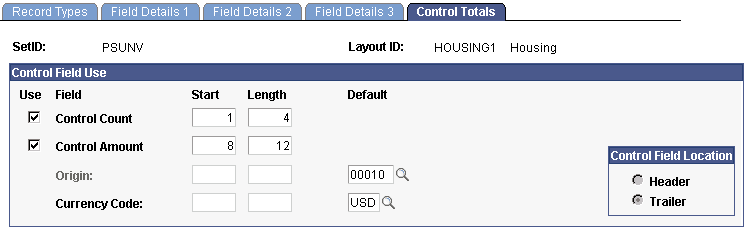
Access the Control Totals page ().
This example illustrates the fields and controls on the Control Totals page. You can find definitions for the fields and controls later on this page.
| Field or Control | Description |
|---|---|
|
Use |
To activate a field, select the Use check box next to it. |
|
Start and Length |
Enter the start position and length for any applicable fields. |
|
Default |
Enter the default for any applicable fields. |
Control Field Location
| Field or Control | Description |
|---|---|
|
Header or Trailer |
Select either header or trailer to indicate where control values can be found. |