Setting Up Integration with PeopleSoft Financials and Oracle Financials
This section discusses:
Pages Used to Set Up Integration with PeopleSoft Financials and Oracle Financials
| Page Name | Definition Name | Navigation | Usage |
|---|---|---|---|
|
Batch Publish Rules |
EO_MSGPUBBATCH |
|
Define batch publish rules for GL messaging. |
|
Batch Programs |
EO_MSGBATPGM |
|
Define batch programs for GL messaging. |
|
Full Table Publish Rules |
EO_MSGPUBFULL |
|
Set up business unit synchronization for PeopleSoft Financials. |
|
Full Data Publish |
EO_FULLDATAPUB |
|
Synchronize Student Financials business unit data with PeopleSoft Financials. |
Defining Batch Publish Rules for GL Messaging
Access the Batch Publish Rules page ().
This example illustrates the fields and controls on the Batch Publish Rules page. You can find definitions for the fields and controls later on this page.
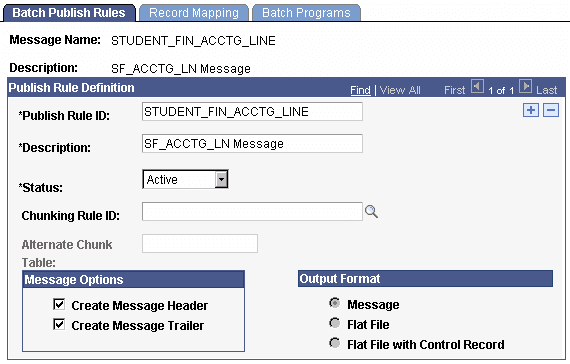
To define batch publish rules:
-
Enter STUDENT_FIN_ACCTG_LINE in the Publish Rule ID field.
-
Select Active in the Status field.
-
Do one of the following:
-
For PeopleSoft Financials 8.4 integration, select the Create Message Header and Create Message Trailer check boxes.
-
For integration with PeopleSoft Financials version 8.8 onwards, clear both check boxes.
-
For Oracle Financials integration, clear both check boxes.
-
Defining Batch Programs for GL Messaging
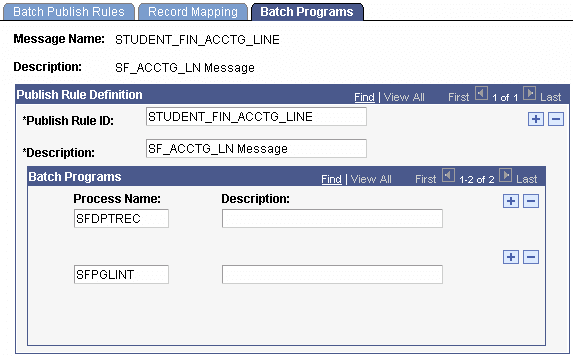
Access the Batch Programs page ().
This example illustrates the fields and controls on the Batch Programs page. You can find definitions for the fields and controls later on this page.
-
Select STUDENT_FIN_ACCTG_LINE as the message name.
-
Enter the process names SFDPTREC (Cashiering GL Interface process) and SFPGLINT (GL Interface process), which EOP_PUBLISHM picks up when publishing accounting lines to PeopleSoft Financials or Oracle Financials.
If you do not select these processes, the messages are not created when EOP_PUBLISHM runs.
Setting Up Business Unit Synchronization for PeopleSoft Financials
This section applies to integration with PeopleSoft Financials only.
Access the Full Table Publish Rules page ().
This example illustrates the fields and controls on the Full Table Publish Rules page. You can find definitions for the fields and controls later on this page.
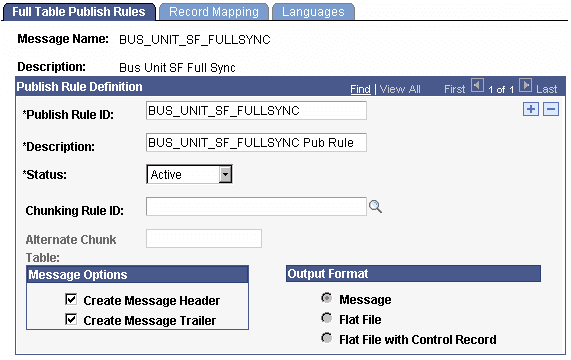
To set up business unit synchronization:
-
Enter BUS_UNIT_SF_FULLSYNC in the Publish Rule ID field.
This rule publishes three fields (Business Unit, Description, Short Description) for all rows on the table to PeopleSoft Financials.
-
Select Active in the Status field.
-
Select the Create Message Header and Create Message Trailer check boxes.
Note:
You must synchronize all Student Financials business units before you run any GL processes by running BUS_UNIT_SF_FULLSYNC full table publish once. Thereafter, the system manages additions or changes through messaging in the SF Business Unit component (BUSINESS_UNIT_SF).
Synchronizing Student Financials Business Unit Data with PeopleSoft Financials
This section applies to integration with PeopleSoft Financials only.
Access the Full Data Publish page ().
This example illustrates the fields and controls on the Full Data Publish page. You can find definitions for the fields and controls later on this page.
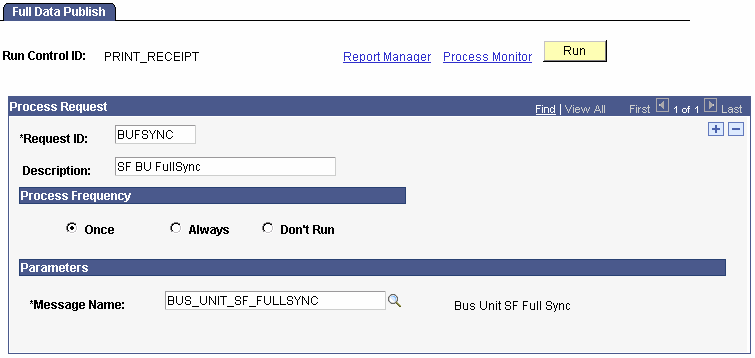
To synchronize business units:
-
Enter a request ID and description.
-
Select the Once option in the Process Frequency group box.
Note:
You can rerun this process without harming your system if the PeopleSoft Financials database becomes unsynchronized or corrupt.
-
Select BUS_UNIT_SF_FULLSYNC in the Message Name field.
-
Click Run.
After the process runs, the system keeps business units synchronized by triggering a message to the PeopleSoft Financials database whenever you change information in the Description field or the Short Description field on the General 1 page of the SF Business Unit component. In addition, the system triggers a message to PeopleSoft Financials whenever you add a new business unit.
Note:
The queue HR_SETUP enables one-way messaging and data publishing. To use this channel, you must configure the message node information by inserting the proper URL. PeopleSoft Financials must subscribe to these Student Financials published messages to keep its database up to date.
See product documentation for PeopleSoft FSCM: General Ledger.