Linking an APT Instance to the Student Program
If the Enable Program Enrollment check box is selected on the Academic Institution 9 page, the APT Instance and Year of Program fields appear on the Admissions Application Program Data page and the Student Records Program Data page. The check box is deselected by default; you must select the check box to use the Academic Progress Tracker.
See Setting Up for the Academic Progress Tracker
This section discusses how to:
-
Create an APT Instance from core Admissions.
-
Create an APT Instance from core Student Records.
Related Topics
Pages Used to Link an APT Instance to the Student Program
| Page Name | Definition Name | Navigation | Usage |
|---|---|---|---|
|
Application Program Data |
ADM_APPL_PROG_ENT ADM_APPL_PROG_MNT |
|
Create an APT instance. |
|
Student Program |
STDNT_PROG |
|
Create an APT instance. |
Creating an APT Instance from Admissions
Access the Application Program Data page ().
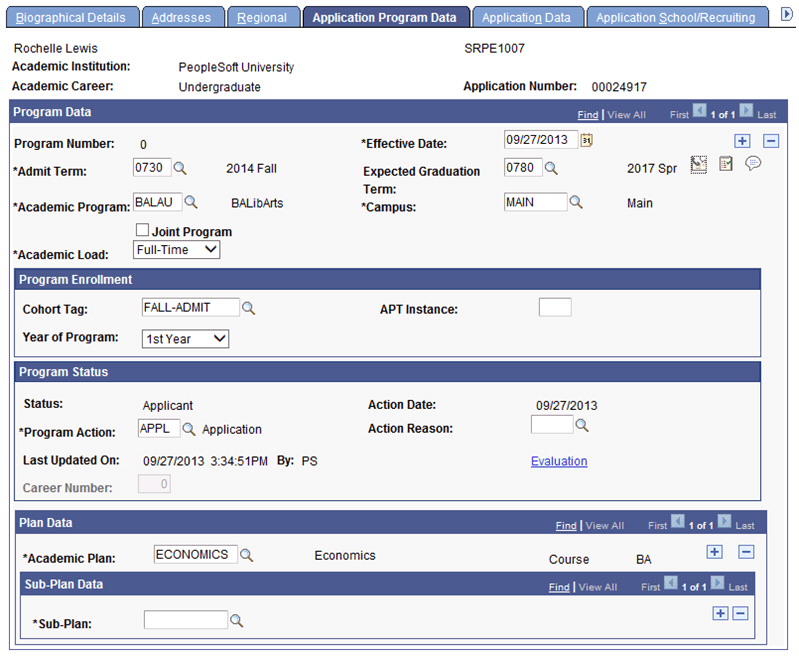
This example illustrates the fields and controls on the Application Program Data page for Program Enrollment. You can find definitions for the fields and controls later on this page.
| Field or Control | Description |
|---|---|
|
Cohort Tag |
This field appears only if the Enable Program Enrollment check box is selected on the Academic Institution 9 page. This value is obtained in the application process and indicates the point within a term (typically a session) that the applicant is expected to enroll. |
|
APT Instance |
This field appears only if the Enable Program Enrollment check box is selected on the Academic Institution 9 page. Note: The rules governing the generation of the instance at the admission stage and the process to generate the instance are planned for the future. |
|
Year of Program |
This field appears only if the Enable Program Enrollment check box is selected on the Academic Institution 9 page. This value is obtained in the application process and indicates the student’s start point in a program of study, for example, a student could apply as a second year student. |
See Recruiting and Admissions: Adding New Applications Manually
See Enabling Program Enrollment
Creating an APT Instance from Admissions
Creation of an APT Instance:
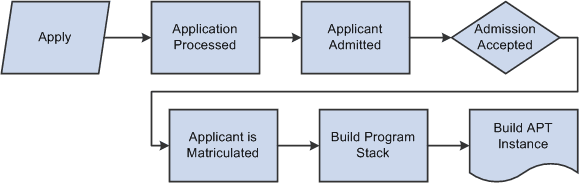
When the matriculation process creates the Student Records program stack, if a student is in a program/plan/sub-plan combination that is mapped to an AIR program, an API (SSR_APT.API) is called. The API creates an APT instance for the student, linking that instance to the program created by the matriculation process.
APT Instance Creation from Admissions Application Maintenance Component
An APT instance can be created directly from the Admissions Application Maintenance component when a user creates the student program using the matriculation (MATR) action.
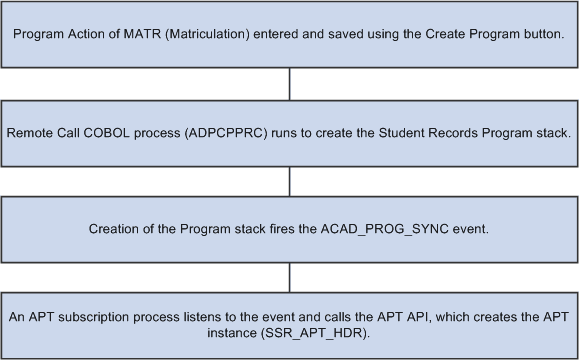
The following diagram provides an overview of the processing that takes place:
APT Instance Creation from Admissions Activate Applicants Process
The Admissions Activate Applicants batch process also creates an instance for a student when a mapping exists to an AIR program. When the process (ADPCPPRJ) creates Student Records program stack entries, this action fires the same ACAD_PROG_SYNC event described above. This is detected by the APT subscription service, which in turn calls APT API to build an instance.
See Recruiting and Admissions: Understanding How to Evaluate Applicants Using Automatic Processing
Related Topics
Creating an APT Instance from Student Records Program/Plan Component
Access the Student Program page ( ).
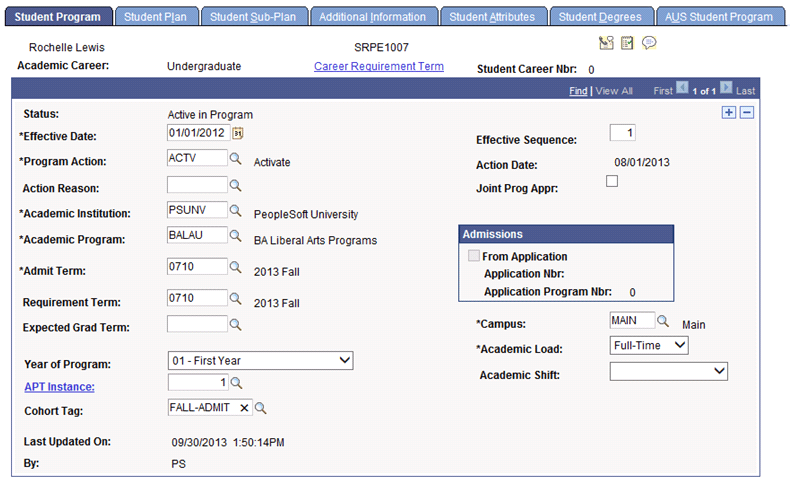
This example illustrates the fields and controls on the Student Program page for Program Enrollment. You can find definitions for the fields and controls later on this page.
| Field or Control | Description |
|---|---|
|
Year of Program |
This value is gathered in the application process and indicates the student’s start point in a program of study: for example, a student could apply as a second year student. The value is copied from the Admissions program stack by the matriculation process. |
|
APT Instance |
This field is populated with number of the APT Instance. This could be generated during the Admissions activation/matriculation process, the APT Request process or from this component (see “Adding a New Program” below). Click the APT Instance link to access the Academic Progress Tracker component. From that component, click the Student Career Nbr link to return to the Student Program page. See Creating and Managing APT Instances Using the Academic Progress Tracker Component |
|
Cohort Tag |
This value is obtained in the application process and indicates the point within a term (typically a session) that the applicant is expected to enroll. |
An APT instance can be created from the Program/Plan component when a user adds a new program stack (or career number) or makes changes to an existing program stack: the APT API is called from this component to create an APT instance.
Adding a New Program
An APT instance can be created from the Program/Plan component when a user adds a new program stack (or career number) or makes changes to an existing program stack: the APT API is called from this component to create an APT instance. When a new career number is added and the component is saved, the APT API is called.
The API:
-
Checks to see if mapping exists for the student’s program in the Academic Program Table Program Enrollment Mapping table. (SSR_PE_PRG_MAP).
-
If mapping exists, finds a row which maps to the combination of Plan(s) Sub-Plan(s) and Approved Academic Load. If mapping does not exist, uses the default (a default is required).
-
Creates an APT Instance for the mapped AIR program (process creates a row in the APT header table).
-
Updates the Instance number (ACAD_PROG.SSR_APT_INSTANCE).
-
The component returns a message to the user, confirming that an instance has been created.
See Mapping Campus Solutions Academic Programs, Plans and SubPlans to AIR Based Programs of Study
Changes to Existing Program Data
When a user inserts a new effective dated row and saves, an edit is performed to see if the new data – academic program, approved academic load, academic plan(s) or sub-plan(s) – has changed the program mapping from the previous row. If such a change has occurred:
-
A message is returned to the user to ask if a new instance should be created.
-
If the user answers yes, the API is called and the steps described in the previous Adding a New Program section are performed.
It is also possible that a student’s program data could change in such as way that a new effective dated row could map to a prior APT instance. For example, a student might change from full-time (Instance 1) to part-time (Instance 2) and then subsequently change back to full-time. When this occurs, and the new data maps to a program on a prior instance:
-
The user is prompted to create a new instance (because the mapping has changed).
-
If a match is found on a prior instance, the user is prompted to point the new effective dated row to that instance.
-
If the user answers yes, the instance number from the previous instance is used; otherwise a new instance is created.
Related Topics