Setting Up Anonymous Grading
Before going through this section, make sure:
-
You run the Entity Sync process whenever you make changes to entities. For information about running this process, see Maintaining Campus Solutions Entities on MOS (Doc ID 1546057.1).
-
You run the data manipulation scripts (DMS) before you use anonymous grading for the first time. For information on using DMS, see upd939729_details.pdf in the upd939729_install folder of the release image.
Pages Used to Set Up Anonymous Grading
| Page Name | Definition Name | Navigation | Usage |
|---|---|---|---|
|
Academic Institution 9 |
SSR_INST_PE |
|
Enable anonymous grading at the academic institution level. You can configure the display options for Activity Roster, AM Workcenter, and Individual Activity Manager. The academic institution default settings are also used for academic career and academic organization unless you override the settings at the career and organization level. |
|
Installation Student Admin |
INSTALLATION_SA |
|
Enable anonymous grading, and set the length of the anonymous ID. See Campus Solutions Application Fundamentals: Selecting Student Administration Installation Options. |
|
Inclusion Types |
SSR_AC_INCLTYPE |
|
Activate inclusion types to be used in the anonymous grading. The setting of anonymous grading on this page determines whether it is used and displayed in Activity Management. |
|
Activity Definition |
SSR_AC_ITEMTYPE |
|
Set which content types can use anonymous grading. |
|
Registry Detail |
SSR_AC_REG_DTL |
|
Override the anonymous grading defaults for the activity registry. The activity registry inherits the anonymous grading settings from the Academic Institution, Academic Career, or Academic Organization. |
|
Activity Manager |
SSR_ACM_MAIN |
|
Configure settings for anonymous grading at the activity level. |
|
Anonymous ID Security |
SSR_ANID_SCRTY_PG |
|
Configure access to anonymous IDs. |
|
Anonymous ID Search |
— |
|
Validate the anonymous IDs of students against the student ID and name. |
Configuring Access to Anonymous IDs
Access Anonymous ID Security page ( ).
This example illustrates the fields and controls on the Anonymous ID Security page.
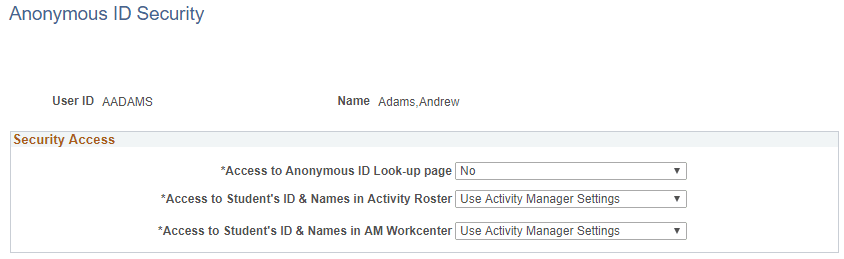
Use this page to determine the level of access to anonymous IDs that a particular user is allowed. For example, you can allow an instructor to access only anonymous IDs but not the student ID or name in Workcenter or Activity Roster.
The access you set up on this page is not a requirement to be able to use the anonymous grading feature. Oracle recommends to limit access to anonymous IDs to only a system administrator or super user.
Validating Anonymous IDs
Access the Anonymous ID Search page ( ).
Use this page to check the anonymous IDs of students against their student ID and name. This page displays the anonymous IDs assigned to each student per activity.
| Field or Control | Description |
|---|---|
|
ID |
Enter or search for the student ID against which you want to validate the anonymous ID. |
|
Anonymous ID |
Enter the anonymous ID of the course against which you want to validate a student ID or name. |
|
Anonymous ID Type |
Select the anonymous ID type: course or resit. |
|
Exam Only Course |
Select to limit your search to exam-only courses. |