Business Request Template Page
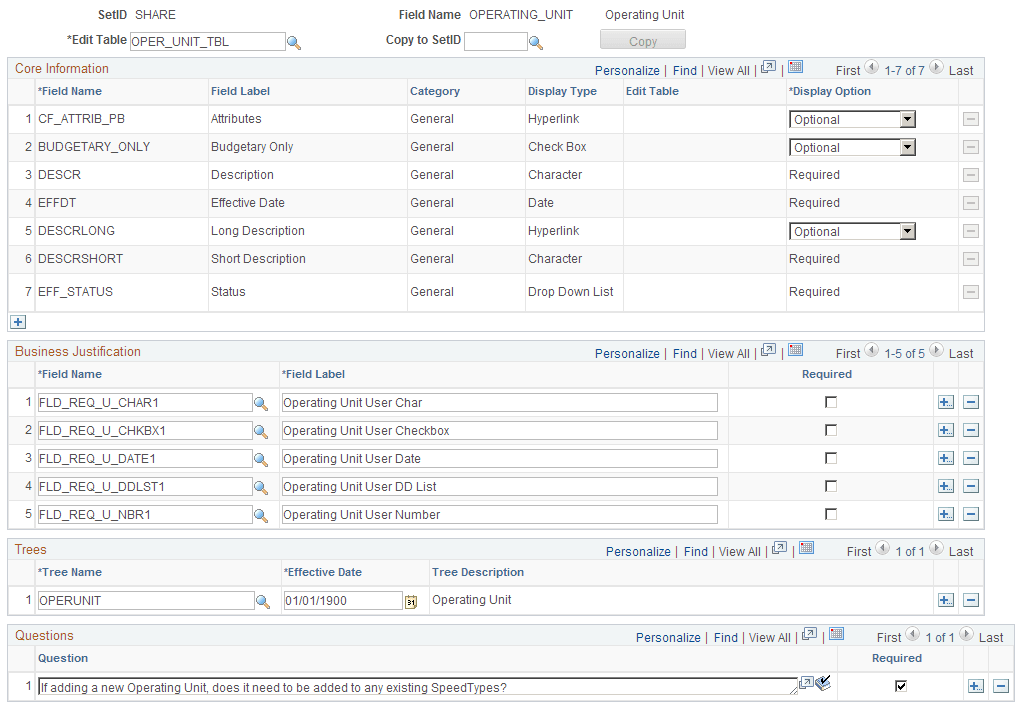
Use the Business Request Template page (FLD_REQ_TMPLT) to create or update a template for each field for which you want to create business requests for approval of new values or updates to existing values. You can copy a template for a given field to another SetID as well.
The Business Request Template page is SetID-driven and contains not only the core information that is copied from the Business Request Setup – Core Table Fields page when creating a new template, but also includes the business justification, trees and questions that you need to set up the process.
Navigation:
This example illustrates the fields and controls on the Business Request Template Page. You can find definitions for the fields and controls later on this page.
| Field or Control | Description |
|---|---|
|
Edit Table |
Enter an edit record for the Field Name to be used for validation. This field is populated by default with the base table for the field. |
|
Copy to SetID |
This field is only visible after you have saved a new Business Request Template. Select the SetID for which you want to copy the existing template for a given field, thus creating a new template under the new SetID that you supply. |
|
Copy |
Once you select a SetID for the Copy to SetID field, and tab out of the field, the Copy button is enabled. Click the Copy button to create the new template for the field under the new SetID. |
Note:
The Tree information is not copied to the new template, as Tree is SetID-driven and the trees appropriate for the current SetID may not be valid for the new SetID.
Core Information
| Field or Control | Description |
|---|---|
|
Display Option |
Display Option values are:
|
Business Justification
The following are the delivered fields that you can choose for the Business Justification grid. You are required to enter their field labels here, which will appear on the ChartField Request page. You can add more fields using Application Designer; however, you must follow the naming convention, field type and length below:
| Display Type | Field Name Prefix | Delivered Number | Field Type and Length |
|---|---|---|---|
|
Character |
FLD_REQ_U_CHAR |
1, 2, 3, 4 |
Character 254 |
|
Check Box |
FLD_REQ_U_CHKBX |
1, 2, 3, 4 |
Character 1 |
|
Date |
FLD_REQ_U_DATE |
1, 2, 3, 4 |
Date 10 |
|
Drop Down List |
FLD_REQ_U_DDLST |
1, 2, 3, 4 |
Character 4 |
|
Number |
FLD_REQ_U_NBR |
1, 2, 3, 4 |
Signed Number 23.3 |
Note:
To be able to select these Drop Down List fields, you need to define the corresponding translate values first in Application Designer. Otherwise, you are not able to select those fields.
For more information, see PeopleTools: PeopleSoft Application Designer Developer's Guide.
Note:
Any changes that you make to the Business Request Setup page are not carried over to templates that already exist; you must manually apply those changes to the templates, if required.
Note:
Business Request templates can be changed without any restrictions. However, template changes are only reflected on newly created ChartField requests. Existing ChartField requests are not impacted by Business Request template changes.