Example: Advanced Search
In this example, a manager wants to know, “Who created an expense for Air Travel in my business unit”.
To perform this search:
-
Select the magnifying glass (Search) to the right of the Global Search field.
-
Expand the New Search section,
-
Select the More Options link.
-
In the Category field, select Expenses.
-
In the Keywords field, enter Air Travel.
-
Select the Search button.
-
Select the US001 check box in the Business Unit facet section.
This example illustrates how to perform an advanced search for who created an expense for Air Travel in business unit US001.
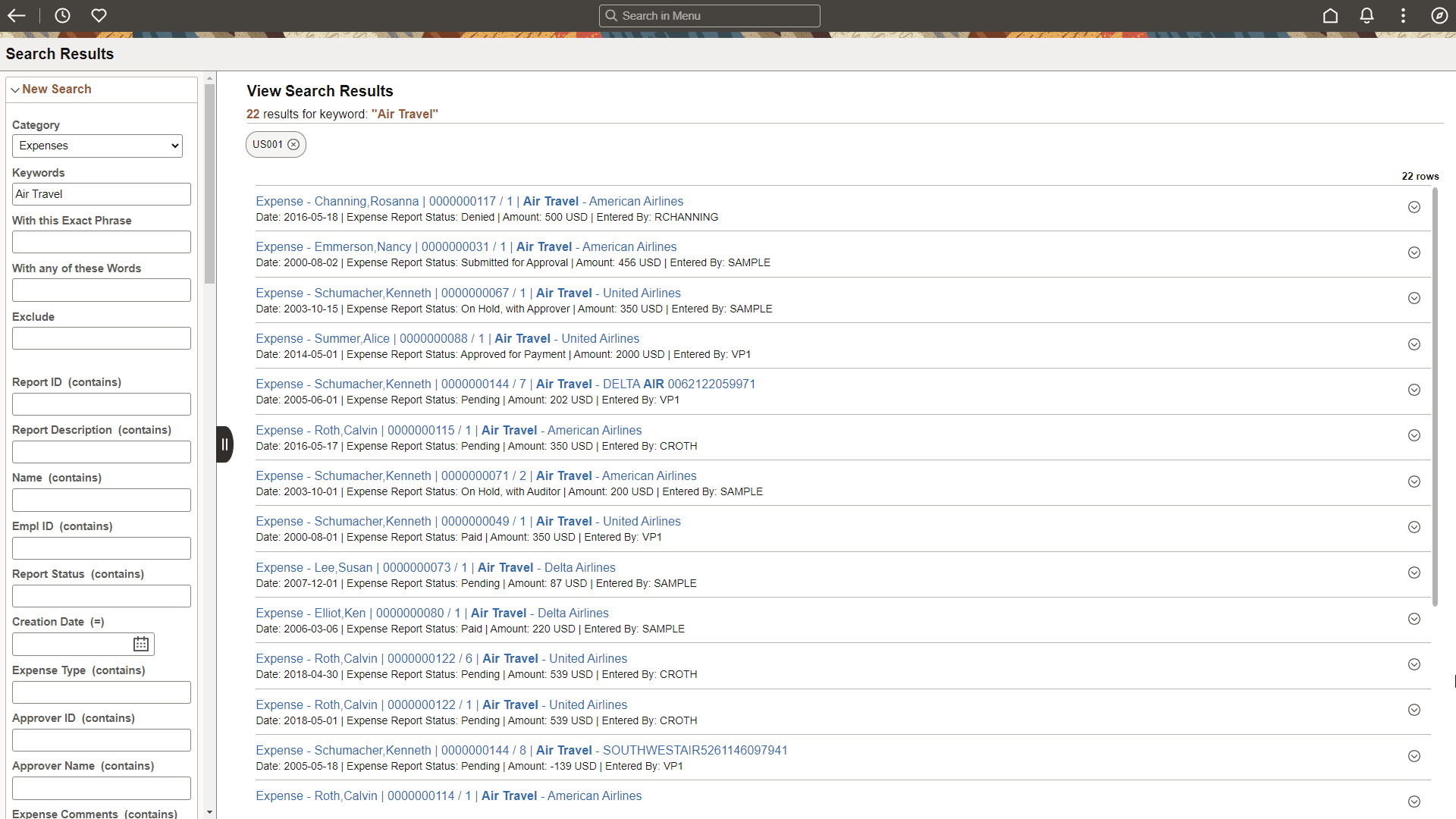
The search results show enabled facets on the left side of the page so that the manager can continue to refine the results based on business unit, creation date, name, and so on.
Search results display on the right side and are typically at the document header level. However, in cases such as expense reports, the search result is provided at the line level to display more pertinent information so that the user doesn’t have to drill into the transaction. In this example the expense line contains the employee, date, status, amount and description, which may all be important to a manager.
Note:
The system presents all expense reports for which an end user has security. This is based on the same security the user has when searching within the expense report component.
For more information about search results, see Understanding Search Results.