Working With and Personalizing the Classic Links Pagelet As an End User
Pages Used to Use and Personalize the Classic Links Pagelet As an End User
| Page Name | Definition Name | Usage |
|---|---|---|
|
<Application Code>_WC_INIT |
Use the Links pagelet as an end user. |
|
|
Define User “Links” Links – Links Pagelet Personalization Page |
FSPC_USER_LINK |
Personalize the Links pagelet as an end user. |
|
FSPC_USR_LNK_SEC |
Define a Links link as an end user. |
Links Pagelet
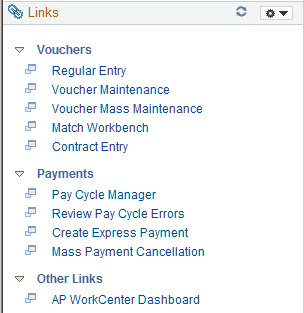
Use the Links pagelet (<Application Code>_WC_INIT) to access additional links to pages or other areas of interest for the user’s role.
Navigation:
Open the Links section.
This example illustrates the fields and controls on the Links pagelet.
Links
| Field or Control | Description |
|---|---|
|
|
Click the Pagelet Settings icon and select an option to:
|
|
|
Select to reload the options. |
|
|
Click the New Window icon to launch the link in a new window. |


Define User “Links” Links – Links Pagelet Personalization Page
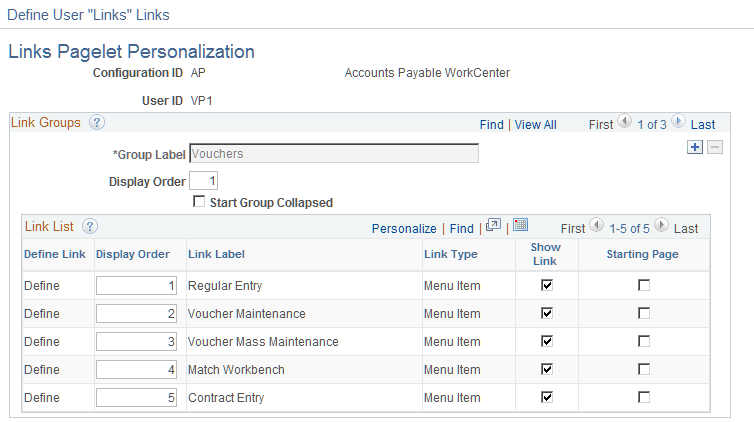
Use the Define User “Links” Links – Links Pagelet Personalization page (FSPC_USER_LINK) to personalize the Links pagelet as an end user.
Navigation:
In the Links pagelet, click the Pagelet Setting icon. Select Personalize.
This example illustrates the fields and controls on the Define User “Links” Links – Links Pagelet Personalization page
| Field or Control | Description |
|---|---|
|
Delete Personalization |
Click this button to delete user-specific personalizations. This button does not appear until you’ve saved the Personalization page. |
Link Groups
| Field or Control | Description |
|---|---|
|
Group Label |
Enter a description of the group of Links links that appear on the Queries pagelet. |
|
Add |
If the system administrator has selected the Allow User to Add Additional Links check box on the Enterprise Components: Configure Pagelets - Links Page, then the end user can click the Add icon, within the Link Groups section of the page, to add another group label and define links in the Link List section. |
|
Display Order |
Enter the order in which you want this group label to appear on the pagelet. |
|
Start Group Collapsed |
Select to indicate that you want this group label to appear collapsed when entering the WorkCenter page. Deselect to indicate that you want this group label to appear expanded, and see all links within the group, when entering the WorkCenter page. |
Link List
| Field or Control | Description |
|---|---|
|
Define |
Click to access the Define Link Page, where you can define the link as a menu item or a URL. |
Define Link Page
Use the Define Link page (FSPC_USR_LNK_SEC) to define a link as an end user.
Navigation:
In the Links pagelet, click the Pagelet Setting icon. Select the Personalize option. Click the Define Link link.
| Field or Control | Description |
|---|---|
|
Link Type |
Select Menu Item or URL. |
|
Select Menu Item |
Click to access the Select a Content Reference page, where you can select a menu item from a tree structure view. |
|
Override Label |
Select to indicate that you want to override the menu label that is populated when selecting a menu item. |
|
Label |
Enter the label that you want the system to use if you selected the Override Label check box. |