Applying New Depreciation Bonus Codes to Existing Assets
This topic provides an overview on how to apply new depreciation bonus codes retroactively to eligible assets and update the existing asset profiles to ensure that newly added assets are automatically assigned the correct bonus depreciation and percentage.
Pages used to Apply New Depreciation Bonus Codes
| Page Name | Definition Name | Usage |
|---|---|---|
|
Bonus Extract/Report Page |
AMSEC101_RQST |
Add new depreciation bonus code to eligible assets and run the AMSEC101 process to apply the depreciation bonus to selected business units and asset profiles. |
|
Bonus Review Page |
ASSET_BONUS_REV |
Review, add, or delete assets that the Bonus Extract/Report process page added to the temporary table. |
|
Bonus Update Profile Page |
AMSEC101A_RQST |
Update existing asset profiles to automatically assign the new bonus depreciation code for assets added in future. |
Bonus Extract/Report Page
Use the Bonus Extract/Report (AMSEC101_RQST) page to retroactively apply the bonus depreciation calculation to existing assets using a range of business units and add new depreciation bonus codes to eligible assets.
Navigation:
This example illustrates the fields and controls on the Bonus Extract/Report page. You can find definitions for the fields and controls later on this page.
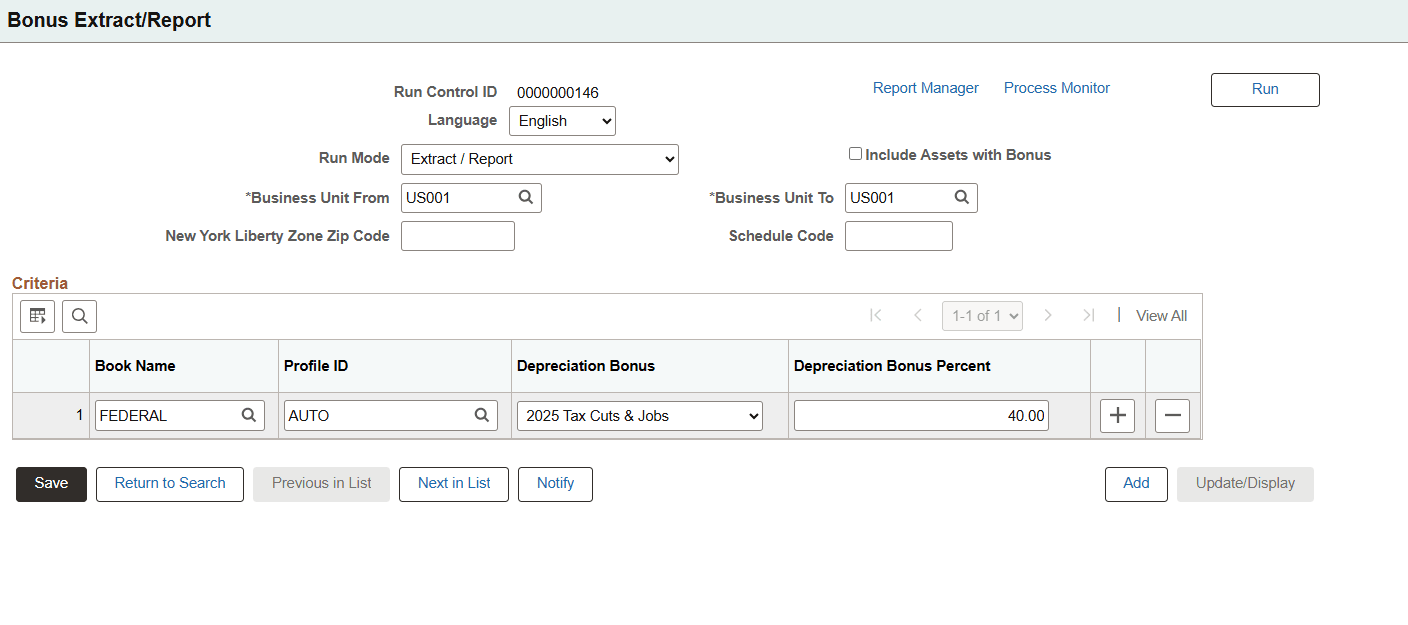
| Field or Control | Description |
|---|---|
|
Run Control ID |
Displays the unique name for the run control. |
|
Run Mode |
Select the run modes. The options are
|
|
Include Assets with Bonus |
Only select to indicate the assets you are updating have already had another type of bonus applied to them. |
|
Business Unit From and Business Unit To |
Select one Business Unit or a range of Business Units. |
|
New York Liberty Zone Zip Code |
Only select if the prior depreciation applied to the assets used a New York Liberty Zone type of bonus depreciation. |
|
Schedule Code |
Only select if the prior depreciation applied to the assets used a bonus depreciation schedule code. |
|
Book Name |
Select the tax book with bonus depreciation. |
|
Profile ID |
Enter the asset profile ID used to create the assets. |
|
Depreciation Bonus |
Select the prior bonus code applied to the assets. |
|
Depreciation Bonus Percent |
Enter the prior bonus depreciation percentage applied to the assets. |
|
Run |
Select to run the Bonus Extract/Report process (AMSEC101), selecting the option for creating an extract with or without a report. The extract identifies the assets based on the profile IDs, books, depreciation bonus and percentage that you entered that meet the requirements for the new depreciation bonus and inserts them into a temporary table. |
Bonus Review Page
Use the Bonus Review (ASSET_BONUS_REV) to view, add, or delete assets in the bonus extract temporary table.
Navigation:
This example illustrates the fields and controls on the Bonus Review page. You can find definitions for the fields and controls later on this page.
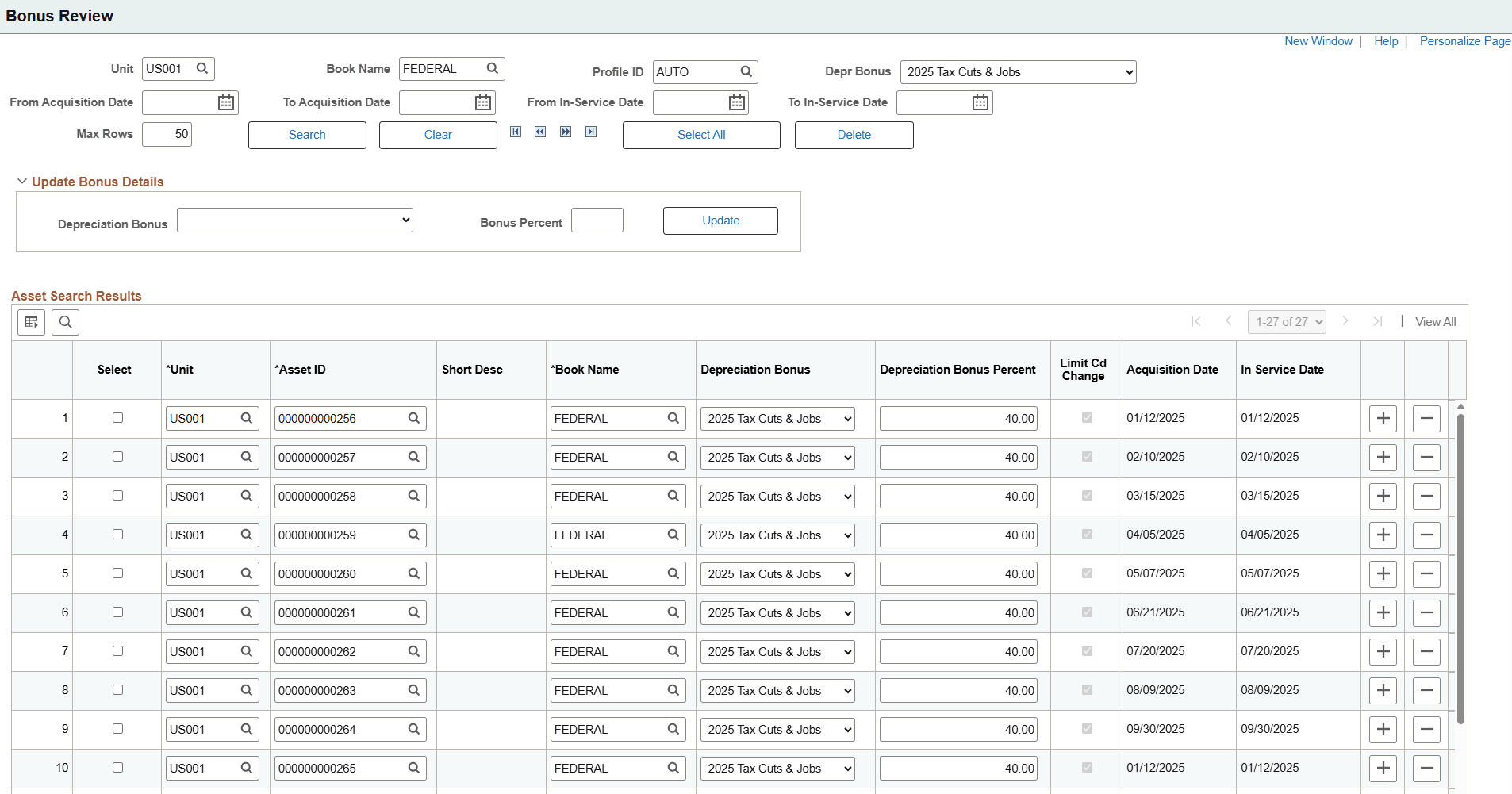
| Field or Control | Description |
|---|---|
|
From Acquisition Date, To Acquisition Date, From In Service Date, and To In Service Date |
Select From Acquisition Date, To Acquisition Date, From In Service Date, and To In Service Date to narrow down the search results. |
|
Update Bonus Details |
Select the values for depreciation bonus and percent in the group box and then use the Update button to apply them to one or more assets selected from the Asset Search Results upon saving. |
|
Search |
Searches for assets that match the search criteria you selected. |
|
Clear |
Clears the fields on the page so you can start a new search. |
|
Select All |
Selects all the assets displayed. |
|
Delete |
Deletes the selected rows. |
|
Select |
Select one or more assets to apply the bonus details. |
|
Asset ID |
Displays the Asset ID. |
|
Limit Cd Change |
System needs to validate against a table that stores limit codes. |
|
Acquisition Date and In Service Date |
These are related display fields. The Acquisition Date is fetched from Asset record. The In Service Date is fetched from the Asset Book record. |
Remove any ineligible assets by clicking the ‘-‘ button on the asset row and update the new Depreciation Bonus code with the applicable bonus percentage.
Save the bonus details and you can return to the Bonus Extract/Report page to run the process again using the Prepare for Depreciation option to update all of the selected assets with the new depreciation bonus code and percentage.
Bonus Update Profile Page
Use the Bonus update profile (AMSEC101A_RQST) page to update your existing asset profiles to ensure the new bonus depreciation is automatically assigned for the assets added in the future.
Navigation:
This example illustrates the fields and controls on the Bonus Update Profile page. You can find definitions for the fields and controls later on this page.
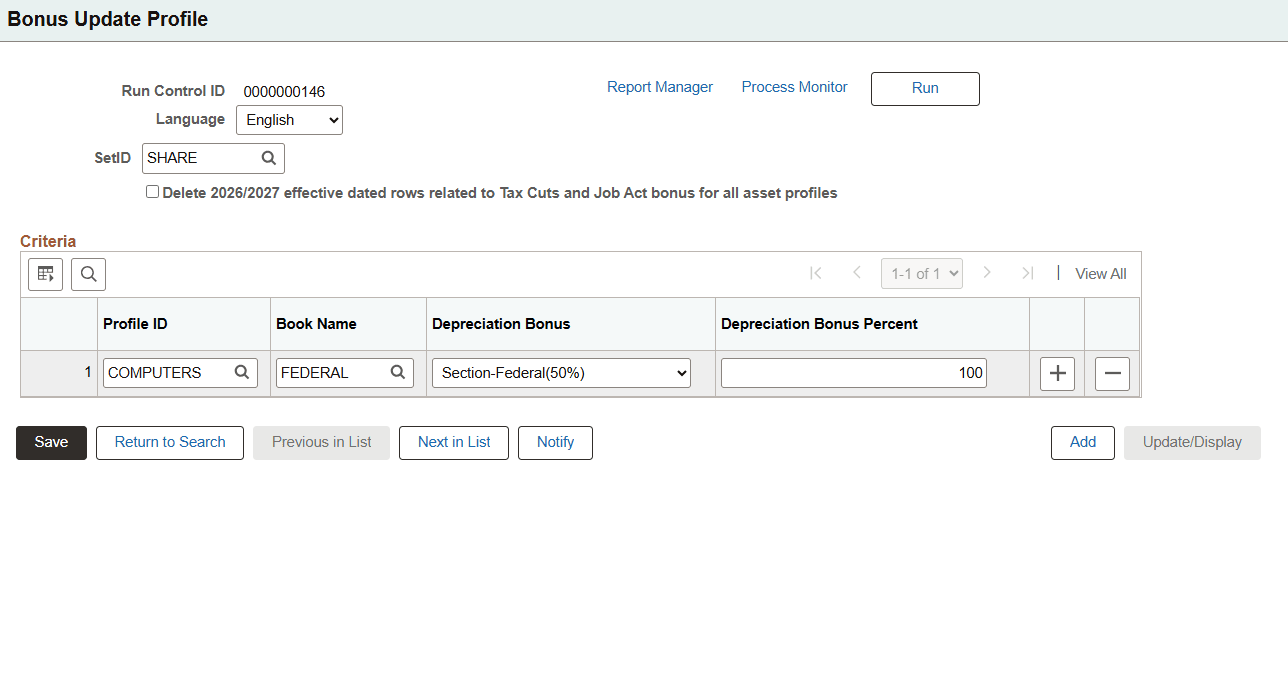
| Field or Control | Description |
|---|---|
|
Set ID |
Select the Set ID to enter the profile details. |
|
Delete 2026/2027 effective dated rows related Tax Cuts and Job Act bonus for all asset profiles |
Select this checkbox if you currently have 2026 and 2027 effective dated asset profile rows for the Tax Cuts and Job Act bonus depreciation. |
|
Profile ID, Book Name |
Add each Profile ID and Book that needs to be updated with the new bonus depreciation code. |
Select Run to add the new bonus depreciation code to the asset profiles indicated and to delete any 2026/2027 effective dated rows for the Tax Cuts and Job Act bonus depreciation.