Updating Internal Bank Balances
This topic discusses how to update internal bank balances and enter float information for internal bank balances.
Pages Used to Update Internal Bank Balances
| Page Name | Definition Name | Usage |
|---|---|---|
|
BNK_BAL_ENTRY_PNL |
Manage internal bank account statements. |
|
|
BNK_BAL_ENTRY_FLT |
Enter float information for an internal bank balance. |
Enter Internal Bank Balances Page
Use the Enter Internal Bank Balances page (BNK_BAL_ENTRY_PNL) to manage internal bank account statements.
Navigation:
This example illustrates the fields and controls on the Enter Internal Bank Balances page. You can find definitions for the fields and controls later on this page.
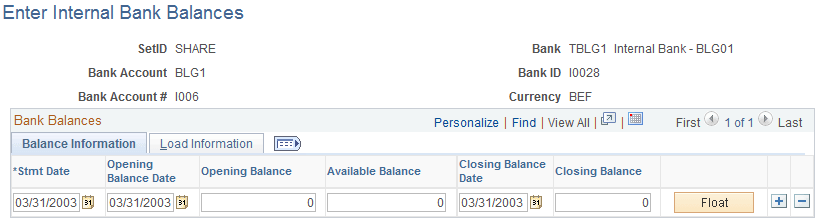
Balance Information
Enter the dates for the bank statement, as well as the opening and closing balances.
| Field or Control | Description |
|---|---|
|
Float |
Click to access the Bank Balance - Float Entry page and enter float information. |
Load Information
The system updates the User ID field with the ID of the user who last updated the balance information.
Bank Balance - Float Entry Page
Use the Bank Balance - Float Entry page (BNK_BAL_ENTRY_FLT) to enter float information for an internal bank balance.
Navigation:
Click the Float button on the Balance Information tab of the Enter Internal Bank Balances page.
Float is the number of days that the bank takes to clear a deposit or a payment (for example, check or funds transfer). Use this page to determine the funds availability of a specified bank account balance on a given day.
| Field or Control | Description |
|---|---|
|
Float Dt (float date) |
Enter the date that funds become available. |
|
Available Balance |
Enter the amount of funds that are available on the float date. |