Billing WorkCenter - My Work (Fluid)
Use the Billing WorkCenter - My Work (BI_HDR_APP_GRID_FL) to access current work and exceptions using the PeopleSoft Fluid User Interface.
Navigation
Select the Billing WorkCenter tile.
This example illustrates the fields and controls on the Billing WorkCenter - My Work (Fluid).
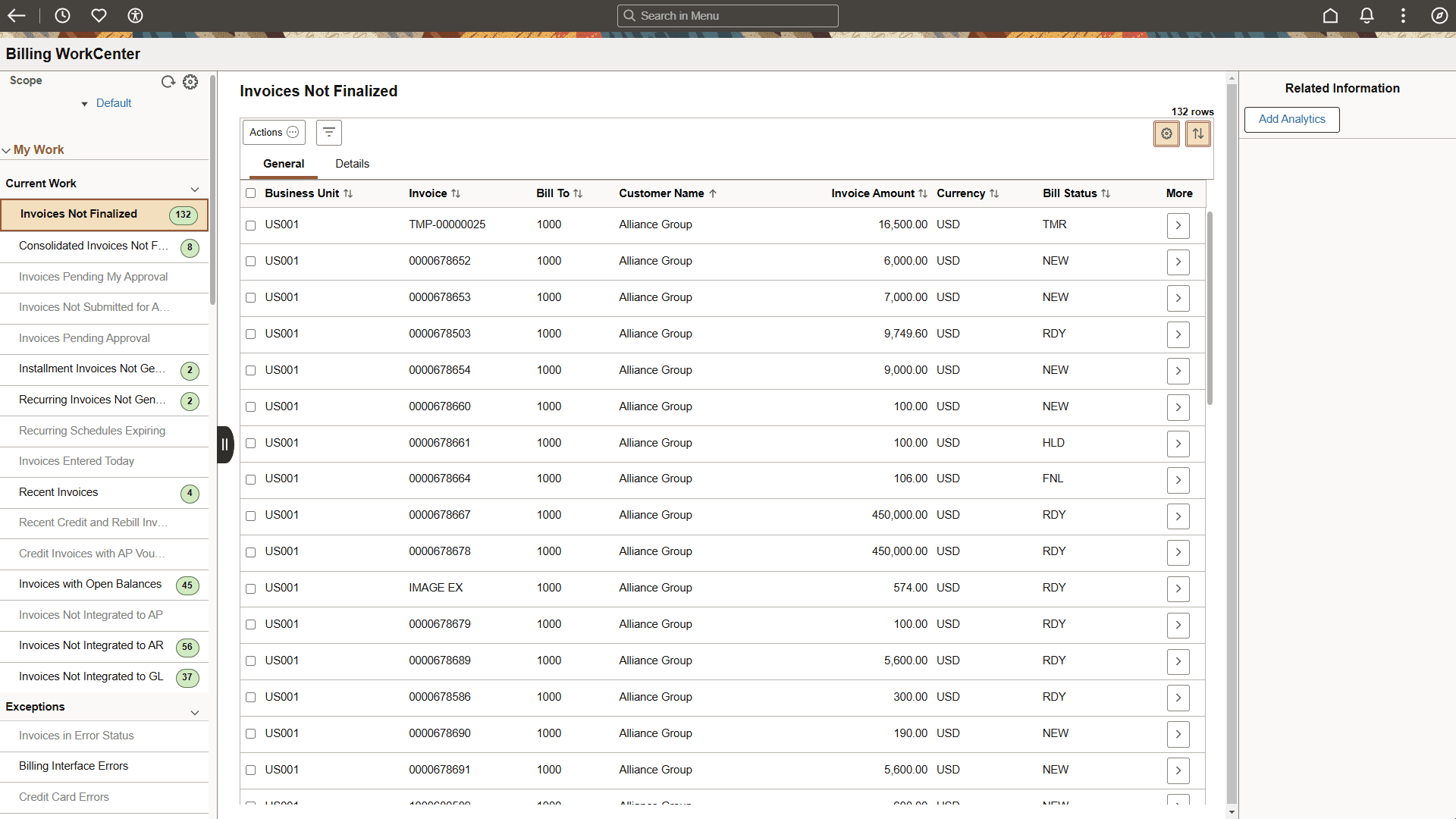
Current Work
The Current Work collapsable section includes pre-defined links are delivered in Billing:
-
Invoices Not Finalized: Click this link to display a list of bills that are yet to be finalized. This list includes all bill statuses except for INV, CAN, or TMP/TMR invoices that have been approved. It does not include consolidated, attached, or template invoices. It also does not include invoices for which the process instance is not equal to 0.
-
Consolidated Invoices Not Finalized: Click this link to display a list of consolidated invoices that have not been invoiced. This list includes all bill statuses except for INV and CAN. It also does not include invoices for which the process instance is not equal to 0.
-
Invoices Pending My Approval: Click this link to display a list of invoices that are pending approval by the user who is currently signed on.
-
Invoices Not Submitted for Approval: Click this link to display a list of invoices that require approval but have not been submitted for approval.
-
Invoices Pending Approval: Click this link to display a list of invoices that are pending approval.
-
Installment Invoices Not Generated: Click this link to display a list of installment invoice templates that have a schedule but the invoices for the schedule have not been generated. Any invoices not generated by the generate date will appear in the list.
-
Recurring Invoices Not Generated: Click this link to display a list of recurring invoice templates that have a schedule but the invoices for the schedule have not been generated. Any invoices not generated by the generate date will appear in the list.
-
Recurring Schedules Expiring: Click this link to display a list of recurring invoice templates whose schedule end date is within 30 days of the current date (about to expire). These expiring templates will drop off the list once the schedule end date has passed.
-
Invoices Entered Today: Click this link to display a list of invoices that have been entered in the current date. This list includes all bill statuses except for TMP or TMR invoices that have been approved. It does not include consolidated, attached, or template invoices. It also does not include invoices for which the process instance is not equal to 0.
-
Recent Invoices: Click this link to display a list of invoices that have been entered in the last 90 days. This list includes all bill statuses except for TMP or TMR invoices that have been approved. It does not include consolidated, attached, or template invoices. It also does not include invoices for which the process instance is not equal to 0.
-
Recent Credit and Rebill Invoices: Click this link to display a list of credit and rebill invoices that have been entered in the last 90 days. This list includes all bill statuses except for CAN.
-
Credit Invoices with AP Vouchers: Click this link to select invoices for which the AP flag is set to generate the voucher but the Credit invoice has not been invoiced.
-
Invoices with Open Balances: Click this link to display a list of invoices that have an open item balance in the Receivables module.
-
Invoices Not Integrated to AP: Click this link to display a list of finalized invoices for which the AP flag is set to generate a voucher, but the process has not been run.
-
Invoices Not Integrated to AR: Click this link to display a list of finalized invoices that have not been loaded to the Receivables system.
-
Invoices Not Integrated to GL: Click this link to display a list of finalized invoices for which the accounting entries have not been created to load to GL.
-
Letter of Credit Pending Draw: Click this link to identify and review current billing activity for all LOCs associated with a specific Business Unit, or for a single LOC ID. Billing Specialists can view proforma draw or generate draws directly from this link without navigating to the Letter of Credit Summary page.
Note:
The actual draw amount might be lower than the displayed amount as limit checking is not done.
-
Invoices in Error Status: Click this link to display a list of invoices that are in error status. That is, the ERROR_STATUS_BI field in the bill header is not blank. This list does not include canceled bills.
-
Billing Interface Errors: Click this link to display a list of interface IDs that have error lines. This list is summarized by type of error.
-
Credit Card Errors: Click this link to display a list of credit card invoices for which the credit card has been denied or the credit card transaction is in error.
-
Email Errors: Click this link to display a list of invoices for which the delivery method is Email Invoice as Attachment and the email delivery was not successful.
-
Worksheet Errors: Click this link to display a list of worksheets that are in error status.
-
Combo Edit Errors: Click this link to display a list of finalized invoices that have combo edit errors.
-
Budget Check Errors: Click this link to display a list of invoices that have budget check errors on the accounting entries.
Actions
Click an option in Current Work to view the page in the transaction area. You can perform any of the actions that are displayed. The action options available may change depending on what is selected in Current Work.
| Term | Definition |
|---|---|
|
Finalize and Print |
Select to schedule the finalize and print job. The Finalize and Print action can be performed on multiple invoices. |
|
Single Action Job |
Select to schedule the single action job. The Single Action Job action can be performed on multiple invoices. Note: If Business Process Weaver (BPW) is set up for Billing process, then selecting the Single Action Job will initiate the BPW process in a new window. For additional information about the BPW, see Application Fundamentals: Understanding PeopleSoft Business Process Weaver |
|
Change Bill Status |
Select to access the Change Bill Status page. The Bill Status options available are Canceled, Hold Bill, New Bill, Pending and Ready Bill. The Change Bill Status action can be performed on multiple invoices. |
|
View Pro Forma / Image |
Select to view the pro forma / image. The system will display the Proforma / image based on the invoice type and the online invoice render flag setting. |
|
Copy Bill |
Select to access the Copy Single Bill page for the selected invoice. |
|
Bill Summary |
Select to access the Bill Summary search page. Select the invoice to view the summary information page. |
|
Invoice Maintenance |
Select to access the Invoice Maintenance page. Only invoices from ESA are supported. |
|
Supporting Documentation |
Select to view the supporting documents, if any, attached with the invoice. |
|
Correct Budget Errors |
Select to access the Correct Budget Check Errors page. |
|
Adjust Entire Bill |
Select to access the Adjust Entire Bill page for the selected invoice. |
|
Adjust Select Bill Lines |
Select to access the Adjust Selected Bill Lines page for the selected invoice. |
|
Reprint Invoice |
Select to reprint the invoice. Multiple invoices can be reprinted. |
|
Submit for Approval |
Select to submit one or many invoices for approval. |
|
Approve |
Select to approve one or many invoices. |
|
Deny |
Select to deny one or many invoices. |
|
Attach/Detach Bills |
Select to access the Attach/Detach Bills page for the selected consolidated invoice. |
|
View Attached Bills |
Select to access the Attached Bill Inquiry page for the selected consolidated invoice. |
|
Review Pending Transactions |
Select to access the Review Pending Credit Card transactions page for the selected invoices. |
|
Retry Email |
Retry sending email for the selected invoices. |
|
Review Email Invoice Log |
Select to access the Review Email Invoice Log page for the selected invoice. |
|
View Contact Information |
Select to view the contact information for the email contact. |
|
Create Installment Bills |
Select to run the Create Installment Bills process for the selected installment template invoice. |
|
View Installment Bill Schedule |
Select to access the Installment Billing Schedule page for the selected installment template invoice. |
|
Correct Staged Acct Errors |
Select to access the Correct Staged Acctg Errors page. |
|
Load AP Process |
Select to run the Load AP process for the selected invoices. |
|
Load AR Process |
Select to launch the job that runs currency conversion, preload, and load AR processes for the selected invoices. |
|
Create Accounting Entries |
Select to launch the job that runs currency conversion, preload, and load GL processes to create accounting entries for the selected invoices. |
|
Create Recurring Bills |
Select to run the Create Recurring Bills process for the selected recurring template invoice. |
|
View Recurring Bill Schedule |
Select to access the Recurring Bill Schedules page for the selected recurring template invoice. |
|
Mass Update Transactions |
Select to access the Mass Update page for correcting interface errors for multiple billing lines. |
|
Update Pending Transactions |
Select to access the Interface pending items page for the selected Interface ID. |
|
Finalized Invoices to Journal |
Select to launch the job that runs currency conversion, preload, and load GL and journal generator processes. |
|
Interface and VAT Default Job |
Select to launch the job that runs the Billing Interface and VAT Default processes. |
|
LOC Draw Summary Only |
Select to generate the Letter of Credit Final Draw Process. This job includes the LOC extract and the BI Publisher report format. The report will print only the summary portion for each LOC ID selected. |
|
LOC Final Draw |
Select to generate the Letter of Credit Final Draw Process. This job includes the LOC extract and the BI Publisher report format. Note: If Business Process Weaver (BPW) is set up for Billing process, then selecting the LOC actions will initiate the BPW process in a new window. |
|
LOC Proforma Report |
Select to generate the Letter of Credit Draw Proforma BI Publisher report format. The LOC Proforma can be rendered online or through process scheduler. |