Defining Installation Options
This topic discusses how to specify installation parameters and select fields for categorization rules. To define installation options, use the Installation Options (EOCM_INSTALLATION) component.
Pages Used to Define Installation Options
| Page Name | Definition Name | Usage |
|---|---|---|
|
EOCM_INSTALL_PAGE |
Specify installation parameters. |
|
|
Procurement Categorization, Customer Categorization or Training Categorization Page |
EOCM_SETCAT_EPRO EOCM_SETCAT_CRM EOCM_SETCAT_ELM |
Select fields for procurement categorization rules. Select fields for customer categorization rules. Select fields for training categorization rules. |
Installation Options Page
Use the Installation Options page (EOCM_INSTALL_PAGE) to specify installation parameters.
Navigation:
This example illustrates the fields and controls on the Installation Options page. You can find definitions for the fields and controls later on this page.
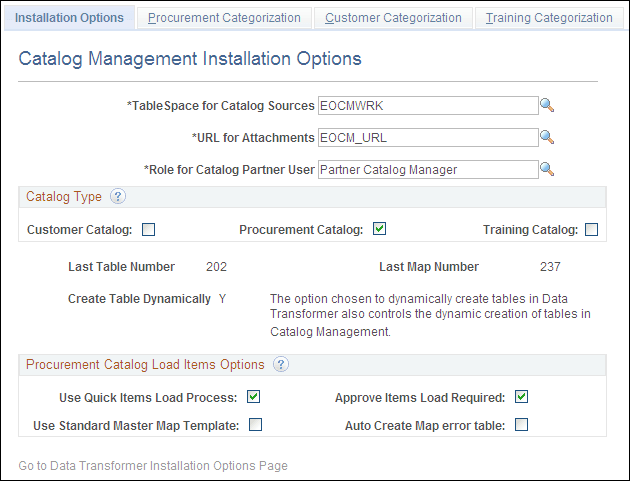
| Field or Control | Description |
|---|---|
|
TableSpace for Catalog Sources |
Select the location to store the temporary tables associated with the catalog source data. This location is used for all database platforms, where tables must be stored in tablespaces. |
|
URL for Attachments |
Enter the URL that represents either the File Transfer Protocol (FTP) address or the database table used for storing the catalog source files, which are loaded as attachments. This URL is required to load source files. |
|
Role for Catalog Partner User |
Select the role to assign to partner users entered using the Maintain Catalog Partners component. |
|
Procurement Catalog, Customer Catalog, and Training Catalog |
Select the types of catalogs that you use. |
|
Last Table Number |
Displays the last sequential table number used for creating catalog sources. Tables are named using EOCM_TMPxxxxxx format. xxxxxx is replaced with the table number. |
|
Last Map Number |
Displays the last sequential map number used for creating catalog maps. Maps are named using CCM_xxxxxxxxx format. xxxxxxxxx is replaced with the map number. |
|
Create Table Dynamically |
The option chosen to dynamically create tables in Data Transformer also controls the dynamic creation of tables in Catalog Management. |
Procurement Catalog Load Items Options
| Field or Control | Description |
|---|---|
|
Use Quick Items Load Process |
Select the flag to use the Quick Items Load process as the default load process for all existing or future catalogs/partners in the system. When checked, the Use Standard PS Master MAP fields become available. When unchecked, the regular step-by-step Item Load process is used for all catalogs, unless overridden at catalog level. The default for this field is unchecked. |
|
Approve Items Load Required |
This flag controls all users except Partners, as they always require approval. Click to enable approval for administrators before moving the loaded data into production. When enabled, the load process stops after item categorization and the catalog status changes to Pending Approvals. If unchecked, the process runs completely to move data into Purchasing/eProcurement. The default for this field is checked. |
|
Use Standard Master MAP Template |
Select to use the delivered standard Data Source to create Master Data Source and Master Maps for future and/or existing catalogs. If you choose to apply the Quick Load Process setting to existing catalogs upon Save time, Master Data Source and Master Maps will be created for each active SetID/Catalogs in the system. |
|
Auto Create Map error table |
Select to automatically create the corresponding Error table when creating a map and the Handle Errors flag, which is selected on the map definition page. |
Note:
The above fields are accessible only for users with Catalog Administrator permissions.
Note:
Catalogs with the Use Quick Items Load Process flag selected at Catalog Definition page are displayed on the Catalog Workbench as a default search result. Users can use the Catalog Load Process Type to search for other catalogs.
Related Topics
Procurement Categorization, Customer Categorization or Training Categorization Page
Use the Procurement Categorization page (EOCM_SETCAT_EPRO) to select fields for procurement categorization rules.
Navigation:
On each page, select the fields to use for matching partner offerings to your offerings. Categorization rules are based on the selected fields.