Control Budget Journal - Attachments Page
Use the Control Budget Journals - Attachments page (KK_ATT_SEC) to attach documents to a budget journal. You can select to show or not show the attachments to the approvers (default value is Yes).
Navigation:
This example illustrates the fields and controls on the Control Budget Journal - Attachments page. You can find definitions for the fields and controls later on this page.
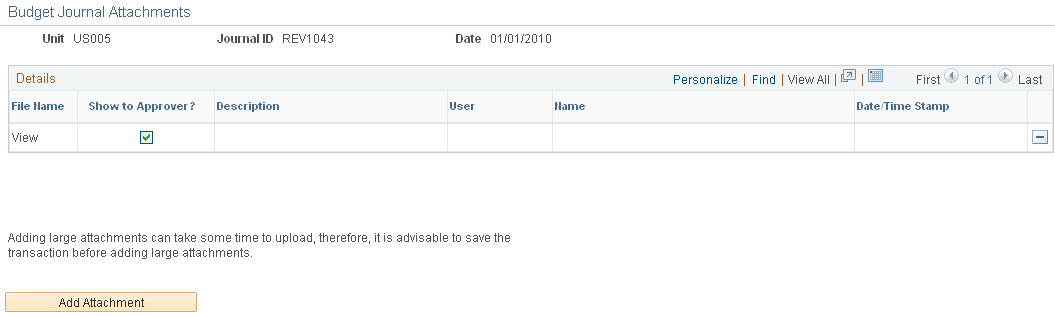
| Field or Control | Description |
|---|---|
|
Add Attachment (icon) |
Click this button to add supporting documents to the control budget journal. |
|
Show to Approver? (check box) |
Select this check box to enable approvers to see an attachment. (Default is selected). If you deselect this check box, approvers are not able to view the deselected attachments. The approver can then access the enabled attachments and add new attachments from the Approval Attachments page (KK_AF_APPR_ATT_SEC). Access this page from the Control Budget Journal Approval page (Commitment Control, Budget Journals, Manage Budget Journal, Manage Control Budget Journal Approval. Click the Journal ID link.) OR (Worklist, Worklist) – click the Attachments link): |
Use the Approval Attachments page (KK_AF_APPR_ATT_SEC) to view and add attachments for budget journals for which you have approval rights. The attachments are only visible if the Show to Approver option has been selected on the Attachments page of the budget journal entry (KK_ATT_SEC). This example illustrates the fields and controls on the Approval Attachments page.
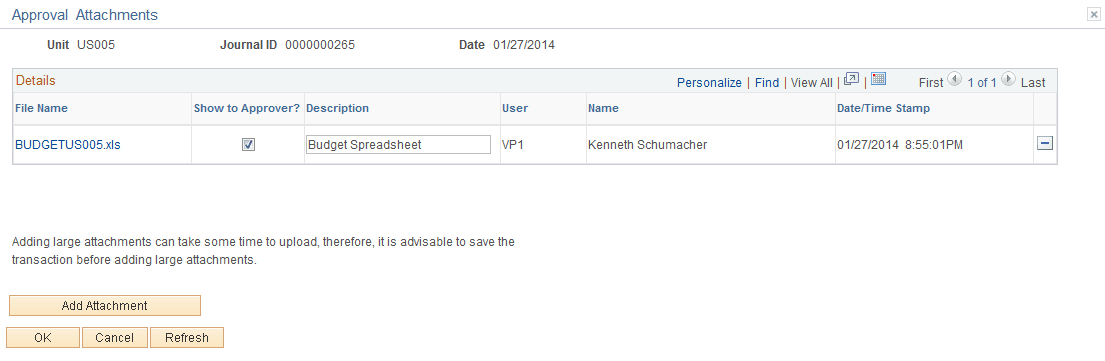
The attachments that appear on this page are only those that were marked as Show to Approvers on the budget journal entry - Attachments page. The approver can add new attachments on this page and can only modify or delete the attachments that they have added.