Control Budget Journal Approval Page
The Control Budget Journal Approval component (KK_AF_JRNL_APPR) provides the approval functionality for one budget journal at a time. The Control Budget Journal Approval page is accessible only from the Journal ID link on the Manage Control Budget Journal Approval page or from the PeopleTools Worklist link.
Note:
This page is only accessible by authorized approvers; hence no ChartField Security is provided.
Use the Control Budget Journal Approval page (KK_AF_JRNL_APPR) to approve, deny, or pushback a single budget journal entry.
Navigation:
OR
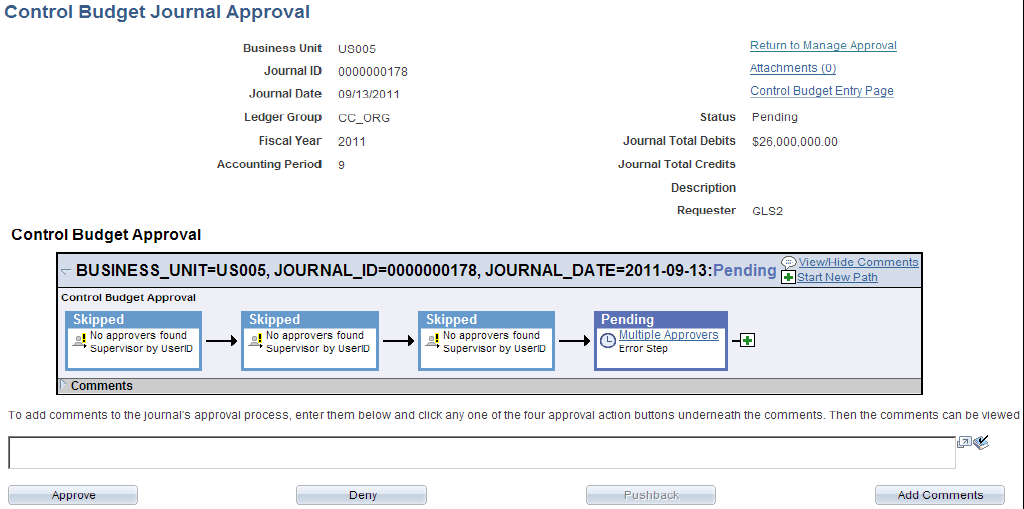
This example illustrates the fields and controls on the Control Budget Journal Approval page. You can find definitions for the fields and controls later on this page.
| Field or Control | Description |
|---|---|
|
Return to Manage Approval |
Click this link to return to the Manage Control Budget Journal Approval page. This link appears only when you navigate to the Control Budget Journal Approval page from the Manage Control Budget Journal Approval page. Upon returning to the Manage Control Budget Journal Approval page, it is re-populated with the original search criteria. |
|
Attachments (n) |
Click this link to attach or view the journal's supporting documents. The numeral displays the number of attachments. See Adding Attachments Using the Budget Journal Approval Process. |
|
Control Budget Entry Page |
Click this link to access the Budget Journal Entry component for more details on the journal. Since the Control Budget Journal Approval page is only accessible to authorized users, this link to access the budget journal entry is accessible to only those authorized users. |
|
Return to Worklist |
Click this link to return to the Worklist. This link appears only when you navigate to the Control Budget Journal Approval page using the Worklist. |
Approval Flow Graphic
| Field or Control | Description |
|---|---|
|
Start New Path |
Click to start a new approval path. |
|
Save Approval Changes |
This button appears only after changes are made to the Approval Flow Graphic Display, such as adding adhoc approvers. |
Click the plus button to add approvers to the approval path.
You can enter comments in the space that is provided. The comments are stored in the budget journal's approval process after you click any of the action buttons (Approve, Deny, Pushback, or Add Comments buttons).
Note:
If the budget journal is no longer pending for the current approver, the Approve, Deny and Pushback buttons are inactive (grayed). Regardless, the current approver can still add comments. The Pushback button is inactive if the journal is pending at the first step of the path, since the Pushback action sends the journal back to the previous step.