Security Rules
Security rules enable you to establish which security events can be performed on which budgets and which transactions independent of any specific user until such time as you apply the rules to a user or users. For example, you can create one security rule to enable budget entry, transfers, notification, and inquiry for a budget (or group of budgets) and create a different security rule that enables only inquiry for the same budget (or budget group). After you define your security rules, you can assign these rules to a specific user ID or all the users and roles assigned to a permission list. You can also use a dynamic rule group, which uses a SQL view that joins user IDs with ChartField values to dynamically assign users access to budgets with particular ChartField values.
The following rules govern how Commitment Control applies security rules to user IDs and permission lists:
-
For events that do not require a super user rule, you can create security rules that allow access to the budgets you specify for the security events you specify.
You can also create security rules that disallow such access.
Note:
A super user rule is required to perform budget override, date override, and bypass at the transaction level.
When you assign a user to a security rule that allows access, the system denies the user access to any budgets and active security events that are not specified in that security rule, unless that user is assigned to another security rule that does allow access to budgets and security events not specified in the first security rule.
When you assign a user to a security rule that disallows access, the system denies the user access to the budgets and active security events you specify and gives the user access to all other budgets for those security events, unless that user is assigned to another security rule that disallows access to those unspecified budgets.
The choice between allow and disallow can save you time and effort when defining security rules. When you want to allow access to only a few budgets, use the allow attribute to specify them. When you want to allow access to all but a handful of budgets, use the disallow attribute to specify those that you want to deny access to instead of entering rows and rows of allowed budgets.
Note:
All users automatically have access to inactive security events for all budgets, regardless of the security rules you establish.
-
You can create security rules defined solely for super users.
-
You can assign multiple security rules to a single user—that is, a user may have one set of security rights for one group of budgets and a different set of security rights for another group of budgets.
If you grant a user multiple security rules, and the security rules provide conflicting security access, the security rules that disallow access take precedence.
-
You must set up and assign security rules for users to provide access to any security event that is active.
If no security rules for a particular security event are assigned to a user, then that user has no access to that security event for any budget.
The following example provides a simplified illustration of how you can use security rules to limit a user's access to a specific set of events for a set of budgets.
Table 1: Associating Security Rules with Security Events:
| Sec Rule | Bdgt (CF combo) | ENT_ADJT | Transfer | NOTIFY | INQUIRE | Override | BUDG_DT | BYPASS |
|---|---|---|---|---|---|---|---|---|
|
A |
Budget #1: Account 10000, DeptID 35000 |
Y |
N |
Y |
Y |
N |
N |
N |
|
B |
Budget #2: Account 10015, DeptID 35000 |
N |
N |
Y |
Y |
N |
N |
N |
|
C |
All Budgets |
N |
N |
N |
Y |
N |
N |
N |
Table 2: Associating User IDs with Security Rules:
| User ID | User | Security Rules |
|---|---|---|
|
TJON |
Jones,Tammy |
A, B |
|
RSMI |
Smith,Roger |
B |
|
HBRO |
Brown,Harry |
C |
User Tammy Jones is associated with security rules A and B. According to security rule A, Ms. Jones has the security to perform the following events on budget #1: entering and adjusting, inquiring, and receiving notifications about exceptions. Security rule B enables her to inquire on and be notified of exceptions for budget #2.
User Roger Smith, also associated with security rule B, can be notified whenever an exception for budget #2 occurs and can inquire on budgetary information. However, unlike Tammy Jones, Mr. Smith cannot perform any events for budget #1.
User Harry Brown is a Junior Financial Analyst in the corporate group. Security rule C lets him inquire on the budgetary information for all budgets, but he cannot perform any substantive actions on these budgets.
Grouping Budgets for Security
You can define security rules for specific budgets and for a range or group of budgets. Instead of specifying each individual ChartField combination that you want to include within a security rule, you can specify ranges of budgets by entering ranges of ChartField values.
There are three parameters you can use to enter ranges of ChartFields:
-
Range: Enter the first and last ChartField value in a range.
If you enter account 10000 as the start value and 20000 as the end value, for example, you include all budgets with accounts 10000 through 20000 that meet the other ChartField value criteria in the ChartField combination.
-
Wild Card: Enter a wildcard (%).
For example, if you enter department 14%, you include all budgets with departments beginning with 14 that meet the other ChartField value criteria in the ChartField combination. If you enter % alone, you include budgets for all departments that meet the other ChartField value criteria in the ChartField combination.
-
Tree: Enter a translation tree and node to include budgets for that node and all the ChartField values that are children of that node (and which meet the other ChartField value criteria in the ChartField combination).
Usually you can use the key ChartField translation trees you set up for control budget definitions.
Note:
You use Explicit when you want to select a single ChartField value, which you enter in the Start field.
See Key ChartFields and Translation Trees.
Here is an example of how you can use grouping parameters to define a group of budgets for a security rule. Assume that you entered the following ChartField values in a security rule:
ChartField Combination Set #1:
| ChartField | Parameter | Start | End | Tree | Node |
|---|---|---|---|---|---|
|
ACCOUNT |
Wildcard |
501% |
-- |
-- |
-- |
|
DEPTID |
Range |
30000 |
32000 |
-- |
-- |
ChartField Combination Set #2:
| ChartField | Parameter | Start | End | Tree | Node |
|---|---|---|---|---|---|
|
ACCOUNT |
Tree |
-- |
-- |
BUD_ ACCOUNT |
682000 |
|
DEPTID |
Wildcard |
335% |
-- |
-- |
-- |
|
PRODUCT |
Range |
200 |
250 |
-- |
-- |
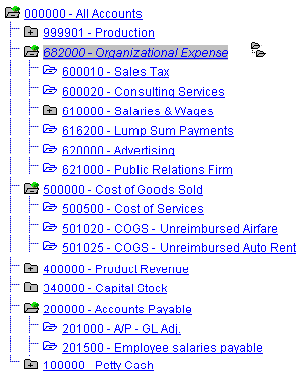
The following is an excerpt from the BUD_ACCOUNT ChartField tree for this example:
Accounts ChartField Tree Excerpt
Assume that the following budgets are defined:
| ACCOUNT | DEPTID | PRODUCT |
|---|---|---|
|
501020 |
20010 |
-- |
|
501020 |
30000 |
-- |
|
501025 |
30200 |
-- |
|
500500 |
31000 |
-- |
|
620000 |
35000 |
220 |
|
621000 |
33510 |
230 |
|
616200 |
33510 |
245 |
|
501020 |
33510 |
245 |
Your security rule would apply to the budgets whose ChartField values appear in italics in the table.
Conflicting Security Rules
If a budget action, or event, by a user passes any one rule, it passes the security check completely. The exception to this is when there are one or more rules that conflict. In a conflicting rules situation, the default is to disallow and the action fails security.
For example, if rule 1 is allow budget entry for DeptID 10000 through 20000 and rule 2 is to Disallow budget entry for DeptID 12000 through 21000 and both rules are assigned to the same user there is a conflict. Any attempt by that user to do a budget entry for DeptID 12000 through 20000 fails Commitment Control security.
Dynamic Security Rules
You use dynamic rules to assign security events to a ChartField that you define as a bind variable rather than a particular value or range of values. The bind variable is resolved by a view, called the dynamic rule record, that associates a user ID with a ChartField value.
See the discussion of Attaching Rules to Dynamic Rule Groups in the following section, Security Rule Assignment.