Setting up Insights Dashboards for Commitment Control
PeopleSoft Commitment Control delivers Insights dashboards to analyze Commitment Control data using different visualizations.
To set up Insights dashboards for Commitment Control:
-
Use the Insights Preferences Page to configure user defaults that are used when accessing dashboards for Commitment Control.
-
Use the Deploy Search Definition page to deploy the search definition (PeopleTools, Search Framework, Administration, Deploy Search Objects).
The PeopleSoft Commitment Control search definition is EP_GL_KK_ACTIVITY_LOG_KIB.
-
Use the Schedule Search Index page to run the Build Index process (PeopleTools, Search Framework, Administration, Schedule Search Index).
The first time you run this process for a search index, you should always select Full Index as the Indexing type. You can run incremental indexes after that.
-
Use the Deploy Insights dashboards page to deploy the dashboard and the tile (PeopleTools, Search Framework, Administration, Deploy Insights Dashboards).
When you deploy a dashboard, you are copying the dashboard from the PeopleSoft database to your instance of PeopleSoft Insights. The deployed dashboard is then available on the Saved Objects page in the Management section on the Insights home page. Use the Deploy Insights Dashboards page to deploy or update a dashboard. For more information on Deploying a Dashboard, see PeopleTools:Search Technology, Working with Insights Dashboards for PeopleSoft Application Data, Deploying a Dashboard.
-
Use the Application Fundamentals: Personalize Homepage Page to add the tile to a homepage.
-
Use the User Roles page to add the privileges to users (PeopleTools, Security, User Profiles, User Profiles).
The PeopleSoft Commitment Control privileges are:
-
Insights GL Edit Privilege
-
Insights GL View Privilege
See also Application Fundamentals: Search Definitions and Privileges for a list of all product privileges for PeopleSoft Insights dashboards.
-
Pages Used to Set Up Commitment Control Insights Dashboards
Use these pages to set up Commitment Control Insights dashboards.
| Page Name | Definition Name | Usage |
|---|---|---|
|
GL_K_USER_DEFAILTS |
Configure user defaults that are used when accessing dashboards for Commitment Control |
|
|
Application Fundamentals: User Preferences - Overall Preferences Page |
OPR_DEF_TABLE_FS1 |
Define overall default user preferences for specific PeopleSoft system users. The Business Unit field is used as the default business unit for all General Ledger and Commitment Control Insights. |
|
Application Fundamentals: User Preferences - General Ledger Page |
OPR_DEF_TABLE_GL1 |
Set up user defaults for General Ledger. The Ledger field is used as the default ledger for Financial Performance Insights dashboard. |
|
PeopleSoft General Ledger: General Ledger Definition - Definition Page |
BUS_UNIT_TBL_GL1 |
Define a General Ledger business unit. The Base Currency field is used as the default currency code, based on the user’s Business Unit preference, for all General Ledger and Commitment Control Insights. |
Insights Preferences Page
Use the Insights Preferences page (GL_K_USER_DEFAILTS) to configure user defaults that are used when accessing dashboards for Commitment Control.
Navigation:
. Select the Insights Preferences link.
This example illustrates the Insights Preferences page.
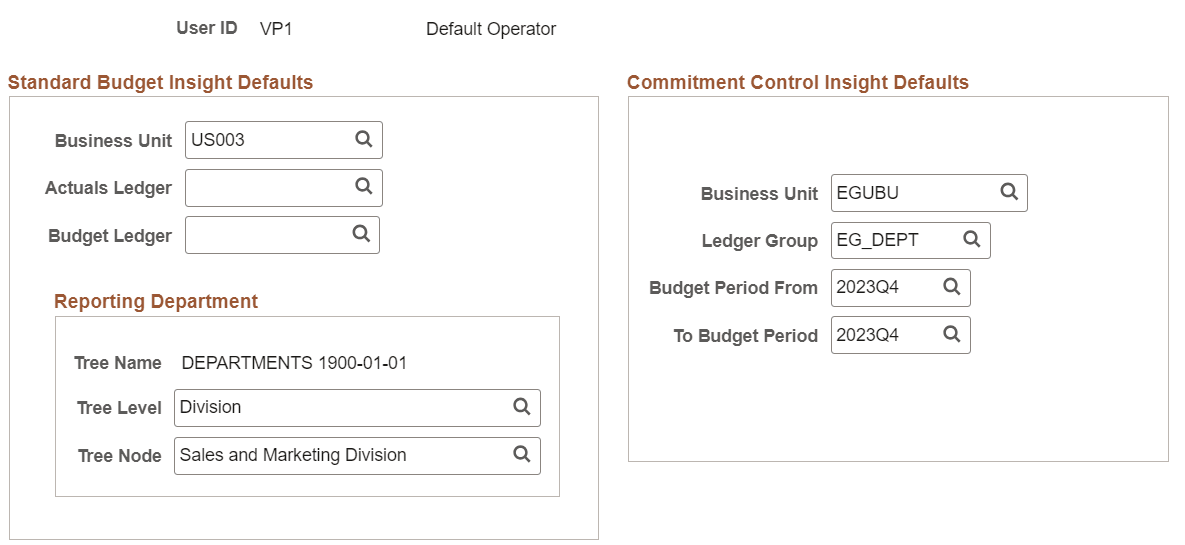
This page displays the filters used when accessing a General Ledger and Commitment Control Insights dashboard from a tile. Enter a default value for the user. The default value is used when the user accesses the Insights dashboard from a tile. The user can change the values for the session in the dashboard page.
Adding Commitment Control Tile for Insights Dashboards
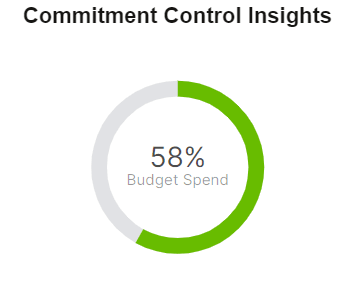
PeopleSoft Commitment Control has the Commitment Control Insights tile associated with Insights dashboards.
For additional information about how to add a tile to a PeopleSoft Fluid Home page, see Application Fundamentals: Adding Homepages and Tiles and PeopleTools: Application User’s Guide, “Working With PeopleSoft Fluid User Interface”, Working with Fluid Homepages and Dashboards, Managing Tiles on Fluid Homepages and Dashboards.
This example illustrates the Commitment Control Insights tile.