Billing Exceptions
Use the options in the Billing Exceptions group to review and act upon Bill Plans filtered for the user.
This group contains following exceptions:
-
Bill Plans in Pending Status
-
Bill Plans On Hold
-
Past Due Billing Events
-
Invalid Bill Plans
-
LOC Doc ID Not in Sponsor File
-
LOC Authorized Amount <> Limit Amount
Note:
When a row is updated successfully, it will no longer appear in the grid.
An error message column is visible in the grid when any of the selected rows has an error.
Bill Plans in Pending Status
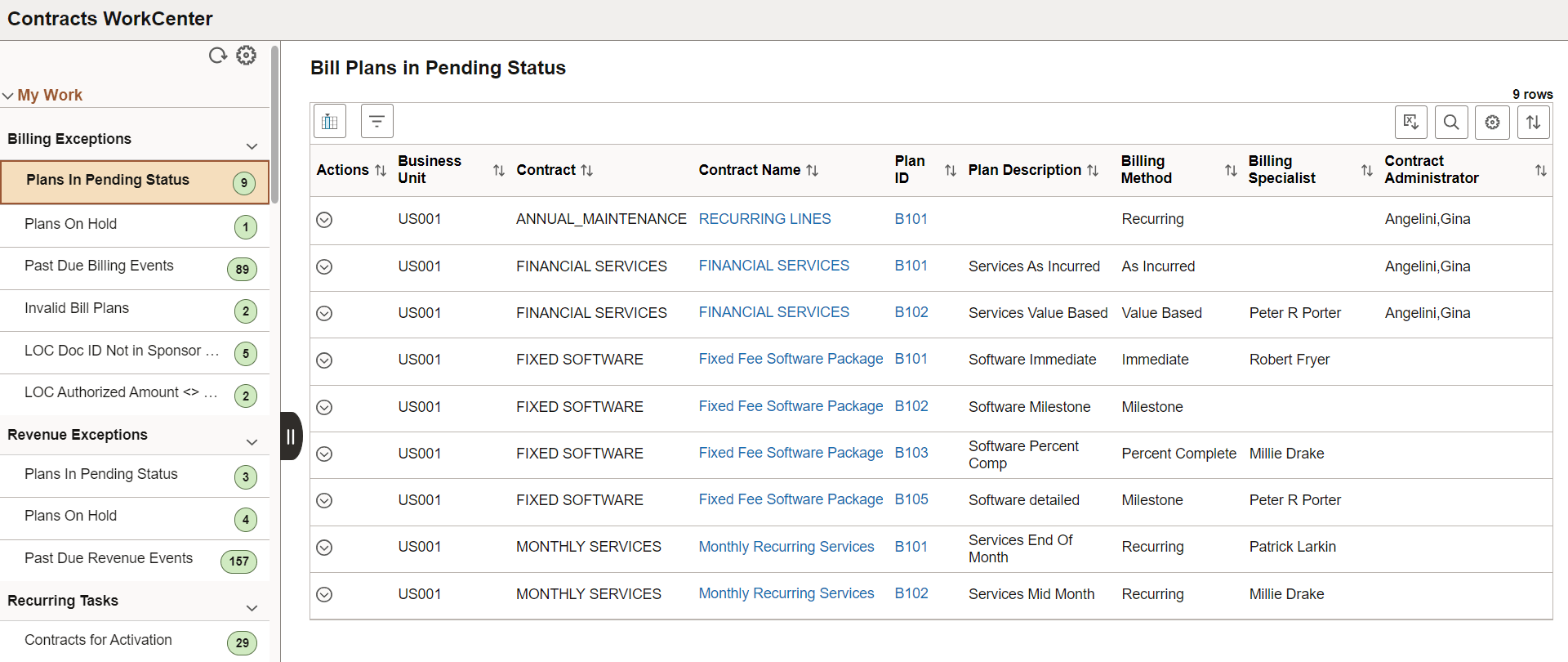
Use the Bill Plans in Pending Status page (CA_WC_BI_PEND_FL) to view and edit billing plans which are in Pending status.
Navigation:
This example illustrates the fields and controls on the Bill Plans in Pending Status page. You can find definitions for the fields and controls later on this page.
| Field or Control | Description |
|---|---|
 (Actions) |
Click the Related Actions button or select any row in the application grid and click the Actions button to perform the following actions:
|
|
Contract Name and Plan ID |
Click the Contract Name and Plan ID link to view the additional Contract Details and Bill Plan Details for that row. |
Bill Plans On Hold
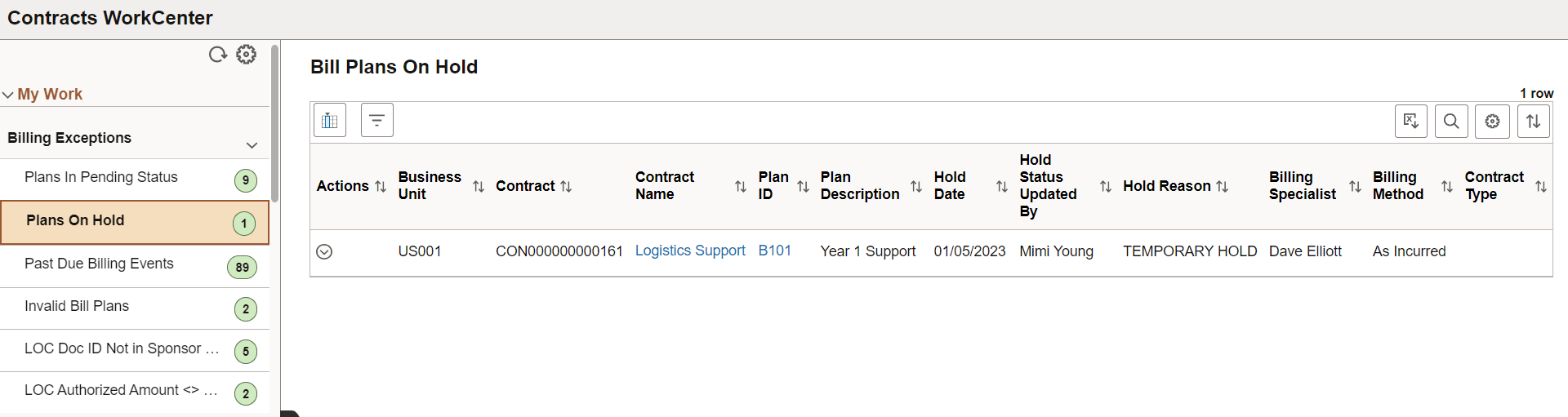
Use the Bill Plans On Hold page (CA_WC_BI_HOLD_FL) to view and edit billing plans that are on hold status.
Navigation:
This example illustrates the fields and controls on the Bill Plans On Hold page. You can find definitions for the fields and controls later on this page.
| Field or Control | Description |
|---|---|
(Actions) |
Click the Related Actions button or select any row in the application grid and click the Actions button to perform the following actions:
|
|
Contract Name and Plan ID |
Click the Contract Name and Plan ID link to view the Contract Details and Bill Plan Details for that row. |
Past Due Billing Events
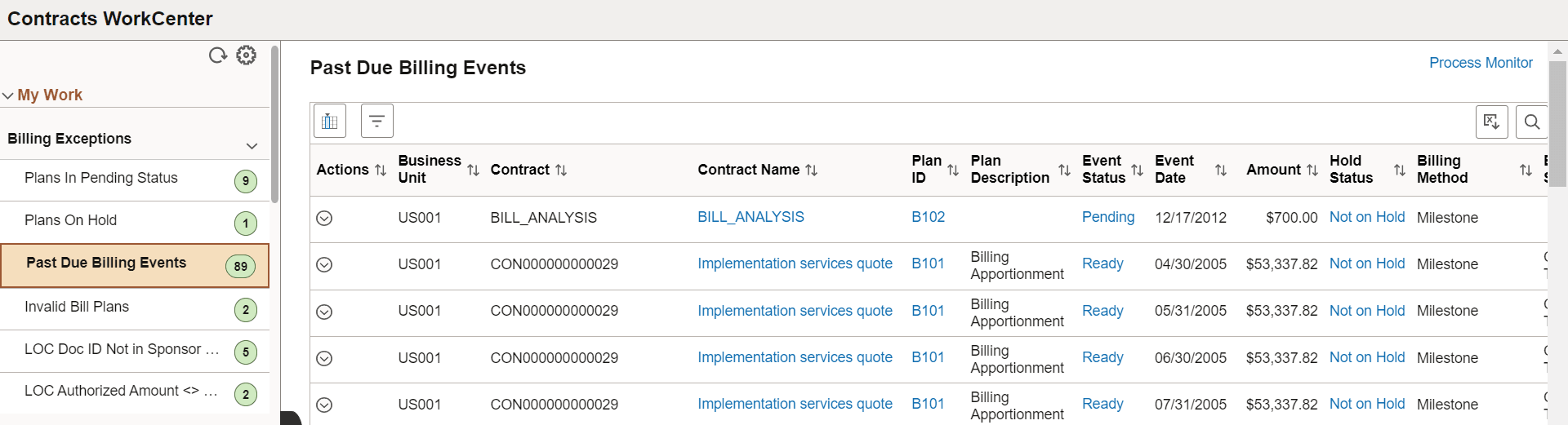
Use the Past Due Billing Events page (CA_WC_BI_EVNT_FL) to view and edit billing plan events for which due date has been exceeded.
Navigation:
This example illustrates the fields and controls on the Past Due Billing Events page. You can find definitions for the fields and controls later on this page.
| Field or Control | Description |
|---|---|
(Actions) |
Click the Related Actions button or select any row in the application grid and click the Actions button to perform the following actions:
|
|
Contract Name, Plan ID, Event Status, and Hold Status |
Click the links to view the respective details. For example, click Contract Name link to view the Contract Details for the selected row. |
Invalid Bill Plans
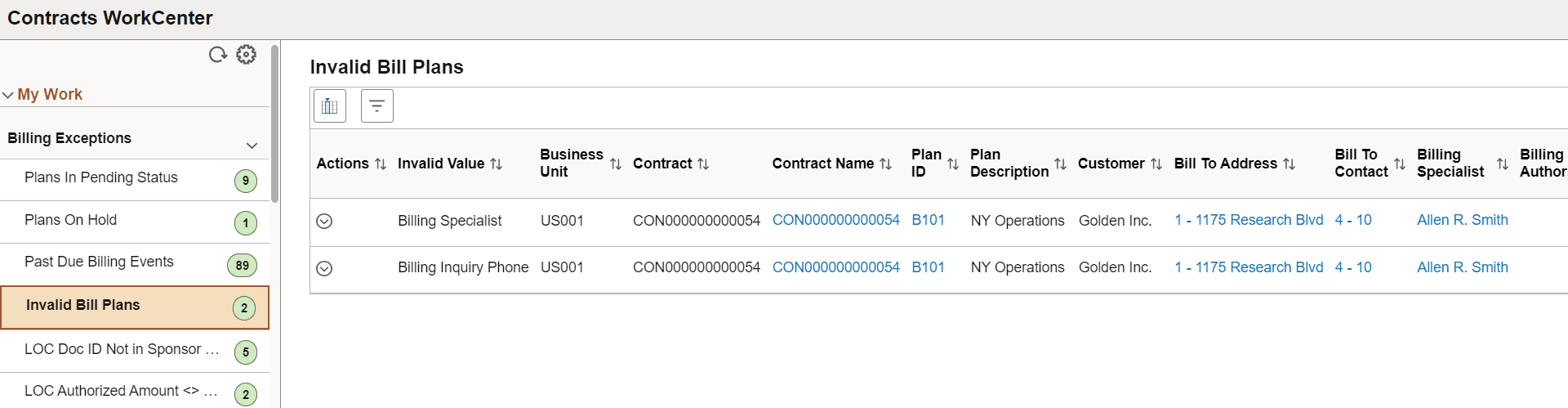
Use the Invalid Bill Plans page (CA_WC_BP_INACTV_FL) to review and adjust billing plans with invalid information. You can update configuration data en masse or individually, prior to processing billing of the contract.
Navigation:
This example illustrates the fields and controls on the Invalid Bill Plans page. You can find definitions for the fields and controls later on this page.
| Field or Control | Description |
|---|---|
(Actions) |
Click the Related Actions button or select any row in the application grid and click the Actions button to perform the following actions:
|
|
Invalid Value |
This exception identifies bill plans that have been impacted by another configuration being set to Inactive. The Invalid Value column identifies the specific value that has been inactivated. For example, a Billing Specialist invalid value displays bill plans whose Billing Specialist has been set to inactive in the Billing Specialist configuration page. You can use this exception to update those bill plans to use another billing specialist who is active. |
|
Contract Name, Plan ID, Bill To Address, Bill To Contact, Billing Specialist, and Billing Inquiry |
Click the links to view the respective details. For example, click Billing Specialist link to view the details showing SetID, Billing Specialist, Name, and Status. |
LOC Doc ID Not in Sponsor File
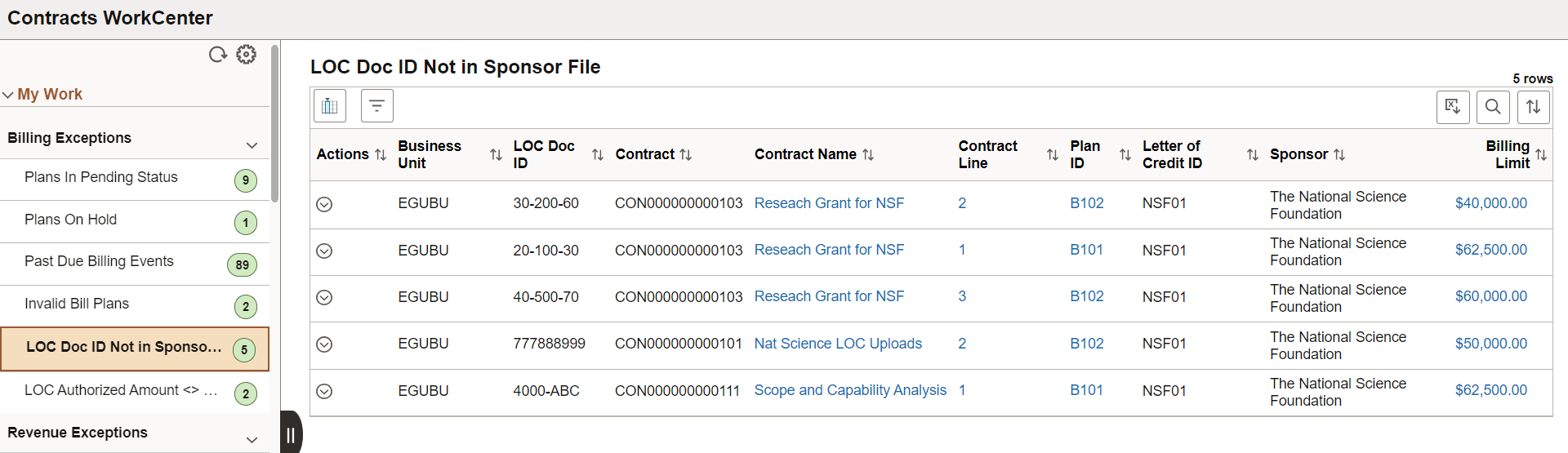
Use the LOC Doc ID Not in Sponsor File page (CA_WC_SPNSNOUPL_FL) to review letter of credit document IDs that are used by Grants contracts but are not present in the sponsor files.
This exception works in conjunction with information accessed from the sponsor's system and uploaded into PeopleSoft using the Data Export Import Utility. For more information, see Importing and Managing Sponsor Letter of Credit Data.
Navigation:
This example illustrates the fields and controls on the LOC Doc ID Not in Sponsor File page. You can find definitions for the fields and controls later on this page.
| Field or Control | Description |
|---|---|
(Actions) |
Click the Related Actions button or select any row in the application grid and click the Actions button to perform the following actions:
|
|
Contract Name, Contract Line, Plan ID, and Billing Limit |
Click the links to view the respective details. For example, click Billing Limit link to view the details showing Billing Limit, Total Billed Amount, and Currency Code. |
LOC Authorized Amount <> Limit Amount
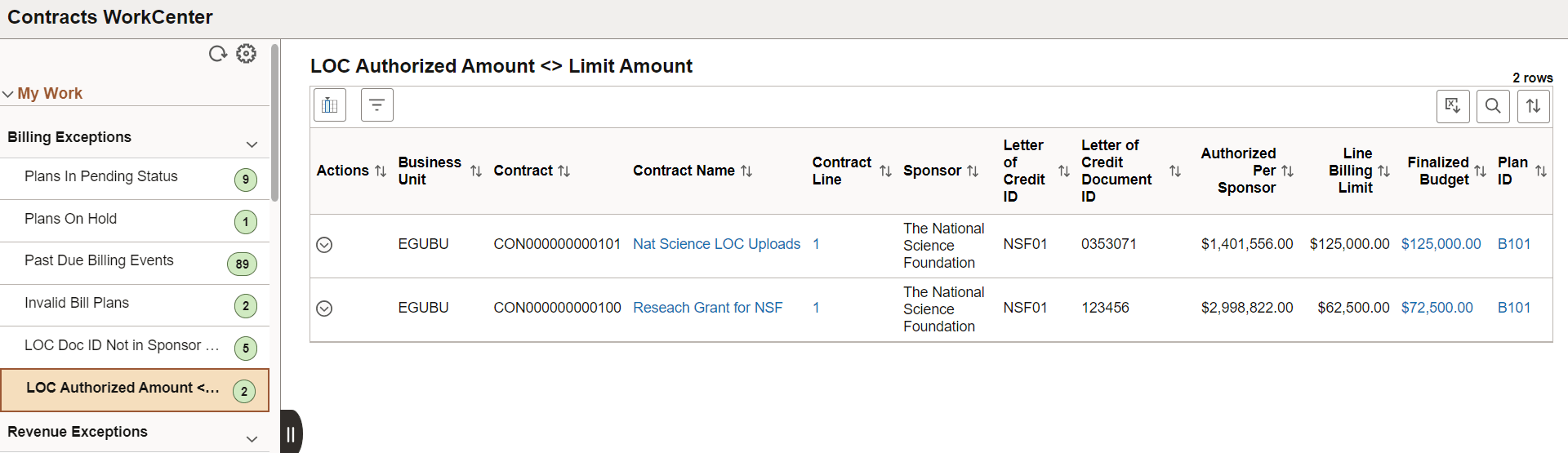
Use the LOC Authorized Amount <> Limit Amount page (CA_WC_SPNSLIMIT_FL) to review details of the letter of credit data specified in the sponsor upload file as well as on a Contract Line when the authorized amount from the Sponsor file does not match the billing limit.
This exception works in conjunction with information accessed from the sponsor's system and uploaded into PeopleSoft using the Data Export Import Utility. For more information, see Importing and Managing Sponsor Letter of Credit Data.
Navigation:
This example illustrates the fields and controls on the LOC Authorized Amount <> Limit Amount page. You can find definitions for the fields and controls later on this page.
| Field or Control | Description |
|---|---|
(Actions) |
Click the Related Actions button or select any row in the application grid and click the Actions button to perform the following actions:
|
|
Contract Name, Contract Line, Finalized Budget, and Plan ID |
Click the links to view the respective details. For example, click Finalized Budget link to view the Sponsor Budget Amount Details. |