Revenue Exceptions
Use the options in the Revenue Exceptions group to review and act on Revenue Plans requiring attention.
This group contains following exceptions:
-
Revenue Plans In Pending Status
-
Revenue Plans On Hold
-
Past Due Revenue Events
Note:
When a row is updated successfully, it will no longer appear in the grid.
An error message column is visible in the grid when any of the selected rows has an error.
Revenue Plans In Pending Status
Use the Revenue Plans In Pending Status page (CA_WC_REV_PEND_FL) to view and edit Revenue Plans that are in Pending status.
Navigation:
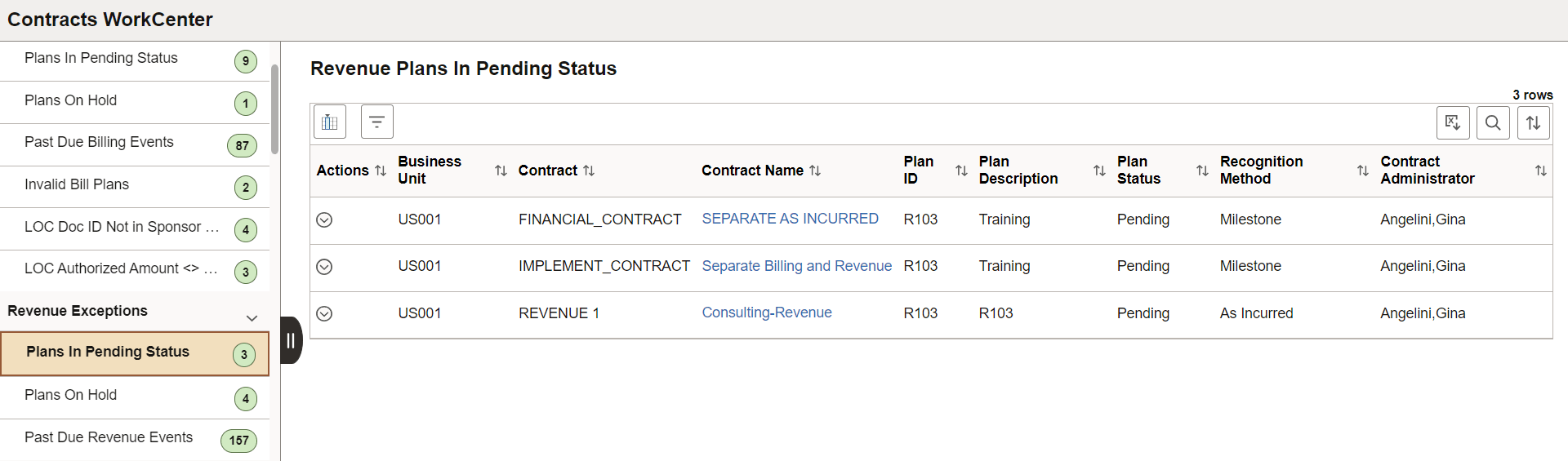
This example illustrates the fields and controls on the Revenue Plans In Pending Status page. You can find definitions for the fields and controls later on this page.
| Field or Control | Description |
|---|---|
 (Actions) |
Click the Related Actions button or select any row in the application grid and click the Actions button to perform the following actions:
|
|
Contract Name |
Click the Contract Name link to view the Contract Details for that row. |
Revenue Plans On Hold
Use the Revenue Plans On Hold page (CA_WC_REV_HOLD_FL) to view and edit Revenue Plans that are on hold status.
Navigation:
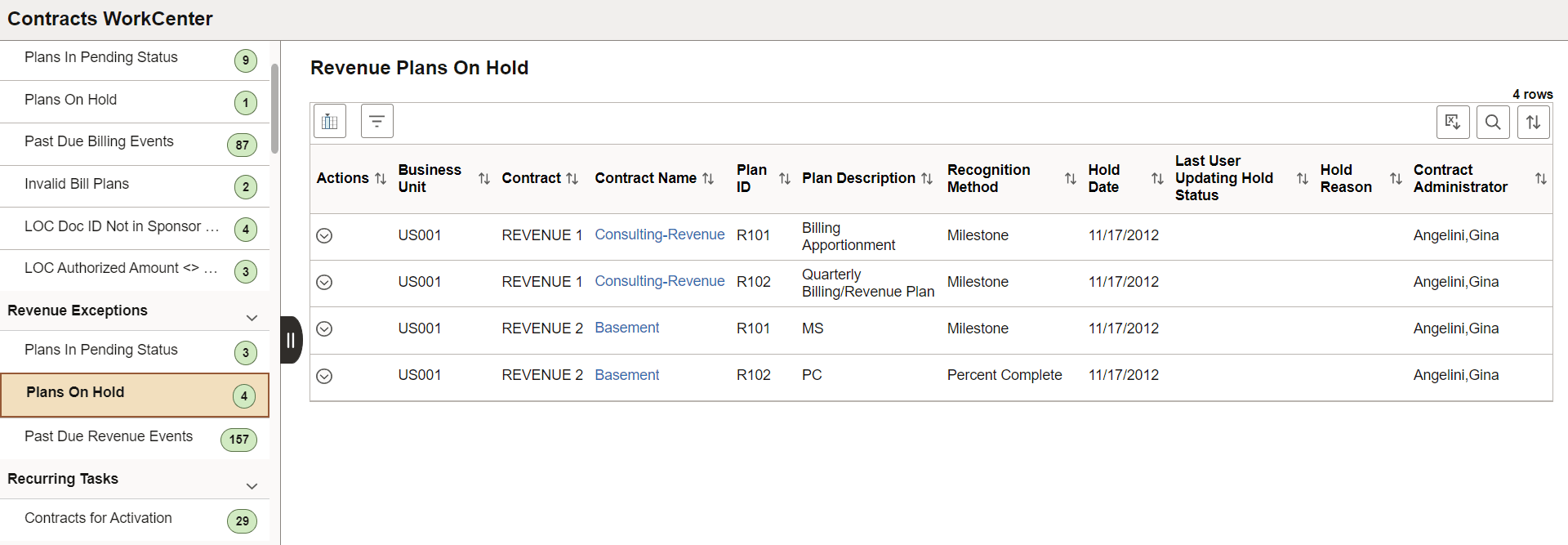
This example illustrates the fields and controls on the Revenue Plans On Hold page. You can find definitions for the fields and controls later on this page.
| Field or Control | Description |
|---|---|
(Actions) |
Click the Related Actions button or select any row in the application grid and click the Actions button to perform the following actions:
|
|
Contract Name |
Click the Contract Name link to view the Contract Details for that row. |
Past Due Revenue Events
Use the Past Due Revenue Events page (CA_WC_REV_EVNT_FL) to view and edit Revenue Plan Events for which due date has been exceeded.
Navigation:
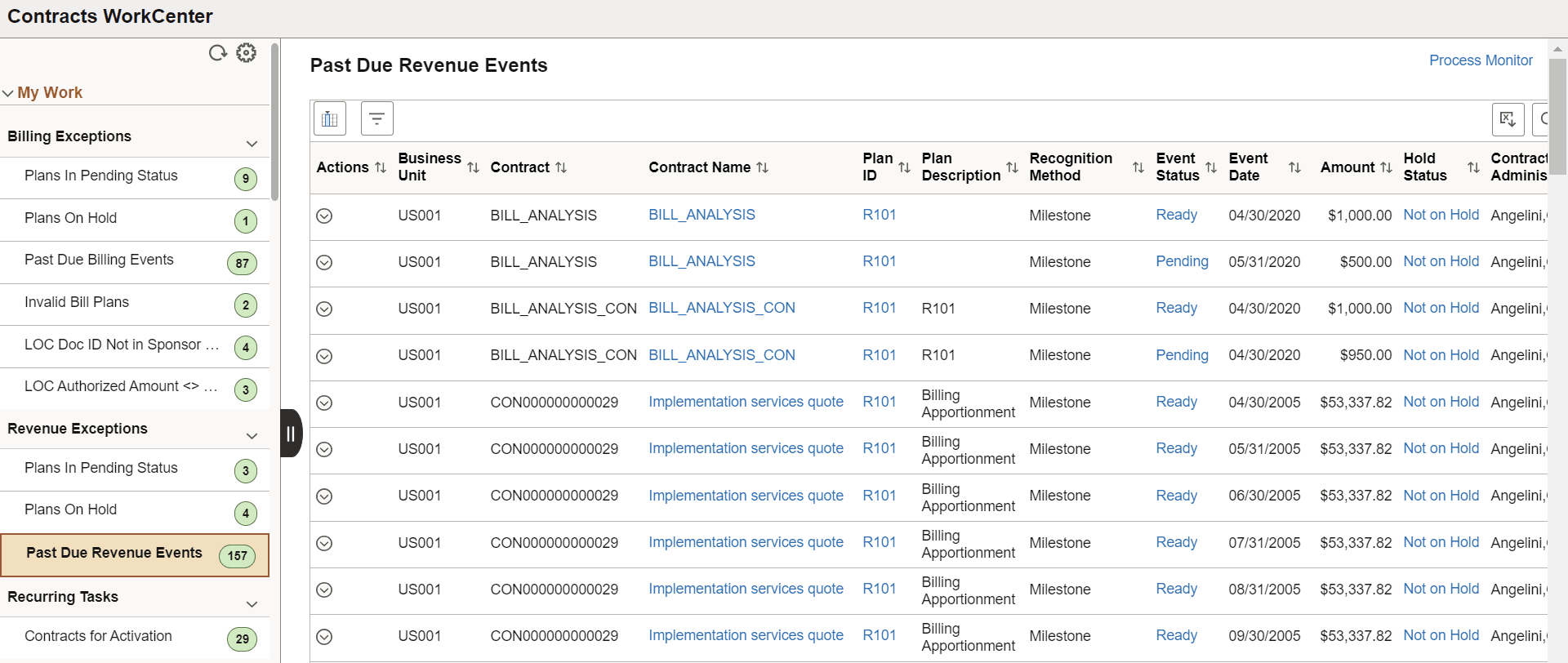
This example illustrates the fields and controls on the Past Due Revenue Events page. You can find definitions for the fields and controls later on this page.
| Field or Control | Description |
|---|---|
(Actions) |
Click the Related Actions button or select any row in the application grid and click the Actions button to perform the following actions:
|
|
Contract Name, Plan ID, Event Status, and Hold Status |
Click the links to view the respective details. For example, click Contract Name link to view the Contract Details for the selected row. |