Recurring Tasks

Use the option in the Recurring Tasks group to review and act upon frequently used tasks.

This group contains following exceptions:

  • Contracts for Activation

  • Awards to Generate

Note:

When a row is updated successfully, it will no longer appear in the grid.

An error message column is visible in the grid when any of the selected rows has an error.

Contracts for Activation

Use the Contracts for Activation page (CA_WC_ACTIVATE_FL) to view the list of Contracts in pending status.

Navigation:

Customer Contracts, and then Contracts WorkCenter, and then My Work, and then Recurring Tasks, and then Contracts for Activation

This example illustrates the fields and controls on the Contracts for Activation page. You can find definitions for the fields and controls later on this page.
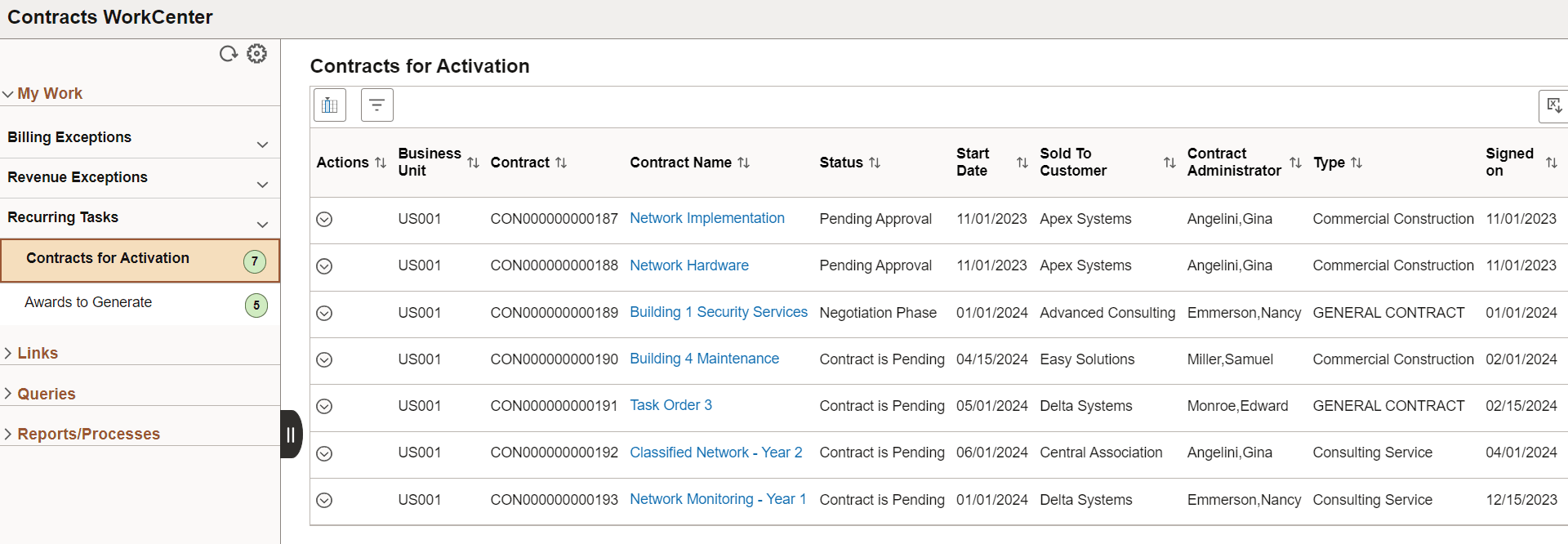
Contracts for Activation
Field or Control Description
Contracts WorkCenter - Actions Icon

(Actions)

Click the Related Actions button or select any row in the application grid and click the Actions button to perform the following actions:

  • Activate Contract: Click to select a status for the Contract.

  • Open Contract: Click to view the Define Contract General Info page.

Contract Name

Click the Contract Name link to view the Contract Details for that row.

Awards to Generate

Use the Awards to Generate page (GM_WC_MANPROP_FL) to process changes for proposals via actions. It includes submitting a proposal, generating a preaward project, generating an award and update status of a proposal. You can update data en masse or individually.

Navigation:

Customer Contracts, and then Contracts WorkCenter, and then My Work, and then Recurring Tasks, and then Awards to Generate

This example illustrates the fields and controls on the Awards to Generate page. You can find definitions for the fields and controls later on this page.
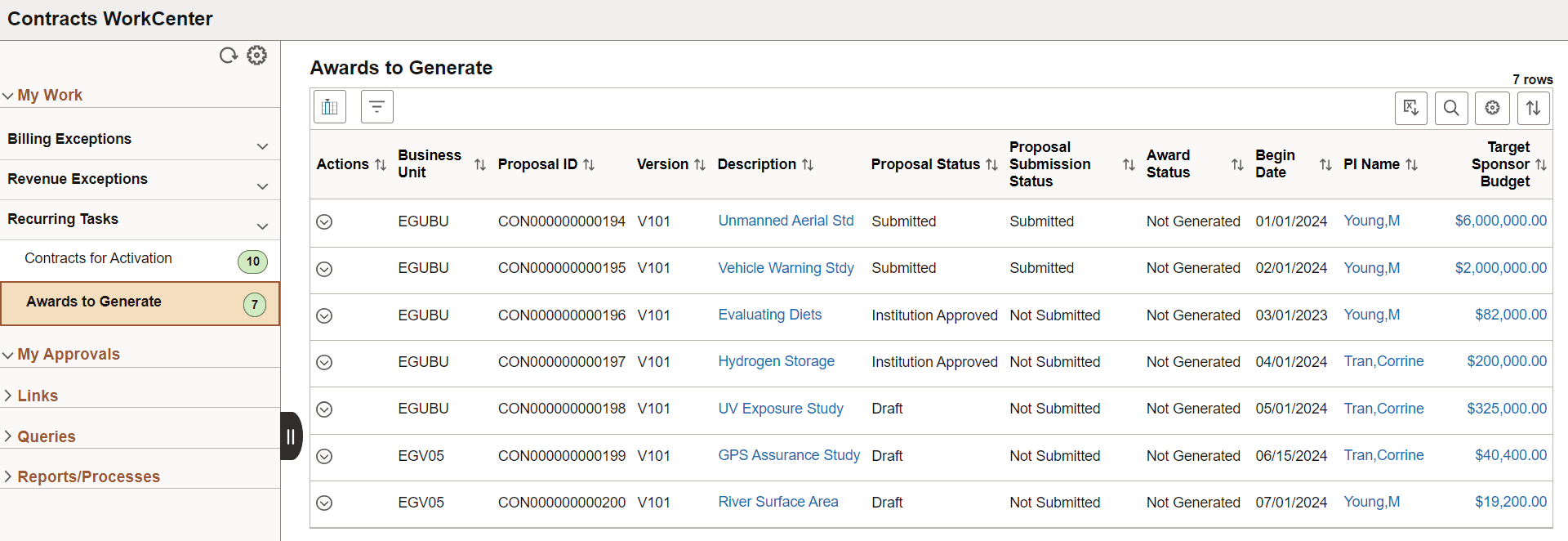
Awards to Generate
Field or Control Description
Contracts WorkCenter - Actions Icon

Click the Related Actions button or select any row in the application grid and click the Actions button to perform the following actions:

  • View Proposal: Click to navigate to the Maintain Proposal page to view or update the Proposal details including Projects, Budgets, Resources, Certifications, Reports, and Attachments. For more information, see PeopleSoft Grants: Proposal Page.

    Note:View Proposal action is only available with Row level action and not the mass action.

  • Submit Proposal: Click to complete proposal preparations and submit the documents to the awarding agency.

    Note:You cannot run the Generate PreAward or Generate Award process for a proposal until the proposal status is Submitted.

  • Generate PreAward: Click to create an award that has pre-award spending. If you are generating an award that was already created for pre-award spending, this action is unavailable.

    Note:This action is not available in row level if the proposal is not Submitted or you are generating an award that was already created for pre-award spending.

  • Generate Award: Click to run the Award Generation process. This process creates information on the award page from the proposal page.

    This action is not available in row level if the proposal is not Submitted.

    Once the award is generated, the View Generated Awards button appears. Click this button to view the list of Proposal IDs for which awards are generated in the current session. Click the Award ID link to navigate to the PeopleSoft Grants: Award - Award Page.

    Note:When an Award is generated, it will no longer appear in the grid.

  • Update Status: Click to change the Proposal status. The available statuses are:

    • Accepted Award

    • Award Pending

    • Awarded

    • Declined by Sponsor

    • Discontinued

    • Draft

    • Institution Approved

    • Not Funded

    • Pending Approval

    • Pending Funding

    • Refused by Institution

    • Rejected

    • Submitted

    • Withdrawn

    Note:Status change to Pending Approval is not allowed from Update Status action as it triggers workflow if traditional workflow or approval workflow engine is enabled in Setup Grants Award BU Options page. To initiate workflow select the View Proposal action. From the Maintain Proposal component, select the Start Approval Process button or change Proposal Status to Pending Approval.

Description, PI Name, and Target Sponsor Budget

Click the Description link to view the additional proposal details, the PI Name links for primary project details, and the Target Sponsor Budget link for the proposal budget details.