Billing Statuses
These four areas are related to billing and have status fields:
-
Billing plans.
-
Billing plan events.
-
Prepaids.
-
Billing cross-reference history.
Status fields exist for each of these areas to initiate edit checking, enable processing, and indicate billing progress.
Understanding Billing Plan Status
Billing plans define when to bill, how much to bill, the format of the invoices, and the number of bill lines to create on each invoice. A billing plan has nine status values:
| Term | Definition |
|---|---|
|
Pending |
Default status when you define a new billing plan. When you save a billing plan that is in Pending status, the system does not perform edit checking. This allows you to work on a billing plan, save your work, and return to that billing plan to finish your work at a later date. When you have completed entering data for a billing plan, you set the status field to Ready. You can also set the status field to Cancelled. Note: If you are using templates and selected the Activate Contract option on the template, the system automatically sets the billing plan status to Ready upon contract activation. |
|
Ready |
You may select this status when the contract is in Active status. If all required conditions are met (see below), the billing plan status becomes Ready, and the Contracts Billing Interface process may now select this billing plan for processing. For % Complete billing plans, once the plan is Ready, you can update the percent complete on the Billing Plan - Events page. Note: If you are using templates and selected the Activate Contract option on the template, the system automatically sets the billing plan status to Ready upon contract activation. |
|
In Progress |
Once billing activity has been generated from this billing plan, the Contracts Billing Interface process (CA_BI_INTFC) changes the status of the billing plan to In Progress. At this point, the billing plan status becomes display-only. Billing plans that are In Progress may be moved to Cancelled by using a button if the billing cross-reference history for the billing plan nets to a zero dollar amount—that is, if all bills have been credited. You can delete or add billing plan events to In Progress billing plans. |
|
Action Required |
The system sets a billing plan to an Action Required status when a contract line amendment is processed or an event is reversed. You must review the event and reallocate the plan to account for the amendment or reversal. Once you have reviewed the billing plan and made any necessary changes, click the Reviewed button to rebuild the billing schedule and to signify to the system that the plan is ready to continue with processing. The system changes the status from Action Required to In Progress. Note: When you create an amendment for an Immediate billing plan or for a billing plan that has a status of Completed, the system sets the billing plan status to In Progress instead of Action Required. Note: In the scenario where the contract line amount associated with the billing plan is amended, and the new amount equals the total billed amount for the billing plan, when you click Reviewed, the system changes the billing plan status from Action Required to Completed. This note applies to Milestone and Percent Complete billing plans with events. |
|
Cancelled |
Billing plans may be cancelled from any status value. Cancellation may occur if the entire contract is terminated or superseded, if a contract line is dropped, or to consolidate contract lines onto another billing plan. Once cancelled, a billing plan cannot be reopened. When you change the status to Cancelled, the system performs edit checking to ensure that all rows in the billing cross-reference history net in total amount to zero or have a cross-reference status of Cancelled. |
|
Completed |
For fixed-amount billing methods containing events, once all billing plan events are complete, the system updates the billing plan to Completed. This status indicates that all billing has been generated and finalized. For the As-Incurred billing method, you must manually move the billing plan status to Completed because the system has no way to evaluate when a plan with no amount and no events is complete. For the Recurring billing method, once the end date is reached and the bills for that cycle are generated, the system sets the billing plan to Completed when the Projects/Contracts Interface process is run. For the Value-Based billing method, you must manually move the billing plan status to Completed because the system has no way to evaluate when you have finished adding lines to a billing plan. Completed billing plans may be moved to Cancelled by using a button if the net monetary amount on the billing cross-reference history is zero—that is, if all bills have been credited. Note: For As-incurred and Value-Based billing plans, the system allows you to change the status back to In Progress even though the status was manually set to Completed. |
|
Recycled |
For fixed-amount billing methods containing events, once the billing event status is marked Recycled, the system changes the billing plan status to Recycled. Billing plans that are Recycled may be moved to Cancelled by using a button if the billing cross-reference history for the billing plan nets to a zero dollar amount (all bills have been credited). You cannot reverse a Recycled billing plan. Note: The Recycled status applies to Immediate billing plans only. |
|
Reversal In Progress |
When you initiate the reversal of a billing plan, the system changes the status of the billing plan to Reversal In Progress. |
|
Reversed |
The system changes the billing plan to a Reversed status after completing the reversal process. |
In addition to the above status values, a Hold check box is available on the billing plan. If the billing plan status is Ready or In Progress, you have the option to temporarily hold the billing plan for processing. For reference, the system stores the date on which you placed the billing plan on hold.
The system performs specific edits when the billing plan is moved from one status to another. A billing plan must pass all edits for the status to change.
Auto Readying Billing Plans from Templates
A check box on the billing plan page indicates whether the system should mark the billing plan Ready automatically upon contract activation. The value in this check box populates from the option defined on the Billing and Revenue Plan Template page. The default for this template option is to leave the plan Pending. Therefore, you must select this option on the template for the system to automatically set the billing plan status to Ready upon contract activation.
Changing a Billing Plan Status to Ready
When you move the billing plan status to Ready and click the Save button, the system performs these edits:
-
Contract status is mapped to a processing status of Active.
This status ensures that the contract has been fully captured and that pricing has been fully allocated.
-
At least one contract line is attached to the billing plan.
-
The following fields on the billing plan must have valid values: Bill to Cust ID, Bill to Address, Billing Business Unit, Bill Type, and Bill Source.
-
For Milestone billing plans, a minimum of one event must be defined for the billing plan, and the percent total must equal 100 percent.
-
For As-Incurred billing plans, event definition is optional.
-
For Value-Based billing plans, you must define at least one event.
-
Billing lines are required for Milestone, % Complete, Immediate, and Value-Based billing plans.
Except for value-based billing, all contract lines tied to these billing plans must map to a billing plan line. You do not map contract lines to value-based billing lines because these billing lines are free-form and are created manually as needed.
-
For As-incurred billing plans, if one of the contract lines has a prepaid balance associated with it, the billing currency option must be set to Default.
Note:
For a contract line to be cancelled, the billing plan status must be Pending or Cancelled to ensure that no processing is pending.
Once you, or the system if you are using the autoready feature from the billing template, have set the billing plan status to Ready, the following fields are unavailable for entry: Billing BU, Billing Method, and Billing Currency Option.
Changing a Billing Plan Status to Pending
You can manually move the status of a billing plan from Ready to Pending. The system does not perform edit checking for status changes of this type.
Changing a Billing Plan Status to In Progress
For billing plans containing events, the system automatically initiates a billing plan status change from Ready to In Progress when the first billing plan event status is moved to In Progress. See the Billing Plan Event Status section for more details. For those billing plans with no events, the status is changed upon different actions.
For As-Incurred billing plans, the system automatically initiates a billing plan status change from Ready to In Progress when the billing cross-reference history is populated with its first finalized row for this billing plan.
For Immediate billing plans, the system automatically initiates a billing plan status change from Ready to In Progress when the billing cross-reference history is populated with its first Accepted status row for this billing plan.
For Value-Based billing plans, the system automatically initiates a billing plan status change from Ready to In Progress when the Contracts Billing Interface Application Engine process (CA_BI_INTFC) runs.
For Recurring billing plans, the system changes the billing plan status from Ready to In Progress.
Changing a Billing Plan Status to Cancelled
You change a billing plan's status to Cancelled on the Billing Plan - Billing Plan General page. When you change the status to Cancelled, the system performs edit checking to ensure that all rows in the billing cross-reference history net in total amount to zero or have a cross-reference status of Cancelled.
Changing a Billing Plan Status to Completed
For billing plans containing events, the system automatically changes the billing plan status to Completed when all billing plan events are Completed. For those billing plans with no events, the status is changed upon different actions.
For As-Incurred billing plans, you must manually initiate this status change because the system doesn't know when the last transactions have been accumulated in PeopleSoft Project Costing and processed through to PeopleSoft Billing.
For Value-Based billing plans, you must manually initiate this status change because the system doesn't know that you have finished adding rows to the billing plan.
For Immediate billing plans, only one set of bill lines is generated for the billing plan. The system automatically changes the billing plan status to Completed when the billing cross-reference history is populated with a finalized row for the billing plan.
For Recurring billing plans, once the end date is reached and the bills for that cycle are generated, the system sets the billing plan status to Completed after running the Projects/Contracts Interface process (BIPCC000).
Note:
For As-incurred and Value-Based billing plans, the system allows you to change the status back to In Progress even though the status was manually set to Completed.
Changing a Billing Plan Status to Action Required
The system sets the billing plan to a status of Action Required when amendment processing against a contract line or an event reversal occurs. You must review the event inserted by the amendment or reversal process, and reallocate the plan to account for the amendment or reversal. Once you have reviewed the billing plan and made any necessary changes, click the Reviewed button to rebuild the billing schedule and to signify to the system that the plan is ready to continue with processing. The system changes the status from Action Required to In Progress.
Note:
When you create an amendment for an Immediate billing plan or for a billing plan that has a status of Completed, the system sets the billing plan status to In Progress instead of Action Required.
Note:
In the scenario where the contract line amount associated with the billing plan is amended and the new amount equals the total billed amount for the billing plan, when you click Reviewed, the system changes the billing plan status from Action Required to Completed. This note applies to Milestone and Percent Complete billing plans with events.
Changing a Billing Plan Status to Reversed
The system autonomically changes the billing plan status to Reversed when all billing plan events that were set to Reversal Initiated have a status of Reversed.
Billing Plan Status Flow
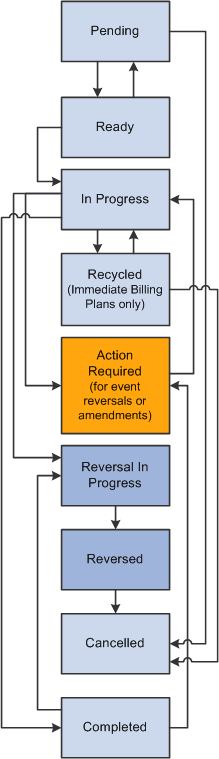
This diagram shows the flow between the billing plan status values:
This diagram shows the flow between the billing plan status values
Understanding Billing Plan Event Status
Depending on the billing method for the billing plan, you define zero or more billing plan events. Billing plan events show how much to bill based on a percentage of the billing plan total, and when to bill using the event status. Events are used with billing methods Milestone, % Complete, and Value-Based. Billing methods Immediate and Recurring do not have billing plan events. You can optionally associate billing plan events with As-Incurred billing plans to maintain greater control over the timing of as-incurred billing. These eight billing plan event statuses are available:
| Term | Definition |
|---|---|
|
Pending |
Default status when you define most billing plan events. Billing plan events in Pending status are not subject to system edit checking. Note: The system inserts Percent Complete billing plan events in Ready status. |
|
Ready |
You can use two methods to set the billing plan event status to Ready. First, you can set the billing plan event status to Ready after you have finished defining the event for the billing plan. This method enables you to automate the billing process. For example, you can define a milestone billing plan event and set it to Ready status. Then, when the milestone is reached, the system automatically generates the corresponding bill line. The second method is to leave the billing plan event in Pending status until the activity associated with the bill event is ready to be billed. For example, you can define a milestone billing plan event and leave it in Pending status. Then, when the milestone is reached, you can update the billing plan event status to Ready to initiate billing. This method enables you to enforce greater control over what bills are generated. Regardless of the method that you choose, when you set the billing plan event status to Ready, the system performs edit checks to ensure that all required event fields have been defined (Milestone ID, Milestone Number, and Percentage). |
|
In Progress |
Once the billing plan event has been processed by the system and the associated activity sent to PeopleSoft Billing, the Contracts Billing Interface process (CA_BI_INTFC) updates the event to In Progress. Once an event is marked with In Progress status, that event is overlooked by future billing processes. |
|
Recycled |
The Recycled status is set by PeopleSoft Billing if one or more of the billing plan lines associated with the event is canceled in the billing worksheet. Individual billing plan lines are processed if an event is marked as recycled and the billing plan line is cancelled in the Billing Cross-Reference History table. (Cancelled billing plans have a Deleted Billing Cross-Reference History status.) |
|
Completed |
Once all bill lines associated with a billing plan event are marked Finalized in the Billing Cross-Reference History table, the Projects/Contracts Interface process (BIPCC000) updates the billing plan event status to Completed. |
|
Reversal Initiated |
The system sets this status when you select the Reversal Initiated option and click the Update Event Status button on the Review Billing - Events page. Selecting this option triggers the system to generate a reversal for the selected billing plan events. At the same time that the system sets the event status to Reversal Initiated, the system also changes the billing plan status from In Progress or Completed to Action Required. This setting indicates that you need to manage the billing plan events to ensure that you process 100 percent for event-level reversals. |
|
Reversal in Progress |
The system sets this status when the application engine begins the reversal generation process. |
|
Reversed |
The system changes the billing plan event status to Reversed with the next run of the Contracts Billing Interface process (CA_BI_INTFC). |
Changes between statuses are controlled manually by you or programmatically by the system. You control the billing plan event statuses of Pending and Ready. The system controls all other changes to the billing plan event statuses.
Understanding the Relationship Between the Billing Plan Status and Billing Plan Event Status
When the billing plan status is Pending, you can freely edit your billing plan events. When the billing plan status is Ready or In Progress, you can edit billing plan events with a status of Pending or Ready.
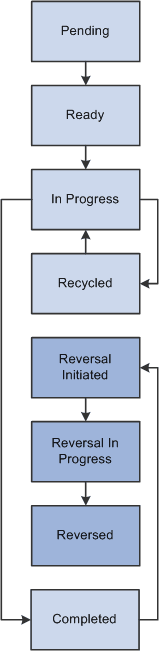
This diagram illustrates the billing plan event status flow:
This diagram illustrates the billing plan event status flow
Understanding Prepaid Status
Prepaids are fixed amounts defined in a contract and pertain only to rate-based contract lines. The prepaid amount is defined for a specific use and can have an expiration date. The time frame and exact transactions applied to the prepaid are not known at the time of entry.
Understanding Billing Cross-Reference History Status
The billing cross-reference history stores all the billing history for any contract. For fixed-amount contract lines, the record is tracked from when PeopleSoft Contracts sends bill rows to PeopleSoft Billing through finalization of the bill in PeopleSoft Billing. For rate-based contract lines, this information is stored upon finalization of the bill.
The billing cross-reference table provides a link between billing activity in PeopleSoft Contracts and billing activity in PeopleSoft Billing. Six billing cross-reference history status values exist. The following statuses apply only to fixed-amount billing plans (milestone, % complete, immediate, and value-based).
| Term | Definition |
|---|---|
|
New |
When you run the Contracts Billing Interface process, a billing cross-reference row with the status of New is created for each billing plan event that is on a billing plan with a status of Ready or In Progress and that has a billing plan event status of Ready or Recycled (with deleted cross-reference rows). |
|
Received |
When the Billing Interface process (BIIF0001) is run in PeopleSoft Billing, the billing cross-reference status is updated to Received for rows that successfully complete the Billing Interface process; the status is not updated for records that appear as errors in the interface. The Billing Interface process loads the Billing Worksheet with PeopleSoft Contracts and PeopleSoft Project Costing billing activity. For billing activity coming from billing plans for which you selected Direct Invoicing and Pre-Approved, the billing activity skips the Billing Worksheet process. This situation is the only one for which the status moves directly from Received to Finalized. |
|
Accepted |
Once the billing activity is populated into the Billing Worksheet, the billing administrator can accept or cancel the fixed-amount billing activity. If accepted, the billing cross-reference row status corresponding to that billing activity is updated to Accepted. |
|
Deleted |
Once the billing activity is populated into the Billing Worksheet, the billing administrator can accept or cancel the fixed-amount billing activity. If cancelled, the billing cross-reference row status corresponding to that billing activity is updated to Deleted. |
|
Finalized |
For billing activity related to fixed-amount and recurring billing plans, upon finalization of billing activity, the billing cross-reference row status corresponding to that billing activity is updated to Finalized for fixed-amount and recurring activity. For billing activity related to rate-based billing plans, upon finalization of billing activity a row is created in the billing cross-reference table with a Finalized status. Any credits, rebills, or manual bills initiated directly in PeopleSoft Billing are reflected on the billing cross-reference row if they were made in reference to an existing Contract and Billing Plan. Note: Rate-based billing activity (As-Incurred billing method) that comes from PeopleSoft Project Costing is not populated into the Contracts billing cross-reference table until after the bills have been finalized in PeopleSoft Billing; therefore, rows for rate-based billing can appear only on billing cross-reference rows with a status of Finalized. |
|
Reversed |
For billing activity related to fixed-amount billing plans, upon reversal of billing activity, the billing cross-reference row status corresponding to that billing activity is updated to Reversed for fixed-amount activity. |
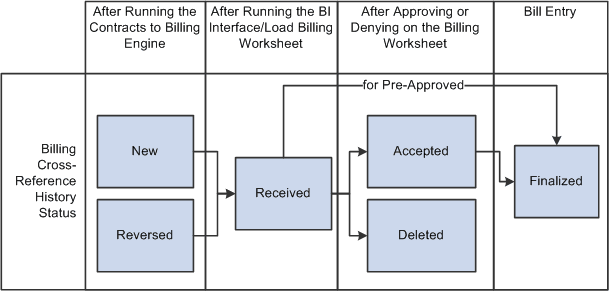
The system controls how the billing status values change based on the following application engines:
This diagram illustrates System billing status changes affected by application engine processes
Related Topics