Setting Up a Processing Order Template
This section discusses how to Create a Processing Order Template.
Page Used to Define a Processing Order Template
| Page Name | Definition Name | Usage |
|---|---|---|
|
PRC_ORD_TEMPLATE |
Use this page to create a Processing Order Template for the Limits process. |
Processing Order Template Page
Use the Processing Order Template page (PRC_ORD_TEMPLATE) to create a Processing Order Template for the Limits process.
Navigation:
.
Or
This example illustrates the fields and controls on the Processing Order Template page. You can find definitions for the fields and controls later on this page.
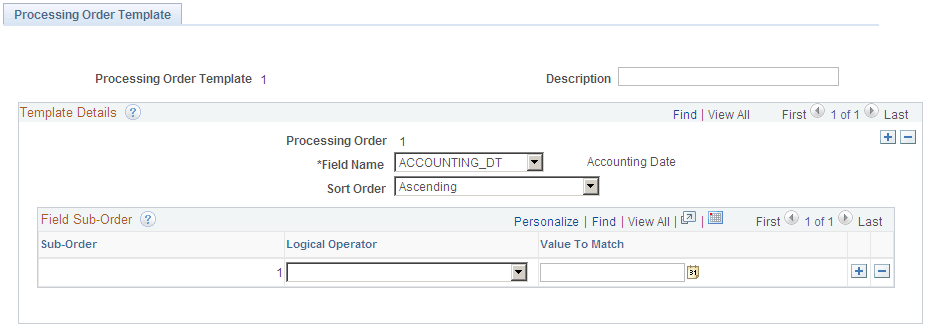
Use this page to create a Processing Order Template.
| Field or Control | Description |
|---|---|
|
Processing Order |
Displays a number that the system automatically assigns to a specific row. This value determines the processing order of the Field Name and the system uses this number to prioritize the field. Processing Order is assigned to every new row inserted and after insertion the processing order of the existing rows is renumbered automatically. |
| Field or Control | Description |
|---|---|
|
Field Name |
Select a value from the list. Options include:
|
|
Sort Order |
Select Ascending or Descending. |
|
Sub-Order |
Displays a number that the system automatically assigns to a specific row of the sub-order of the Field Name. The system uses this number to prioritize the field. |
|
Logical Operator |
Select an option that is used by the system to compare the value in the Value To Match field with the data being processed for the specific Sub-Order of the individual field. The options occurring in the drop-down list are dependent on the data type of the field. For fields having Date and Numeric data type options include:
For fields having Character data type options include: Like |
| Field or Control | Description |
|---|---|
|
Value To Match |
Enter an appropriate value to be compared or matched by the system to filter or sequence the data. You must enter values based on the data type (Date, Character, or Numeric) of the field. For example, for data type Date you can select a date using the Date Picker control. Note: For Character data type you can use wildcard character (%) when you have selected Like as the logical operator. For example, you can use A% which will sort all the field values starting with A. Also for Character data type you need not enclose the character values in single quotes. |
Note:
Any field used in the Processing Order Template should also be present in the Project Costing Summarization Template so that data corresponding to that particular field is available from the Project Costing Summarization process.
See PeopleSoft Project Costing: Setting Up Summarization Templates.