Add New Message Page
Use the Add New Message page to initiate a new conversation in the Fluid eBill Payment application.
Navigation:
Select the Add New Message button on the Message Detail page.
This example illustrates the fields and controls on the Add New Message page. You can find definitions for the fields and controls later on this page.
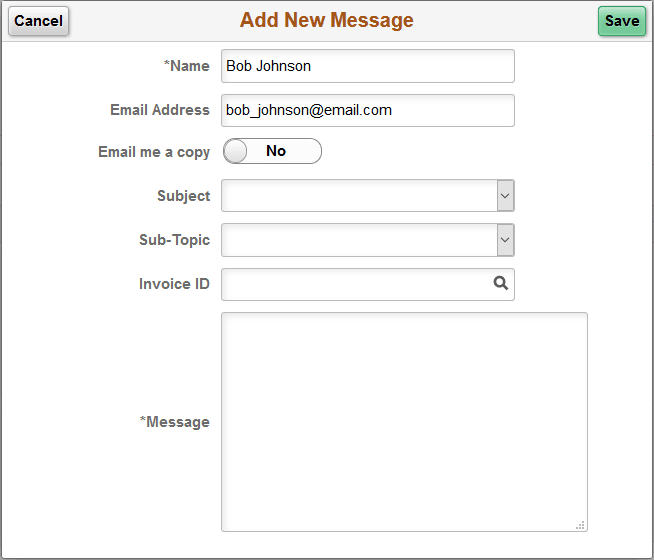
The Add New Message page for the large form factor and the small form factor displays the same fields and formatting. Only the size differs.
Your name and email address on the new message form are populated from the contact information in your account settings, but you can enter a different name and email address, if desired.
| Field or Control | Description |
|---|---|
|
Email Me a Copy |
Move the switch to Yes to receive a copy of the email message. |
|
Subject |
Select a conversation subject from the list. |
|
Sub-topic |
Select an available subtopic from the list. The subtopics are populated based on the selected subject. |
|
Invoice ID |
Enter an invoice ID, or click the lookup prompt to reference an invoice ID in the message, if desired. |
|
Message |
Enter a message to the email recipient. |