Invoices to Pay Page
The Invoices to Pay page is Step 1 in the Payment Cart for all payment methods.
Use the Invoices to Pay page (EB_PAYCART_AGS1_FL) to do the following:
-
(LFF) Select a payment method and change payment amount and date.
-
(SFF) Select a payment method and change payment date.
Navigation:
Select the Payment Cart tile on My Homepage in the customer portal.
Or click the Pay button on the Invoice Balances page accessed through another tile.
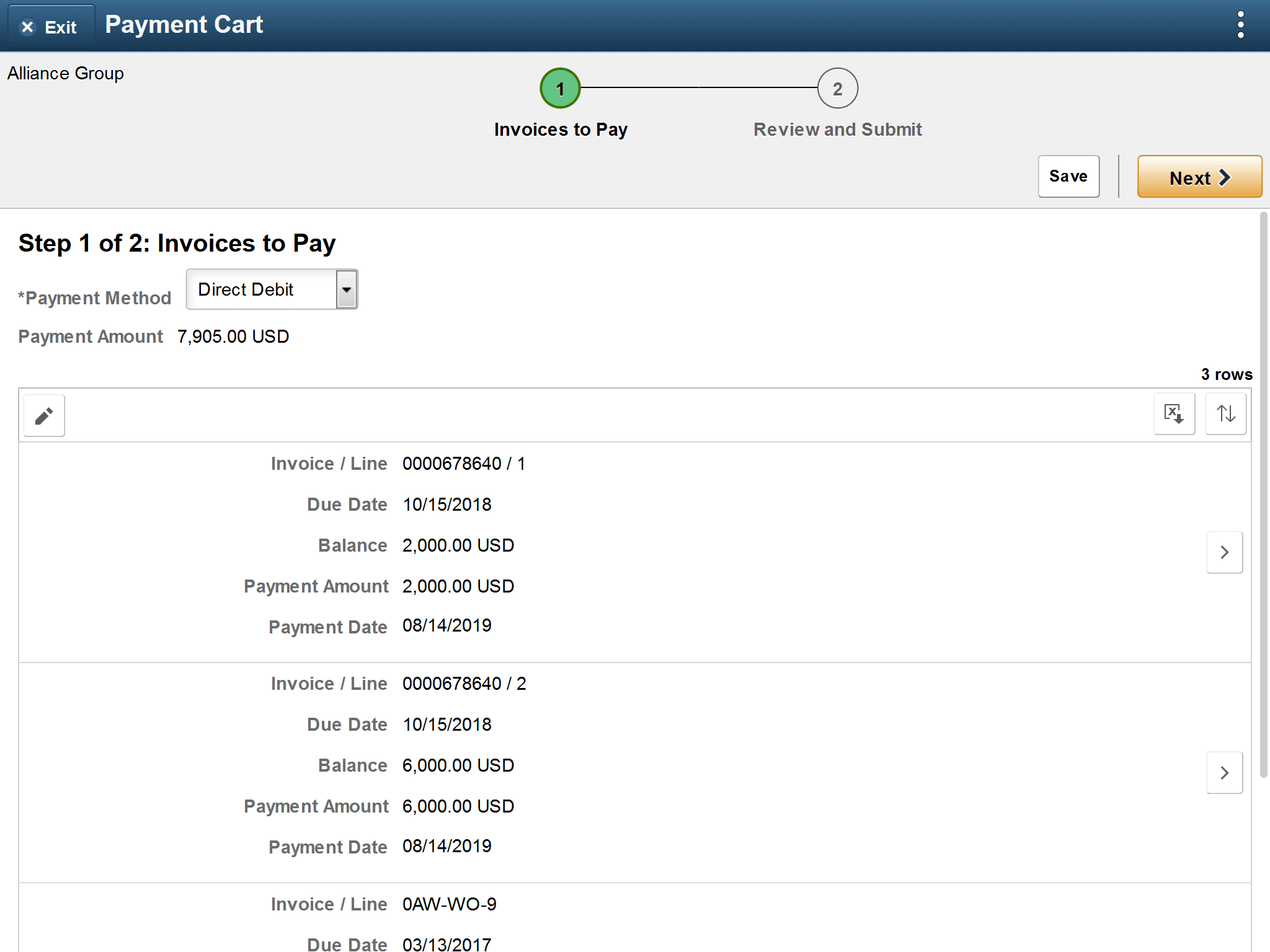
This example illustrates the fields and controls on the Invoices to Pay page, Step 1 in the Payment Cart for a partial payment by credit card, as displayed on a laptop. You can find definitions for the fields and controls later on this page.
| Field or Control | Description |
|---|---|
|
Payment Method |
Select an available payment method from the drop-down list. |
|
Clear Cart |
Click the Clear Cart button to remove all invoices from the Payment Cart. The invoices are available for selection again after removal. |
|
Totals by Division and Division |
Appears if the invoice total for a division (or business unit) in the Payment Cart is negative. The total balance by currency for each division must be positive. Click the Totals by Division button to open the Payment Totals by Division page, where you can view payments grouped by division and currency. |
|
Error and |
Click the Error Detail button to open the Review Invoice Errors page. You must fix invoice errors before proceeding to the next step. |
|
Invoice / Line |
Displays the invoice ID and line number. |
|
Due Date |
Displays the due date. |
|
Balance |
Displays the balance on the invoice. |
|
Payment Amount and Currency |
(LFF) Displays the full invoice balance by default. Change the amount if paying a partial amount. (SFF) To change the payment amount on a smartphone, go to the Invoice Detail Page. Displays the invoice currency. |
|
Payment Date |
Displays the current date by default. Change the payment date if desired. |
|
Partial Pay Reason |
Select a partial payment reason (such as Damage, Discount, or Short) when the payment amount entered is less than the invoice balance. |
|
Partial Payment History |
Click the Partial Payment History icon to open the Partial Payment History page, where you can see a the partial payments made for the invoice. |
|
Delete |
Click the Delete icon for an invoice to remove the invoice from the Payment Cart. |

This example illustrates the fields and controls on the Invoices to Pay page, Step 1 in the Payment Cart for a partial payment by direct debit, as displayed on a smartphone. You can find definitions for the fields and controls later on this page.
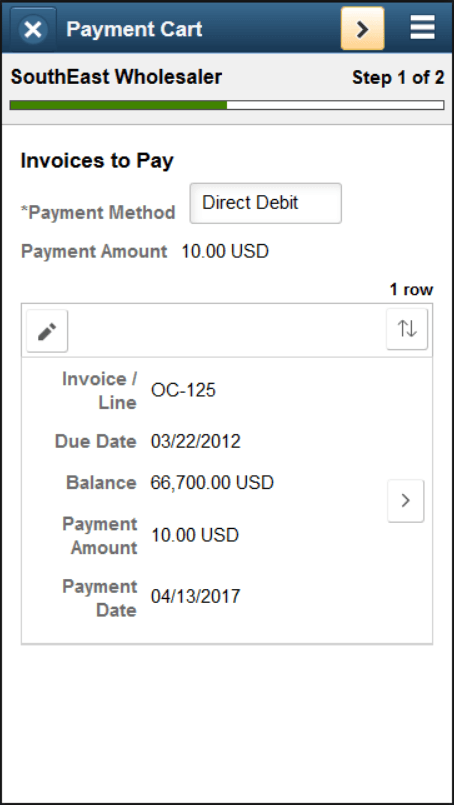
The following buttons appear in the small form factor design:
| Field or Control | Description |
|---|---|
|
|
Click the Edit button to select and delete individual invoices from the Payment Cart. |
|
|
Click the Deselect All and Select All buttons to deselect or select all invoices in the Payment Cart. |
|
|
Click the Delete button to remove selected invoices from the Payment Cart. |
|
|
Click the Sort button to sort invoices in the Payment Cart by invoice fields. |

 and
and 

