Messages - Filters Page
Use the Messages - Filters page to narrow the results in the messages list by options including date range, conversation subject, subject topic, and invoice ID.
Navigation:
Select the Filter Items button in the Messages grid.
This example illustrates the fields and controls on the Messages - Filters page. You can find definitions for the fields and controls later on this page.
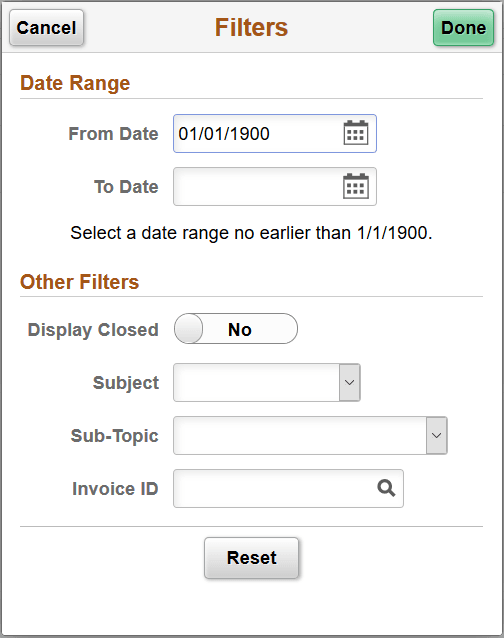
The Filters page for the large form factor and the small form factor displays the same fields and formatting. Only the size differs.
Date Range
Select a From Date and To Date to view messages created within in that timeframe, including the beginning and end dates. The biller may exclude messages older than a date specified in the application setup.
Other Filters
| Field or Control | Description |
|---|---|
|
Display Closed |
Select Yes to display closed messages. |
|
Conversation Subject |
Select the subject of the conversation from the list. |
|
Sub-Topic |
Select the subtopic of the messages from the list of available topics. |
|
Invoice ID |
Enter one invoice number to see only messages for that invoice in the invoice list. Click the lookup prompt to search for invoice IDs using search operators to see results including Invoice, Entry Type, and Customer Name. |
Click the Reset button to clear the filter fields.