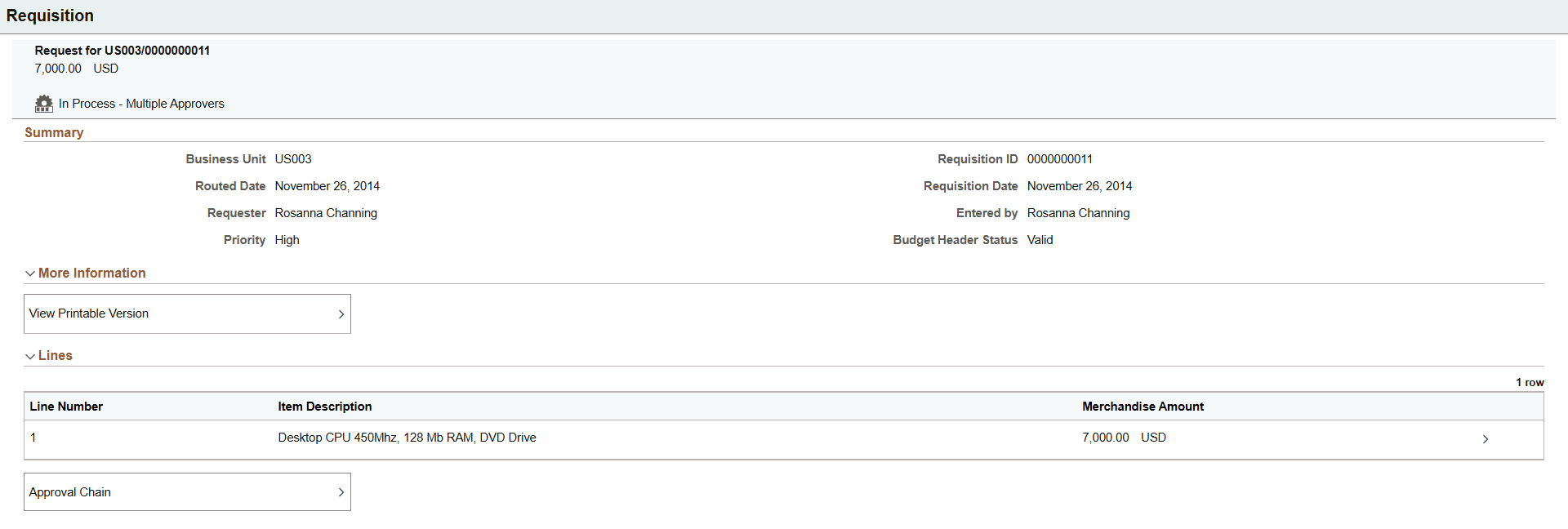
Approving Requisitions Using PeopleSoft Fluid User Interface
This section discusses about approving requisitions using the fluid user interface.
Click to watch a short video about PeopleSoft Fluid Requisition.
Pages Used to Approve Requisitions in the PeopleSoft Fluid User Interface
| Page Name | Definition Name | Usage |
|---|---|---|
|
Not Available |
Review and approve multiple requisitions. Access header details for a specific requisition. |
|
|
Not Available |
Review and approve a single requisition. Access line item details for a specific line. |
|
|
Not Available |
Review display-only line details. |
|
|
Not Available |
Review a list of requisition approvals. Access the approval history for a specific requisition. |
|
|
Not Available |
Review the approvals history for a single requisition. Access line item details for a specific line. |
Pending Approvals Page
Use the Pending Approvals – Requisition list page to review and approve multiple requisitions. Access header details for a specific requisition.
Navigation:
On the Pending Approvals - View By Type page, select Requisition to view the list of all pending requisitions for approval.
This example illustrates the fields and controls on the Pending Approvals page (1 of 2).
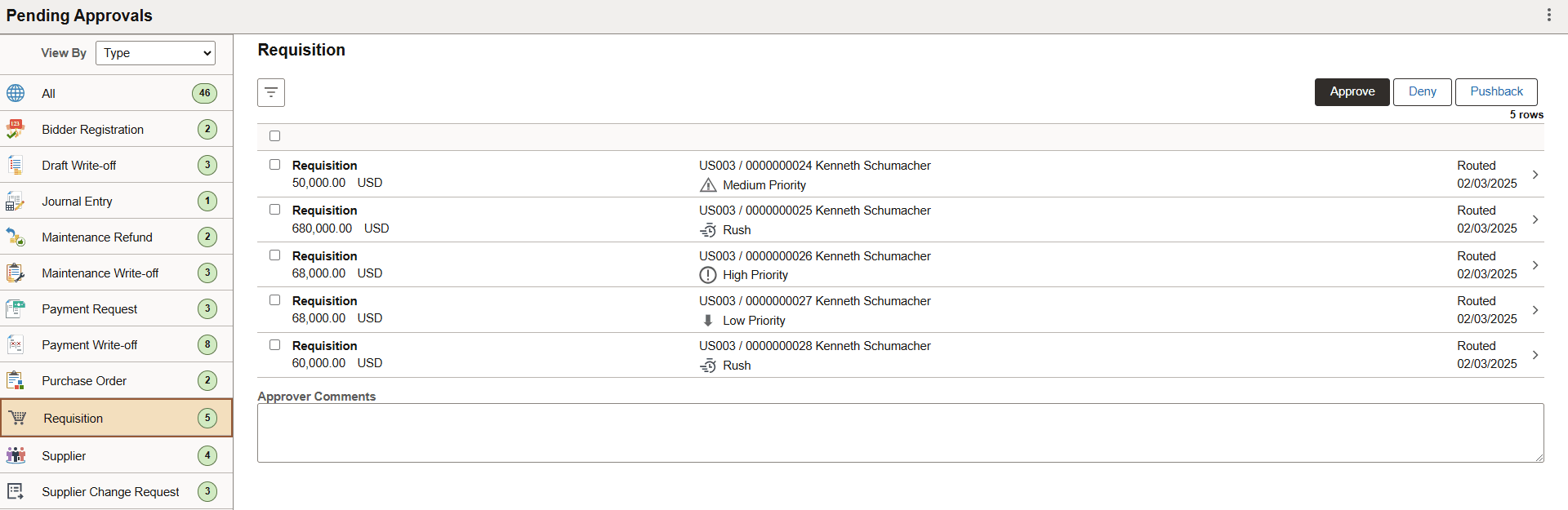
Review header information for the requisitions currently routed for approval. Select a particular requisition to view the header details. You can select any number of requisitions on this page and perform a mass action on the selected requisitions. You can also use the filter to narrow down the requisitions displayed on this page. You can select and review requisitions by their priority (Rush, High, Medium, or Low).
| Field or Control | Description |
|---|---|
|
Approve, Deny, or Pushback |
Perform a mass action by selecting multiple transactions, then selecting an approval action button. Note: If the requisition is on hold, the approver cannot approve or deny the requisition. A message is displayed to explain this when the approver tries to approve or deny. The "Held" requisitions are not hidden, because the approver may wonder why they received notifications if the requisition is missing from their approval queue. |
|
Approver Comments |
Enter comments in the text entry field. |
Note:
For information about how to add a tile to a PeopleSoft Fluid Home page, see Application Fundamentals: Adding Homepages and Tiles.
The tile can show the total number of pending approvals. If no pending approvals are available, the tile does not display a number count.
Oracle PeopleSoft delivers Notification Composer Framework to manage the setup and administration of notifications in one central location. Once you have adopted the Notification Composer feature, you must use it to create new notifications and manage your existing notifications.
For more information about Notification Composer Framework, see Enterprise Components: Understanding Notification Composer.
Approval - Requisition Header Detail Page
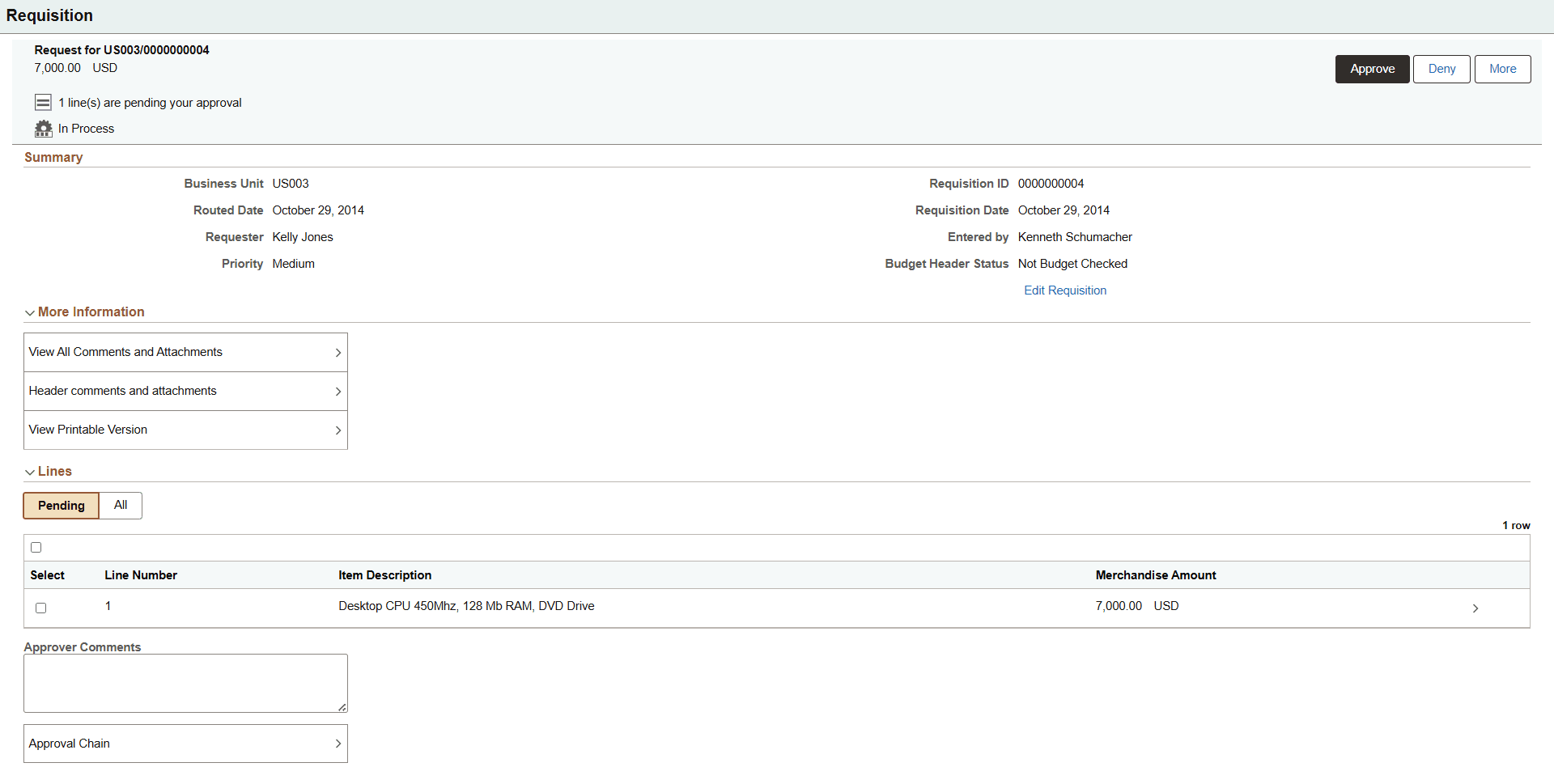
Use the Pending Approvals - Requisition header approval page to review and approve a single requisition. Access line item details for a specific line.
Navigation:
Select a requisition in the list on the Pending Approvals - Requisition list page.
This example illustrates the fields and controls on the Pending Approvals - Requisition Header Approval page. You can find definitions for the fields and controls later on this page.
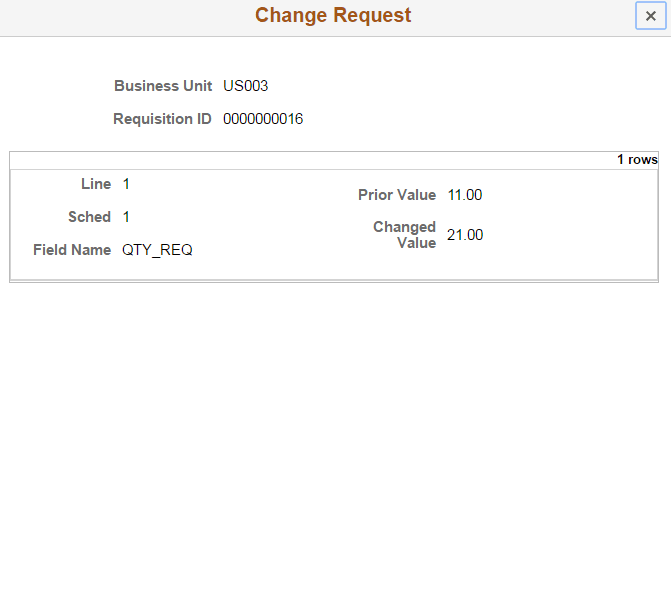
This example illustrates the fields and controls on the Change Request page. You can find definitions for the fields and controls later on this page.
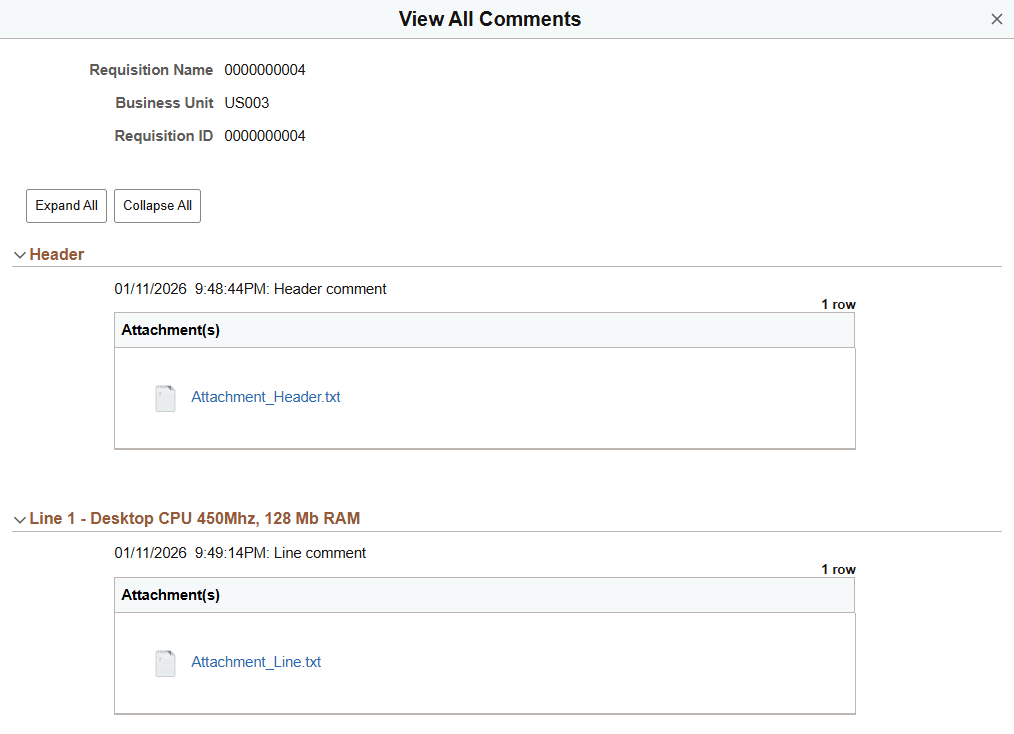
This example illustrates the fields and controls on the Requisition View All Comments page. You can find definitions for the fields and controls later on this page.
The approval chain reflects approval status generated by the Application Workflow Engine (AWE). For more information about using AWE workflows, see.
Approval Framework: Approval Framework Overview
| Field or Control | Description |
|---|---|
|
Approve, Deny |
Perform an action on this requisition by selecting an approval action button. Upon selecting an action, you have the option to select Submit to continue the action or Cancel to back out of the action. Upon submitting the action, the system generates a message that the action is successful. You can also add comments before submitting for approval. Note: If the requisition is on hold, the approver cannot approve or deny the requisition. |
|
Pushback |
Select to pushback the request. |
|
Approval Justification Attachments |
Select to view the attachments regarding the approval. |
|
Lines |
Select a requisition line item to view the line details. |
|
Approver Comments |
Enter comments in the text entry field. |
|
Approval Chain |
Select to view the approval chain information. You can expand or collapse approval information for each line by selecting the glyph icon. You can also select the approver name to view approver details. |
More Information
| Field or Control | Description |
|---|---|
|
View All Comments and Attachments |
Select View All Comments and Attachments to see a single, consolidated list of all comments and attachments for the selected requisition. If there are no comments or attachments, this button will not appear. If there are line comments or attachments but no header comments or attachments, then this button will still appear, and when this button is selected, the page indicates "No header comments/attachments" but still shows the comments and attachments for the line. For more details, refer to the View All Comments and Attachments section on the Details Page. |
|
Header comments and attachments |
Select Header comments and attachments to view the comments and attachments added to the selected requisition header. If there are no header comments or attachments available, this button is not visible. For more details, refer to the View All Comments and Attachments section on the Details Page. |
|
Change Request |
Select to view the change request details for the requisition. |
Approval Line Detail Page
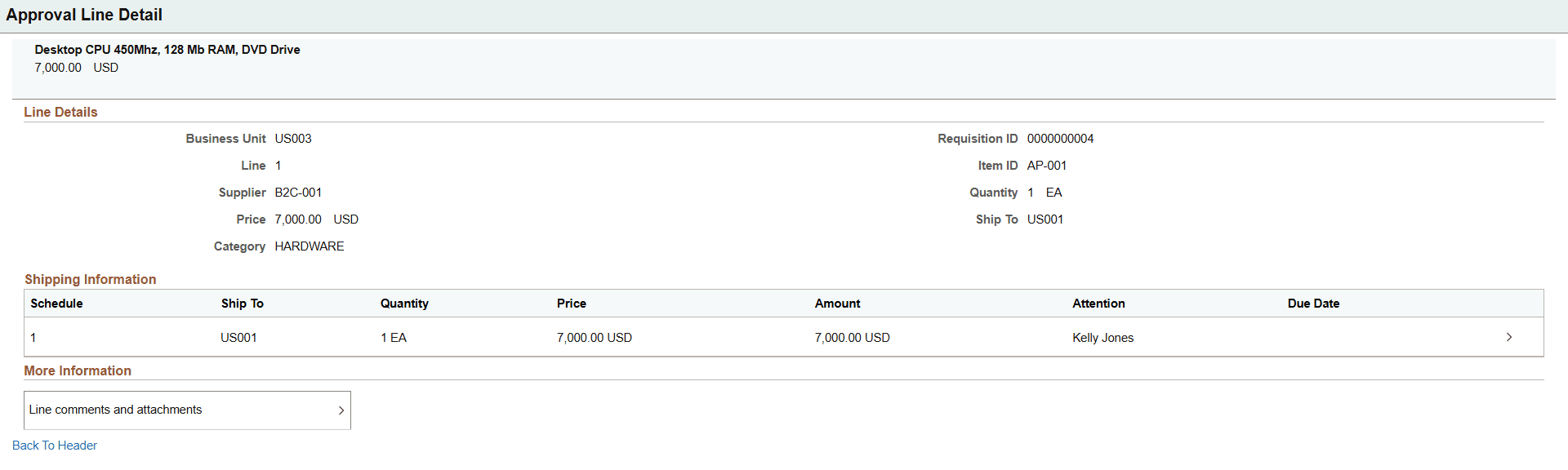
Use the Approval Line Detail page to review line details that includes shipping information and line level comments and attachments.
Navigation:
Select a requisition line item in the Lines section on the Requisition header approval page
This example illustrates the fields and controls on the Approval Line Detail page. You can find definitions for the fields and controls later on this page.
| Field or Control | Description |
|---|---|
|
Shipping Information |
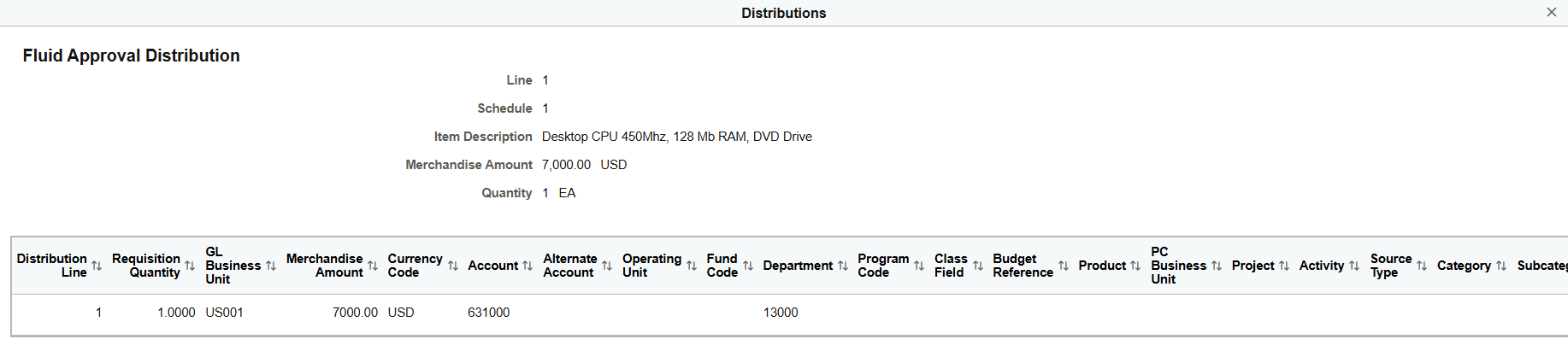
Select to view the fluid approval distribution details for the line item. |
|
More Information |
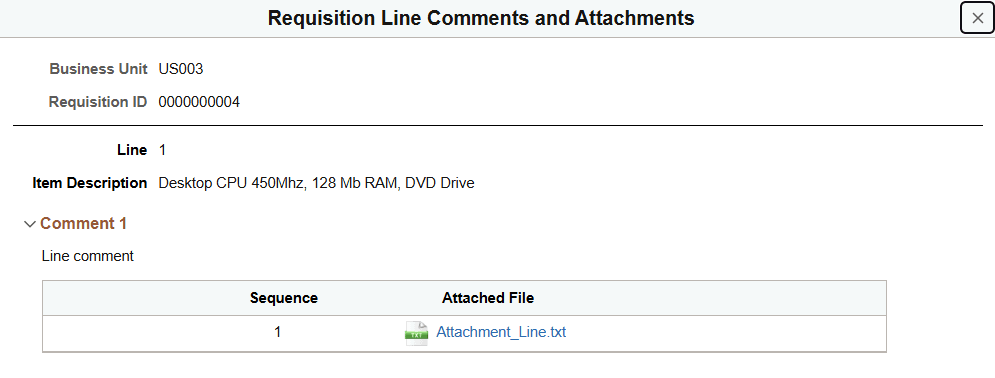
Select the Line comments and attachments to view all the collated line comments and attachments specific to the line item. |
This example illustrates the fields and controls on the Distributions page.
This example illustrates the fields and controls on the Requisition Line Comments and Attachments page.
Approvals History Page
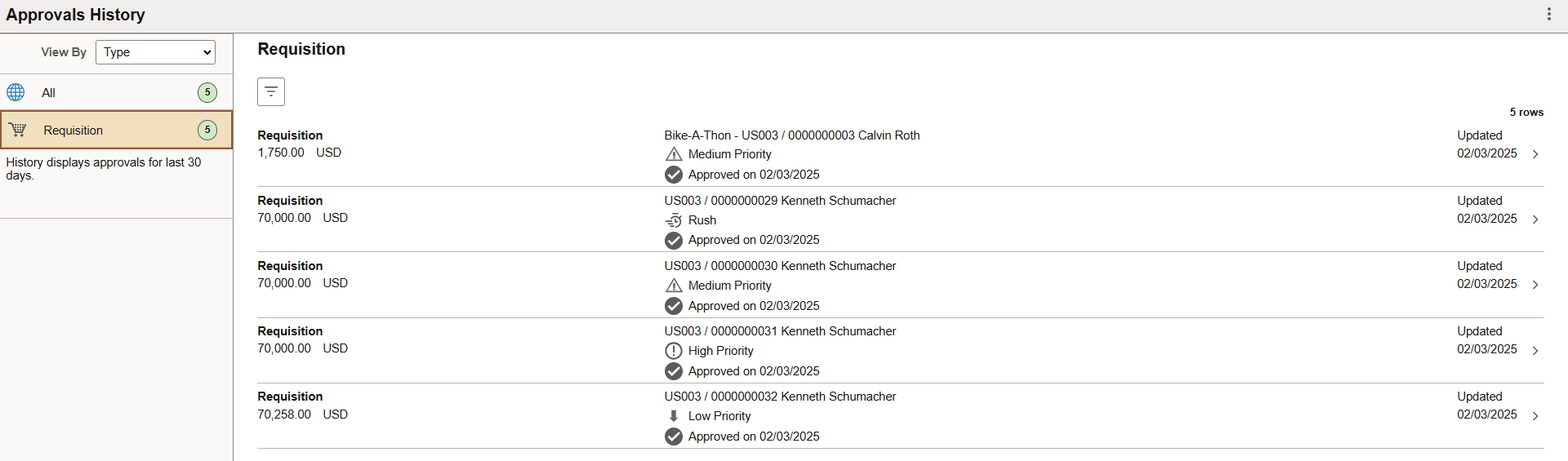
Use the Approvals History- Requisition list page to review a list of requisition approvals. Access the approval history for a specific requisition.
Navigation:
From a Pending Approvals - Requisition page, select the Actions icon on the page banner. Select Approvals History. Then select Requisition on the View By - Type page.
This example illustrates the fields and controls on the Approvals History - Requisition list page.
Approvals History - Requisition Header Page
Use the Approvals History - Requisition header approval page to review the approvals history for a single requisition. Access line item details for a specific line.
Navigation:
Select a requisition in the list on the Approvals History - Requisition list page.
This example illustrates the fields and controls on the Approvals History - Requisition header approval page.