Integrating Requisitions with Work Orders
While creating requisitions, requesters can integrate requisitions directly to a work order as needed. A requester with the CANLINK_WO role action can view the Peg Work Order option on the Schedule Details page.
Note:
For fluid requisitions, PeopleSoft Update Image 42 supports work order integration of non-inventory and special request items only.
Navigation
Add items to the shopping cart and proceed to checkout.
Select the Schedule Details button on a requisition line and click the Maintenance WO button.
This example illustrates the fields and controls on the Maintenance Work Order window.
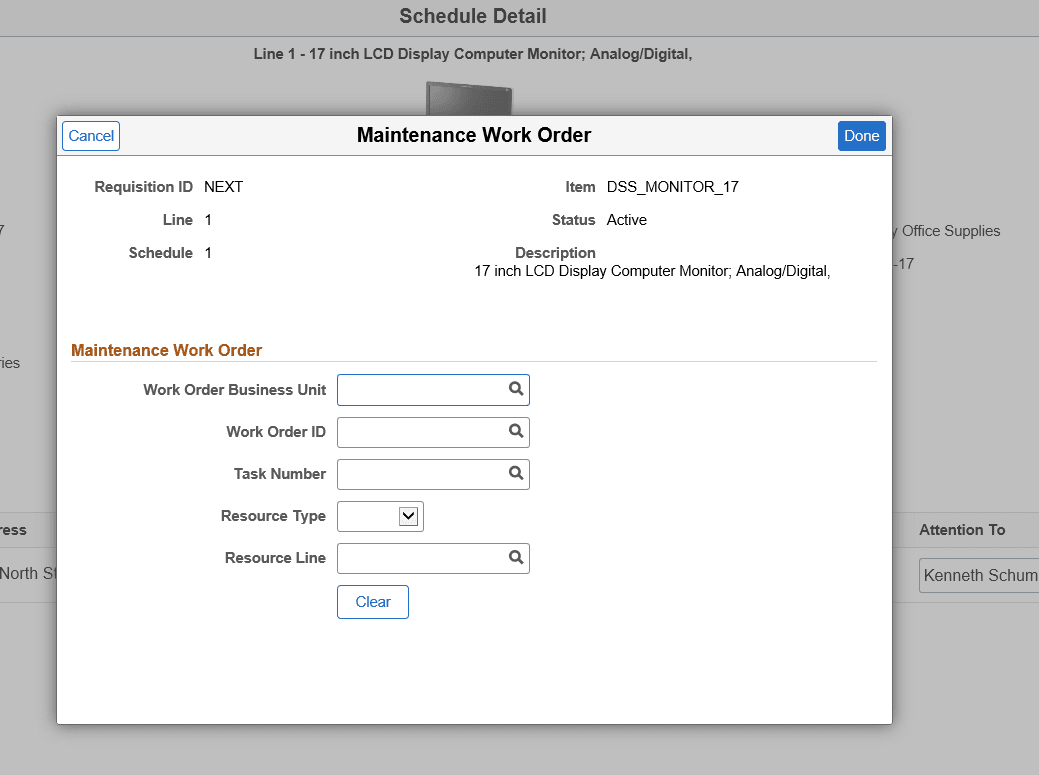
| Field or Control | Description |
|---|---|
|
Work Order Business Unit |
Select a business unit that contains the work order that you plan to integrate. |
|
Work Order ID |
Select the required work order ID. |
|
Task Number |
Select the work order task number generated by the system. |
|
Resource Type |
Available resource types are Labor, Material, and Tools. The Resource line reflects any changes to the resource type. |
|
Resource Line |
If the work order does not have any item information, the resource line does not display any value. You can either add a value or leave it blank. If you submit a requisition without adding a resource line, the line number is automatically added. If line numbers already exist and you proceed with submitting a requisition with a blank resource line field, the resource line number will be automatically incremented by one. Whereas, if you enter a resource line number, the same number is retained upon the requisition submission. |
|
Clear |
Select to remove all the field values at the same time. |
After entering the details, click the Done button and go back to the Checkout page and submit the requisition. The Edit Requisition page will display the details entered.