Line Details Page
Use the Line Details page (PV_SCH_DIST_SCF) to confirm requisition checkout information and edit additional details for a line, such as the buyer, supplier, and other line-specific information.
Navigation:
. Select the View Details icon for a line.
This example illustrates the fields and controls on the Line Details Page (1 of 4). You can find definitions for the fields and controls later on this page.
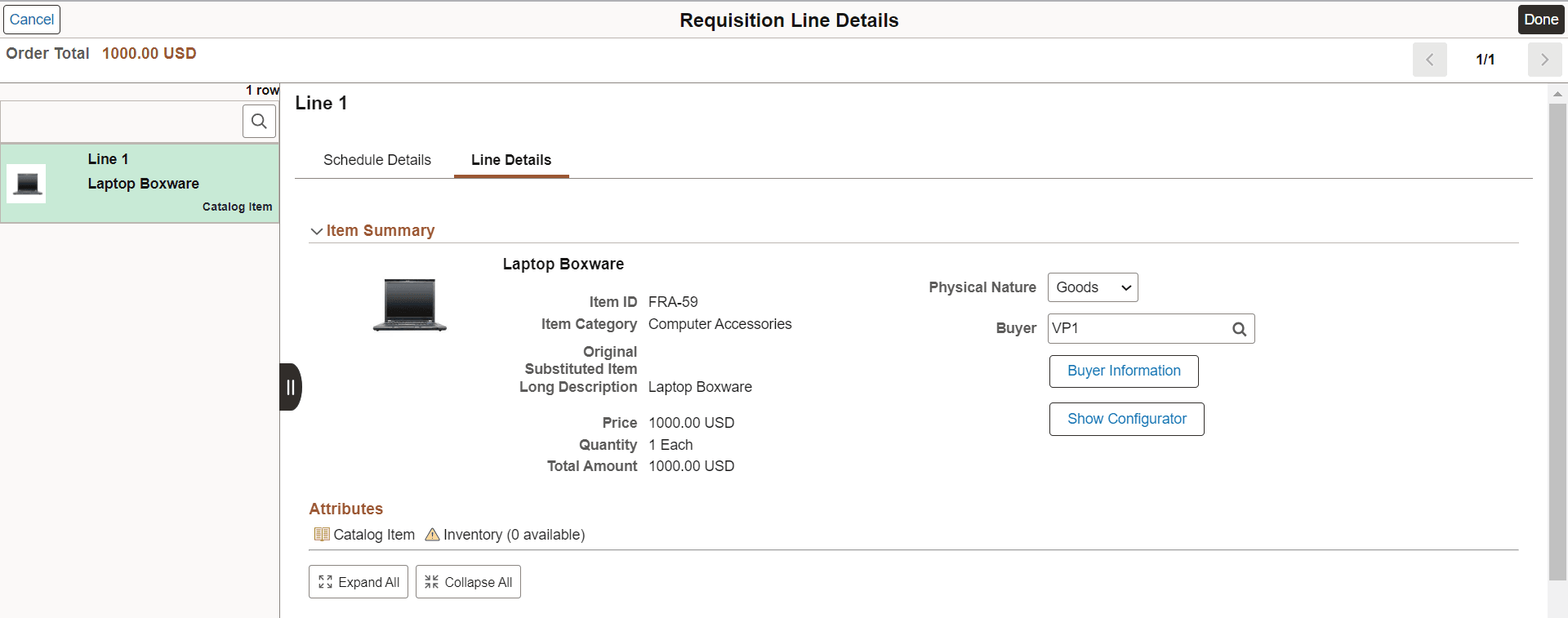
This example illustrates the fields and controls on the Line Details Page (2 of 4). You can find definitions for the fields and controls later on this page.

This example illustrates the fields and controls on the Line Details Page (3 of 4). You can find definitions for the fields and controls later on this page.
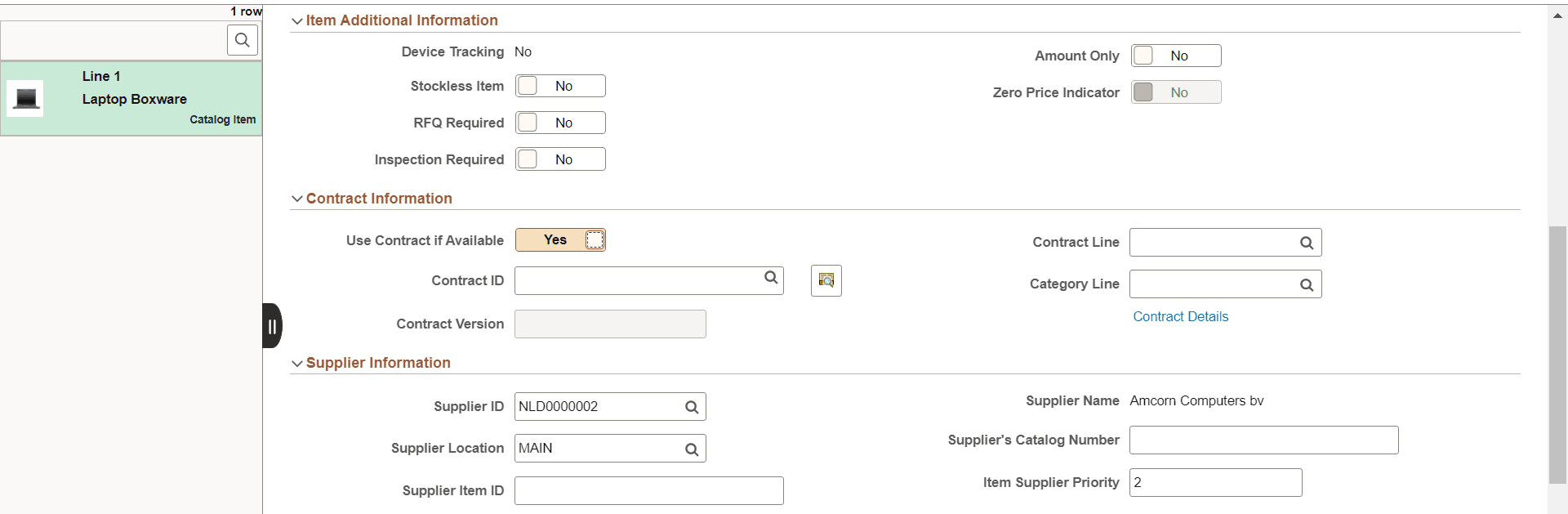
This example illustrates the fields and controls on the Line Details Page (4 of 4). You can find definitions for the fields and controls later on this page.
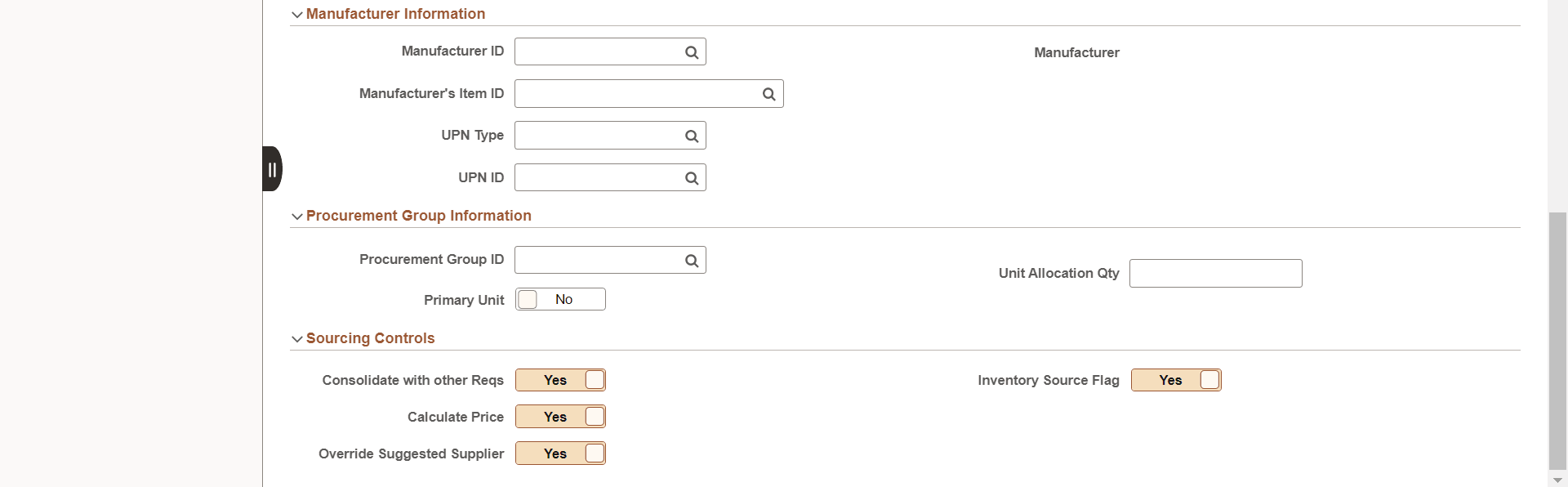
If you have substitute items defined for the original item, the Substitute icon appears next to the Original Substituted Item field. Click the Substitute icon to access the Substitute Items window to override any auto-substituted item. Only those items that are available for Manual Substitution and Automatic and Manual Substitution types are listed for your selection.
Item Summary
| Field or Control | Description |
|---|---|
|
Physical Nature |
Indicates whether the requisition is for goods or services. |
|
Buyer |
Select the buyer name. |
|
Buyer Information |
Select to access the Buyer Telephone Information window, which displays the buyers name, telephone, and fax number. |
|
Show Configurator |
Select to access the Item Configuration Information window, where you can select an Inventory Unit and Configuration Code. |
|
Attributes |
Item level and supplier level attributes are displayed based on weighted sort rule setup. To configure Weighted Sort Rules, see Manage Weighted Sort Rules Page. |
Additional Line Fields
Additional Line Fields provides the drop zone custom fields configured on the Requisition Type Template Page.
Item Additional Information
| Field or Control | Description |
|---|---|
|
Device Tracking |
Displays whether a receipt line is device tracked. This field is available for items that are description-only. See PeopleSoft Managing Items: Using Device Tracking |
|
Stockless Item, RFQ Required, Inspection Required |
See PeopleSoft Purchasing: Purchasing Attributes - Purchasing Controls Page |
|
Amount Only |
Select Yes to indicate that the line is an amount only line. When you select Yes, these actions occur on the requisition:
See also, PeopleSoft Purchasing: Common Elements Used in the Sourcing Workbench Note: The Amount Only toggle button is always visible and available on the Requisition Line Details page. |
|
Zero Price Indicator |
See PeopleSoft Purchasing: Common Elements Used in the Sourcing Workbench. |
Contract Information
Click the Contract Search icon to access the Contract Search page, where you can perform advanced searches for contracts to be applied to the requisition line.
If you replace an existing contract or select another, the Supplier Information section reflects the modifications accordingly. You can confirm whether you want to proceed with changing the supplier when the message displays.
See Line Details Page for more information.
Supplier Information
| Field or Control | Description |
|---|---|
|
Supplier ID |
Displays the ID of the supplier that supply this item. |
|
Supplier Location |
Displays the location of the supplier. The default is based on the value that is defined for the supplier. |
|
Supplier Item ID |
Displays the ID that the supplier uses to identify this item on the Item Supplier page. |
|
Supplier's Catalog Number |
Displays the Catalog Number that the supplier assigned for the item. |
|
Item Supplier Priority |
Indicates the supplier priority selected for the item. The value appears by default as a medium priority, but can be changed by the user. The updated priority appears on the Requisition Header. |
|
Suggest New Supplier |
Select this link to access the Suggested Supplier page (PV_MB_SUG_VNDR_SEC) where you can enter supplier name, address, and phone information. |
Manufacturer Information
The Manufacturer information group box displays all information pertaining to the manufacturer.
| Field or Control | Description |
|---|---|
|
Manufacturer ID |
Identifies the manufacturer of the item. This value is supplied from the Supplier’s Manufacturer Info page. |
|
Manufacturer's Item ID |
Displays the identifier that the manufacturer uses for this item when the suggested supplier supplies the item. This value appears from the Supplier's Manufacturer Info page. |
|
UPN Type |
Select applicable UPN Type Code. |
|
UPN ID |
Select applicable universal product number that is defined by a unique combination of item ID, manufacturer ID, manufacturer item ID, and Unit of Measure. On selecting the UPN ID, the item line information associated with the selected UPN ID will be populated. |
See Line Details Page for more information.
Procurement Group Information
For additional information about Procurement Groups, see PeopleSoft Purchasing: Understanding Procurement Groups in PeopleSoft
| Field or Control | Description |
|---|---|
|
Procurement Group ID |
Select a Procurement Group ID to be displayed on receipt lines. Procurement groups are defined using the PeopleSoft Purchasing: Procurement Groups Page. |
|
Primary Unit |
Select Yes or No to indicate that this is the primary unit for the Procurement Group. |
|
Unit Allocation Qty |
Enter a quantity that identifies the quantity to allocate per asset for the Procurement Group. |
Sourcing Controls
Use this section to alter sourcing options for the selected requisition line. This section is controlled by role, therefore some options are display only.
| Field or Control | Description |
|---|---|
|
Consolidate with other Reqs (consolidate with other requisitions) |
Select Yes to consolidate multiple requisitions for the same supplier into one purchase order. This is defined at requester setup. |
|
Calculate Price |
Select Yes to have the sourcing process recalculate the item price when this requisition line enters the sourcing stage. |
|
Override Suggested Supplier |
Select Yes to enable the sourcing process to override the suggested supplier. This is determined for purchasing order sourcing. |
|
Inventory Source Flag |
Displays whether eligible requisition items are sourced from PeopleSoft Inventory, which is determined in user preferences. Note: If the substitute item is valid for a particular supplier, then Inventory Source Flag and Override Suggested Supplier are set to No. If the substitute item is valid for all suppliers, it can be defined at the item definition level and the Override Suggested Supplier will be Yes. |
|
Auto Item Substitution |
Select Yes to indicate that item substitutions can be determined by the system. This is determined by Purchasing business unti. |