Save Confirmation Page
Use the Save Confirmation page (PV_MOB_855_CONF) to view the final requisition details that have been submitted for approval.
Navigation:
The message disappears after two seconds.
This example illustrates the fields and controls on the Checkout Confirmation page. You can find definitions for the fields and controls later on this page.
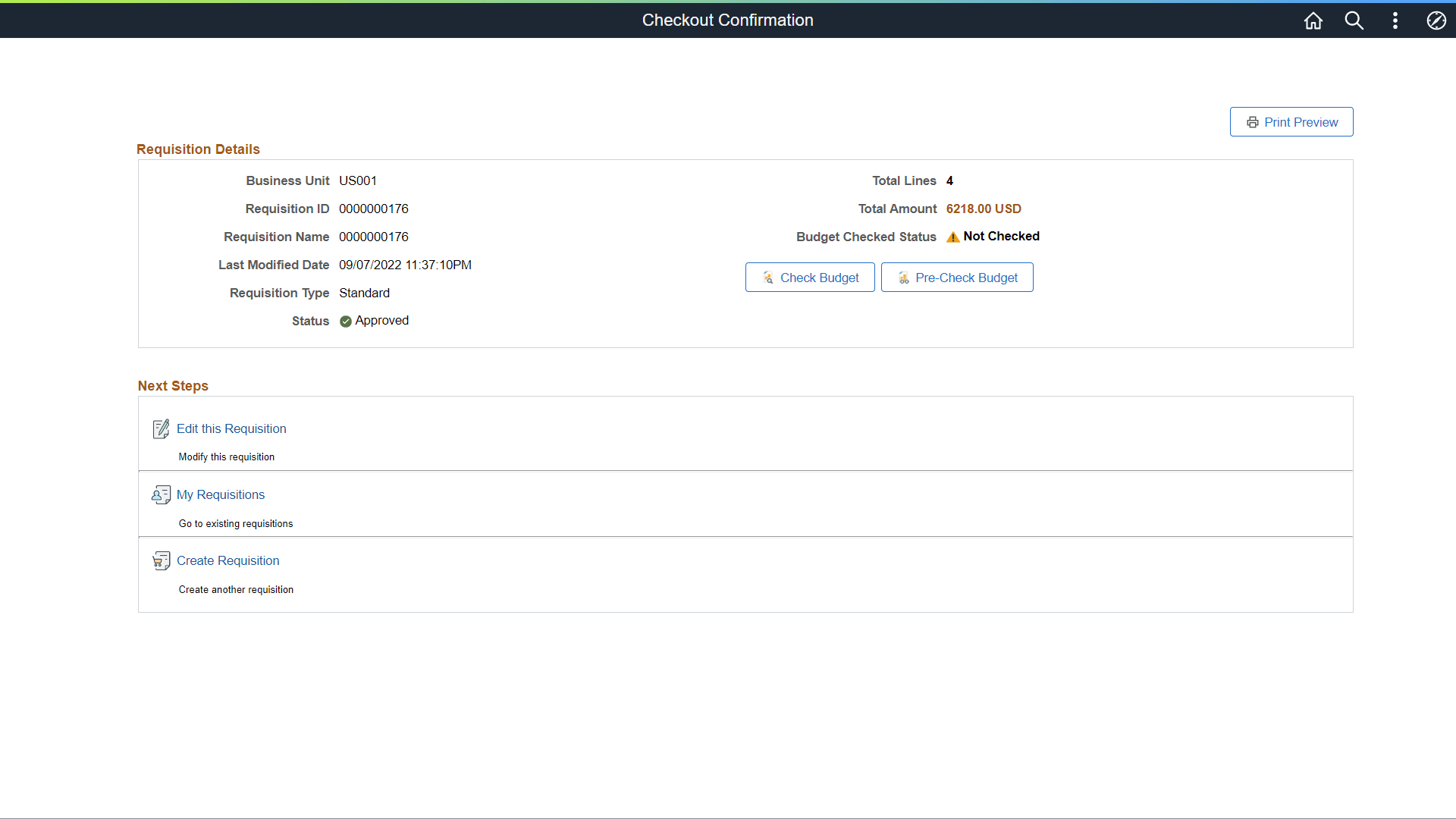
| Field or Control | Description |
|---|---|
|
Print Preview |
Click to print the requisition with distribution details. If the requisition priority is Rush, ***RUSH ORDERS*** text appears at the top of the print preview to identify the rush requisition. |
|
View Approval Chain |
Select to view the list of approvers for the requisition. |
|
Budget Checked Status |
Displays the following statuses based on the Check Budget and Pre-Check Budget processes:
|
|
Check Budget |
If the Check Budget process is successful, the Budget Checking Status changes to the Valid link. The Pre-Encumbrance Balance is also displayed as a link. Click the Valid link to view the Commitment Control window. In the window, click the Go To Activity Log link to navigate to the Commitment Control Activity Log page. |
|
Pre-Check Budget |
If the process is successful, click the Provisionally Valid link to view the Commitment Control details in the Commit Control window. The Pre-Budget link becomes disabled after running the process. |
|
Pre-Encumbrance Balance |
The Pre-Encumbrance balance is displayed as a link. Clicking this link opens the Accounting Entries page. Note: The pre-encumbrance value will also be displayed on the Edit Requisition page next to Order Totals and on the Budget Information tab of the Distribution page. You can click these links to view the details on the Accounting Entries page. |
|
Edit this Requisition |
Select to edit the requisition. |
|
My Requisitions |
Select to go to the requisition page, where you view and work with all your requisitions. |
|
Create Requisition |
Select to create new requisition directly from this page. |
You can navigate to other pages from this page via the Action menu. See Approving Requisitions Using PeopleSoft Fluid User Interface.