Item History Page
Use Item History page (PV_MOB_RECENT_ORD) to view the list of recently ordered items.
The number of items displayed depends on the value in the Max Rows to Retrieve for Search Results field on the Setting Up Installation Options for Fluid eProcurement.
Items that appear on the Item History page are based on user recently ordered items, but are limited by any work done using the Purge Requester Item History and Load Requester Item History configurations on the Requester Item History Page (Not all item history may be available).
Navigation:
On the ePro Homepage, select Item History from the left menu.
This example illustrates the fields and controls on the Item History page. You can find definitions for the fields and controls later on this page.
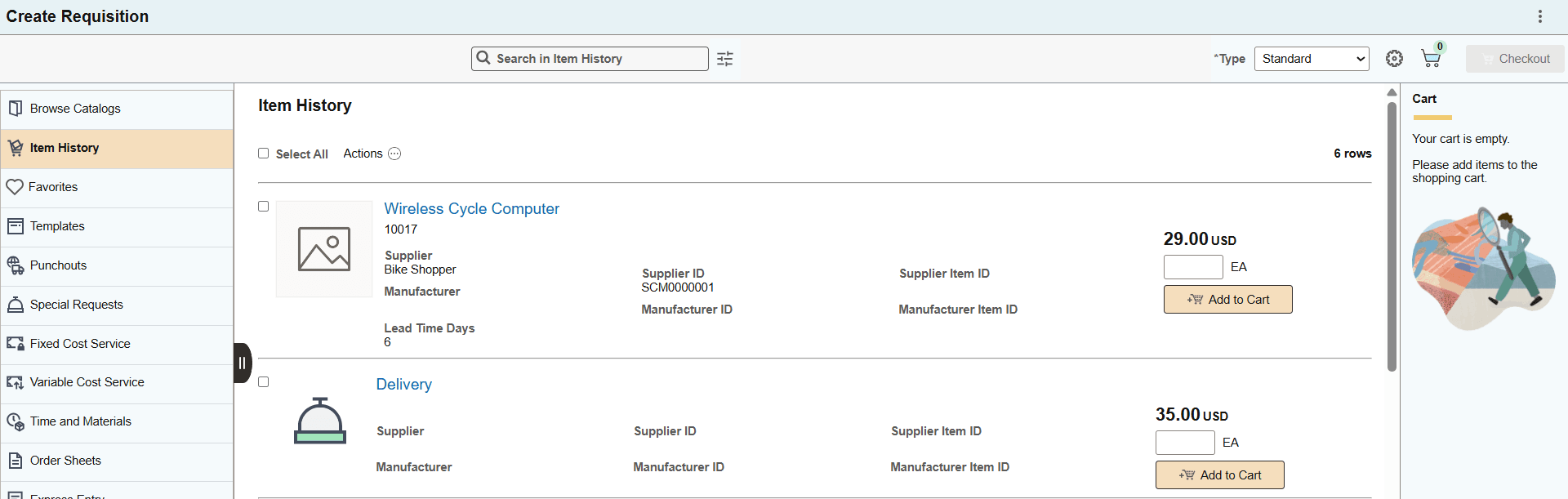
This page displays the list of recently ordered items along with their Item Description, Supplier Name, Manufacturer Name, Price, Currency, and UOM. Click the item name to view the Item Details Page.
| Field or Control | Description |
|---|---|
|
Quantity |
Enter the number of items to be added to the cart. |
 (Add to cart) |
Click to add items with the defined quantity to the cart. Note: You can select multiple items using the checkbox on the left for specific items on the grid, or use the select all checkbox on the top left of the grid for all items. To add multiple items to the cart, click the Actions button. The Add to Cart button is not available for inactive items. |
 (Actions) |
Select items using the checkbox on the left for specific items on the grid or the select all checkbox on the top left of the grid, and click Actions to add items to the cart, favorites, or templates. |