Item Details Page
Use the Item Details page (PV_MOB_855_ITEMDET) to view item details.
Navigation:
Select the item name link.
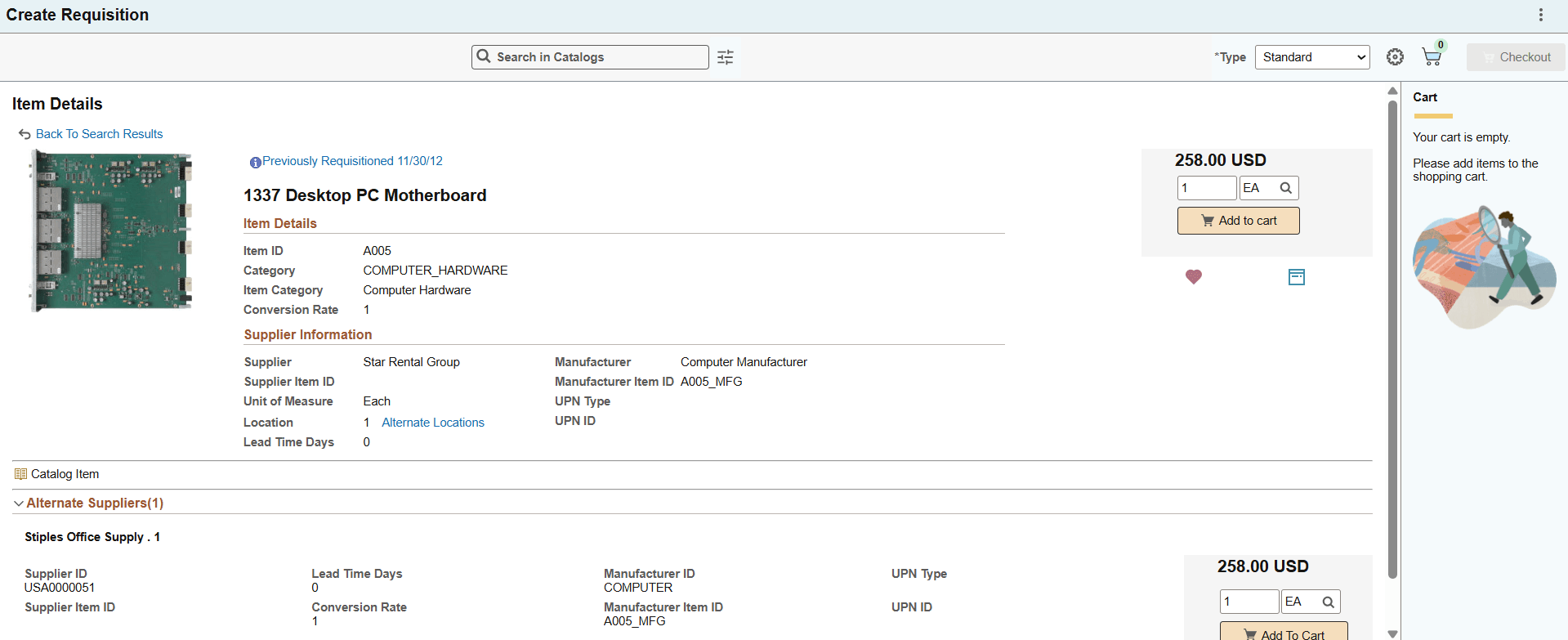
This example illustrates the fields and controls on the Item Details page.
If you enable multiple images in the installation options, You can view all the images available for the item. Click the image to enlarge it.
To view the Requisition Details page of the previous requisition for this item, click the Previously Requisitioned link.
This example illustrates the fields and controls on the Item Details page - with multiple images.
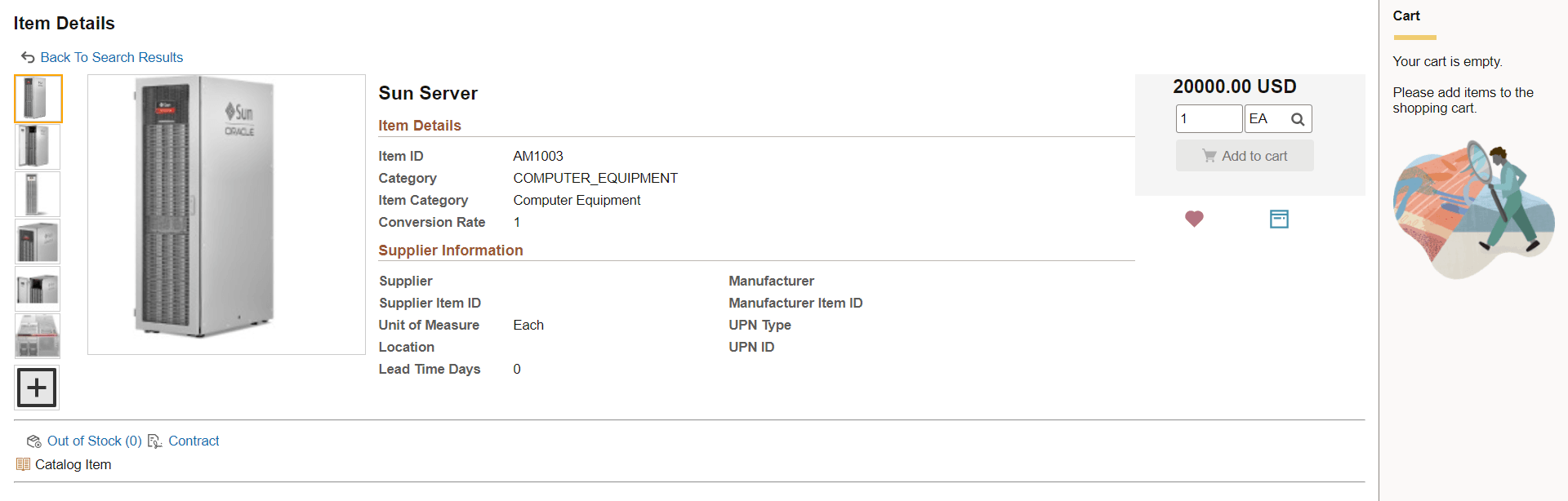
The Item Details page displays all potential suppliers for the item if the role action VIEW_ALL_SUPPLIERS is enabled. If there is a preferred supplier, it is listed at the top. You can add the item to your favorites list or to a template. The icon changes color (fills in) if you have already added the item to your favorites or templates.
If you want to add this item to the cart, verify the quantity and unit of measure (UOM) and select the Add to Cart button.
To return to the list, select the back button. The back button takes you back to the first page where you viewed the item details.
The item details display item level and supplier level attributes. To configure which attributes to be displayed on the search result, see Manage Weighted Sort Rules Page.