Create Requisition: Search Results Page
Use the Create Requisition: Search Results page (PV_MOB_855_SRCH) to search for items based on the Search field.
Navigation:
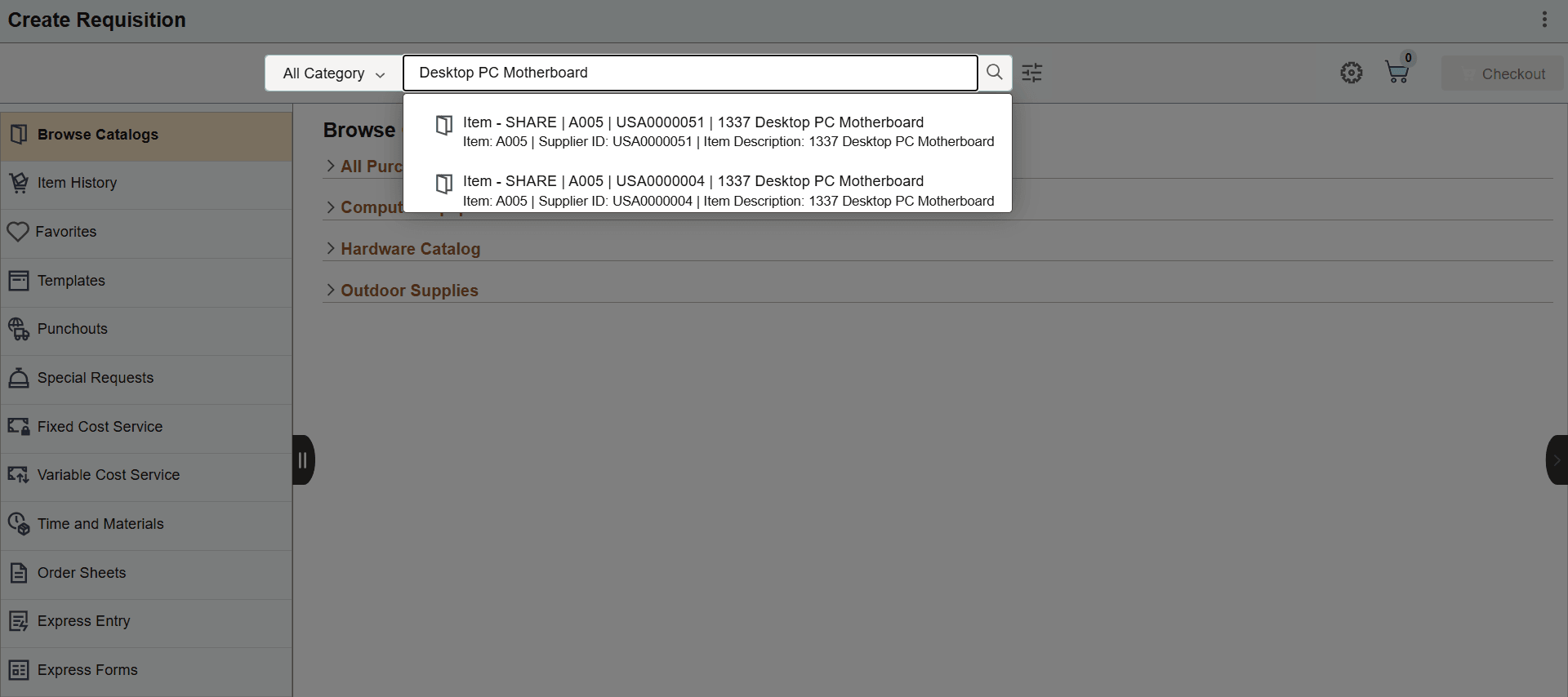
Select a category and enter text in the search field.
This example illustrates the fields and controls on the Create Requisition: Searching Items Page.
This example illustrates the fields and controls on the Create Requisition: Search Results Page.
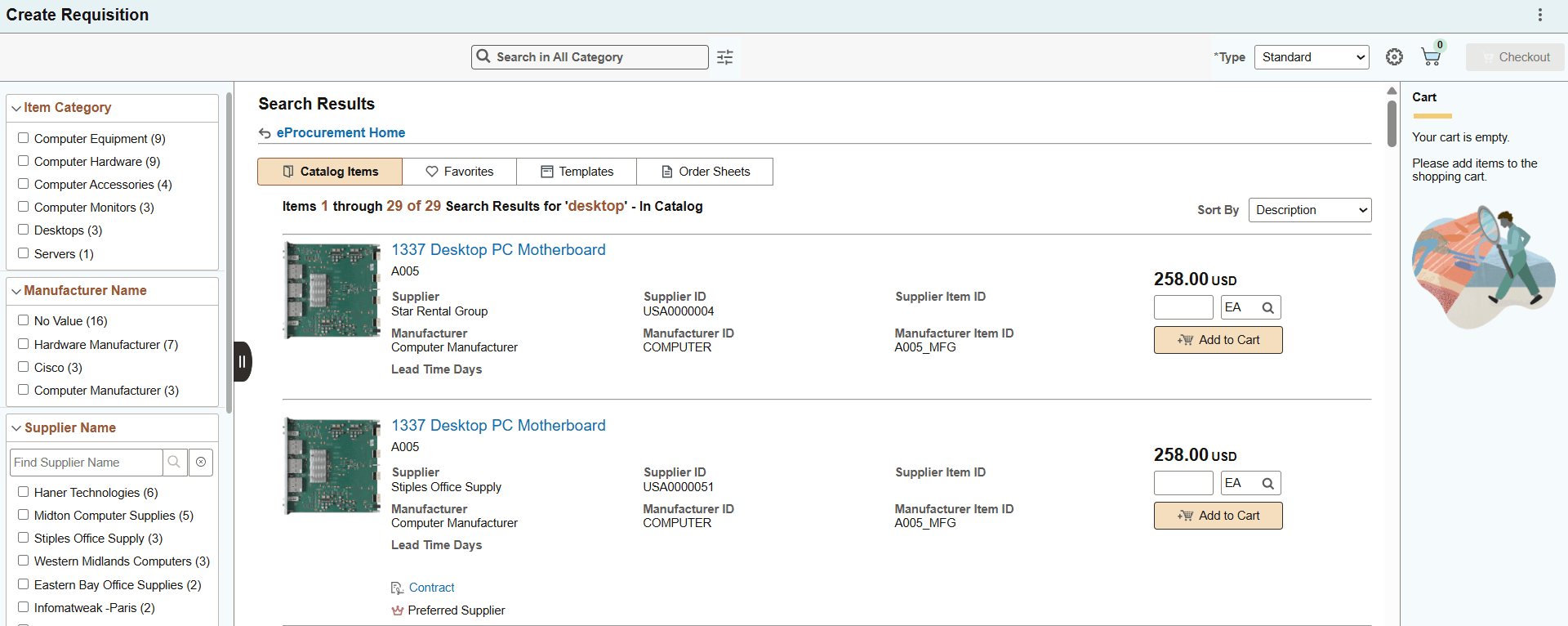
You can search for an item across all categories (All) or select a specific category (Catalog, Express Forms, Favorites, Item History, Order Sheets, Punchouts, and Templates). The top of the Search Results page displays buttons for the categories or types that contain the item matching your search criteria. In this example, the default selection is the Catalog Items category, which displays the items within it. Select another category to view the results within it. The values in the drop down depend on which pages your organization has authorized for Create Requisitions. Therefore, the categories available may depend on whether or not these pages are in use.
In the right column, the search results display the PO ID, item name, and supplier name. Click the item description link to view the item details and perform Add to Favorites and Add to Templates. The links for each item, such as Inventory, Price Breaks, Contract, Stock, and Substitute Item appear as applicable.
Select any of the sort options (Description, Price - high to low, Price - low to high, and Relevance) in the Sort By drop-down to reorganize the search result. To configure the sort options, see Search Settings Page and Manage Weighted Sort Rules Page.
Note:
Price - high to low and Price - low to high sort options sort the search result based on the price value irrespective of currency type.
To make Relevance Sort Option available, APPLY_WEIGHTED_SORT Role Action should be enabled for the requester and at least one Weighted Sort Rule should be activated.
The left column of the search results displays
a list of items along with Category, Manufacturer Name, Supplier Name, Category Path, and
Preferred Supplier details when a catalog item is searched. To filter the items, select any
category. The Category Path includes both internal and external catalogs. For imported
external catalogs, it shows the Direct Connect Node names. To filter items for a specific
external catalog, select the corresponding Direct Connect Node name. If an item in the
search results is imported from an external catalog,  icon appears before the item's name link.
For more details about the importing of external catalogs, see Maintain External Catalogs Page.
This example illustrates the fields and controls on the Create Requisition: Search Results page with External Catalogs.
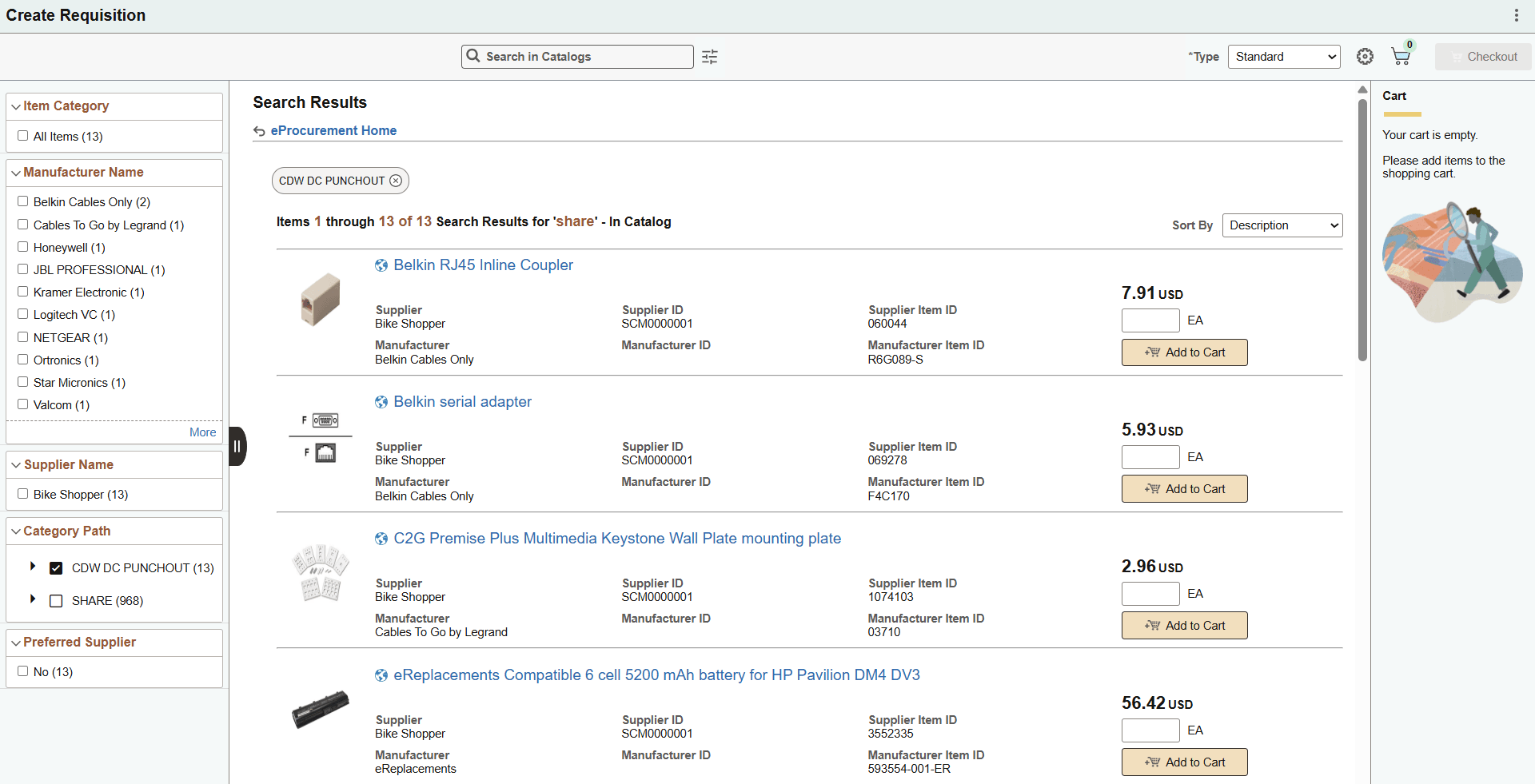
If multiple suppliers are associated with the same external catalog item, the Alternate Punchout Suppliers link appears. Click this link to view the item from various suppliers on the Alternate Punchout Suppliers page. From this list, you can select the desired supplier and add the item to your cart.
Click the eProcurement Home link to navigate to the Create Requisition home page.
Use the Advanced Catalog Search button next to the search box to perform more complex searches by entering the required search criteria. You can save the search criteria by clicking the Save Search Criteria link. For more information about performing advanced search, see Advanced Search — Create Requisition Page.
To add an item from the search result to the cart, enter the quantity and click Add to Cart. The cart displays the added number of items. While adding items to the cart, check the UOM, or you can select the UOM type using the Lookup UOM button.
To add external catalog items to the cart, select the item name or click the Add to Cart button. The system will redirect you to the external supplier page, where you can proceed to checkout. After completing the checkout process, the system will navigate back to the eProcurement Create Requisition page, as per the Return Page After Punchout configuration on the Setting Up Installation Options for Fluid eProcurement.