Create Requisition: Browse Catalogs Page
Use the Create Requisition: Browse Catalogs page (PV_MOB_CATBROWSE) to search for items.
Navigation:
Select a Requisition Type (Standard, Bill Only, and Bill and Replace) from the drop-down.
Select Catalog.
This example illustrates the fields and controls on the Create Requisition - Browse Catalogs page.
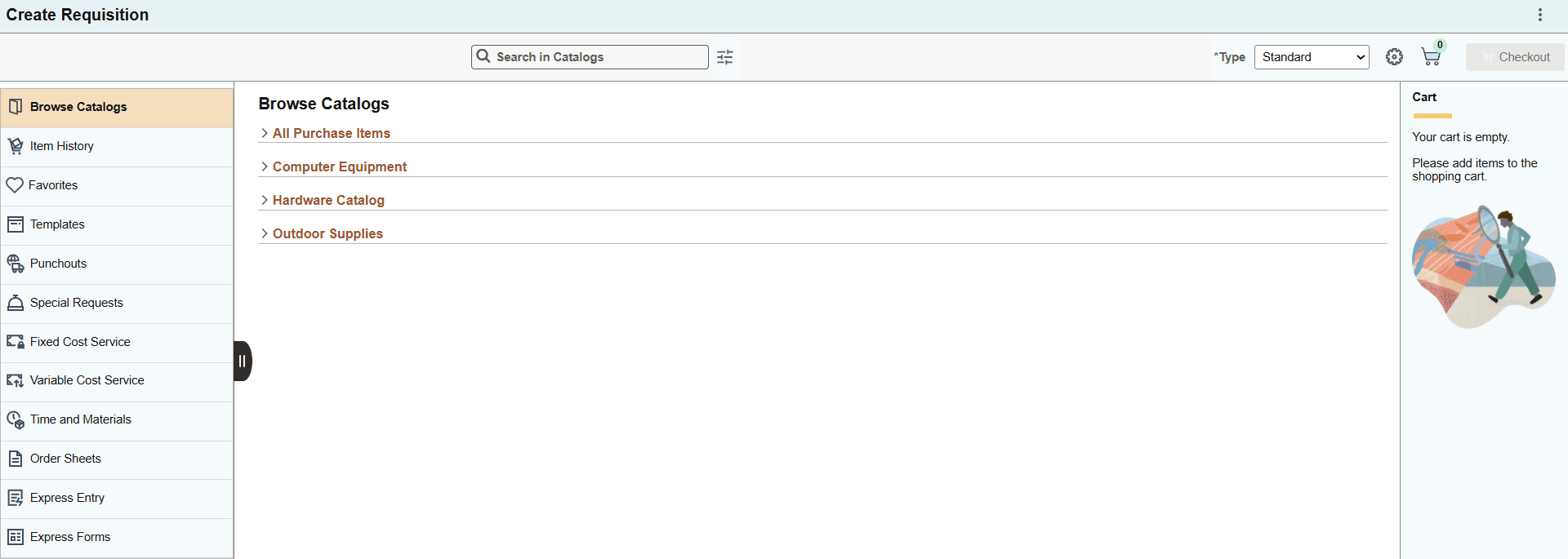
The categories displayed on the Requisition page are visible or hidden, based on the Settings page.
When you click the search bar, the system displays a list of suggestion items, if the Include Suggestions in Search check box is enabled on the eProcurement Installation Options Search Settings Page.
Note:
The search bar with a list of suggestion items is available only when you are on PeopleTools version 8.62-07 or higher. If you are using PeopleTools version 8.62-06 or lower, then the list of suggestion items is not available in the search bar.
The Search Category drop-down appears on the left of the search bar, containing All Categories, Catalogs, Express Forms, Favorites, Item History, Order Sheets, Punchout, and Templates. You can look for items in all search category or filter by specific categories. The items in the suggestion list reflect the most recent and relevant content, depending on your activity and what is indexed or deployed. The list of suggestions updates automatically to match your entered keywords. You can continue typing to narrow down your search, or select one of the suggested items. Search suggestions and results update according to the category or type you select. Recent and frequently used items may appear higher in the suggestion list.
The search bar works with RTI (Real-Time Indexing), ensuring new or updated items (like recently favorited items or new order sheets) show up promptly in suggestions and results. When you select a suggestion, the system takes you directly to the search results page for that item or category. You can then view item details or take further actions (such as adding to cart or favorites).
If one of the item suppliers on the Item details page is not available to be added to the cart, the Add button is hidden. The Checkout button is enabled only when items are available in the cart.
The cart icon displays the number of items added to the cart.
The Cart displays a list of added items added, along with the item name, quantity, and price. To view item details, click on the item name.
This example illustrates the fields and controls on the Create Requisition - Cart Overview page.
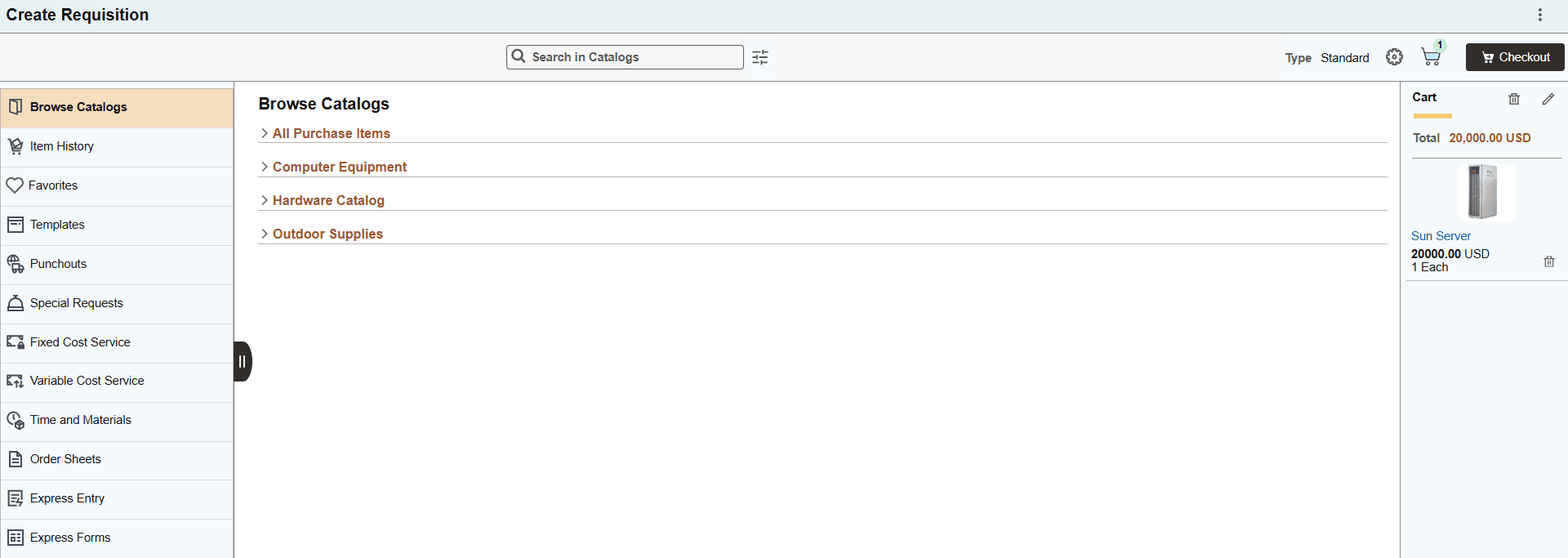
To remove all of the added items from the cart, click the Clear Cart button. You can remove the items individually from the list. Click the Edit Cart button to view the Shopping Cart page, and the Checkout button to access the Checkout page. For additional details, see Shopping Cart Page and Checkout Page. You can also delete items from the cart here.
To update an item already in the cart, click the item description link. You will be taken to the Item Details or special requests pages. If the item in the cart is a punchout item, you will be taken to the punchout site.